# Azure Exam Prep
Azure Exam Prep, now called **AcePrep** in the app, is a free web app for practising for cloud and platform architect certification exams. It has three courses: Microsoft **Azure Solutions Architect Expert (AZ-305)**, **AWS Solutions Architect Associate (SAA-C03)** and **Adobe AEM Sites Architect (AD0-E117)**. Each course has daily practice, domain study, written study guides, custom practice sessions, case studies, timed 50-question mock exams, a weak-area review and progress statistics. Open it at [aceprep.micstec.com](https://aceprep.micstec.com) in any modern browser, or install it as an app.
| | |
| --- | --- |
| **Best for** | Building a daily study habit and checking your readiness before you book a real architect exam |
| **You need** | A browser and an internet connection. You can practise as a guest, but you need a free account (email or Google) to save your progress and mock-exam history |
| **Works on** | Desktop and mobile browsers. It can be installed as an app (PWA) on Android, iOS, Windows, macOS and ChromeOS |
| **Courses** | AZ-305 (about 2,300 questions, 28 case studies), SAA-C03 (about 110 questions, 1 case study) and AD0-E117 (about 260 questions, 2 case studies). Counts are from October 2026 and change as content is added |
| **Question types** | Single answer, multiple answers, drag and drop, and case studies. The app also supports written answers graded by AI, but no current course uses them |
| **Your data** | Your account, every practice answer (right or wrong, time taken) and your mock-exam scores are stored on the AcePrep server. Your chosen course and theme are stored in your browser |
| **Not affiliated** | This is independent practice material, not affiliated with Microsoft, AWS or Adobe. Always check the official exam page for the current skills outline |
**On this page**
- [The courses](#the-courses)
- [Get started](#get-started)
- [Create an account and sign in](#create-an-account-and-sign-in)
- [The Home page](#the-home-page)
- [How practice questions work](#how-practice-questions-work)
- [Daily Practice](#daily-practice)
- [Learn by domain](#learn-by-domain)
- [Read the study guides](#read-the-study-guides)
- [Build a custom session (Q&A Practice)](#build-a-custom-session-qa-practice)
- [Drill multiple-answer and drag-and-drop questions](#drill-multiple-answer-and-drag-and-drop-questions)
- [Practise case studies](#practise-case-studies)
- [Take a mock exam](#take-a-mock-exam)
- [Review your weak areas](#review-your-weak-areas)
- [Track your progress](#track-your-progress)
- [Settings and app controls](#settings-and-app-controls)
- [Use it on a phone and install it](#use-it-on-a-phone-and-install-it)
- [Keyboard and accessibility](#keyboard-and-accessibility)
- [For administrators](#for-administrators)
- [A study plan that works](#a-study-plan-that-works)
- [Privacy and limits](#privacy-and-limits)
- [Troubleshooting](#troubleshooting)
- [FAQ](#faq)
## The courses
The same app serves every course. The course you choose sets the branding, the domains, the questions, the study guide and your statistics. Your progress is kept separately for each course.
| Course | Exam domains and weights | Mock-exam pass mark | Study guide |
| --- | --- | --- | --- |
| ☁️ **Azure Solutions Architect Expert** (AZ-305) | Design Infrastructure Solutions 25–30%, Design Data Storage Solutions 15–20%, Design Identity, Governance, and Monitoring 25–30%, Design Business Continuity Solutions 10–15% | 70% | 5 full chapters, each ending with a 5-question **Quick Quiz** |
| 🟧 **AWS Solutions Architect Associate** (SAA-C03) | Design Secure Architectures 30%, Design Resilient Architectures 26%, Design High-Performing Architectures 24%, Design Cost-Optimized Architectures 20% | 72% | 4 chapter summaries |
| 🅰️ **AEM Sites Architect Master** (AD0-E117) | Discovery 18%, Solution Design 44%, Implementation 22%, Maintenance 16% | 58% | 4 chapter summaries |
The pass mark is the course's own setting. It is applied to mock exams and also used as the threshold for **weak areas**.
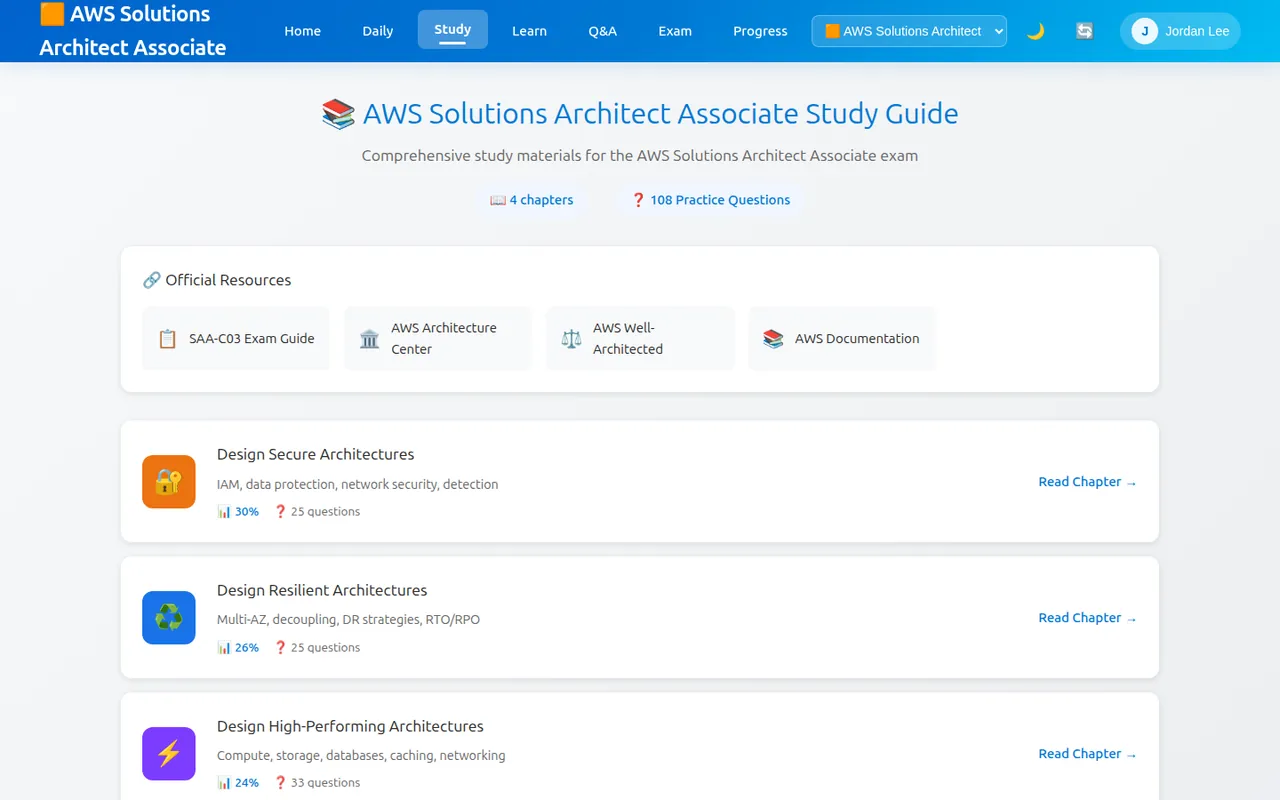
Switching the course changes everything: here the AWS SAA-C03 course shows its own study guide, domains and official resources. Example account.
## Get started
1. Open [aceprep.micstec.com](https://aceprep.micstec.com). There is nothing to download. The app is not in the app stores, but you can install it from the browser (see [Use it on a phone and install it](#use-it-on-a-phone-and-install-it)).
2. **Choose your course.** The menu bar has a course list, such as **☁️ Azure Solutions Architect Expert**. Select a different course and the page reloads with that course. On a phone, tap **☰** (top right) to see the menu and the course list. The app remembers your choice in this browser.
3. **Sign in** (optional but recommended). Select **Sign In** at the right of the menu bar. See the next section.
4. On the **Home** page, choose **Daily Practice** to answer your first question. Read the explanation after each answer.
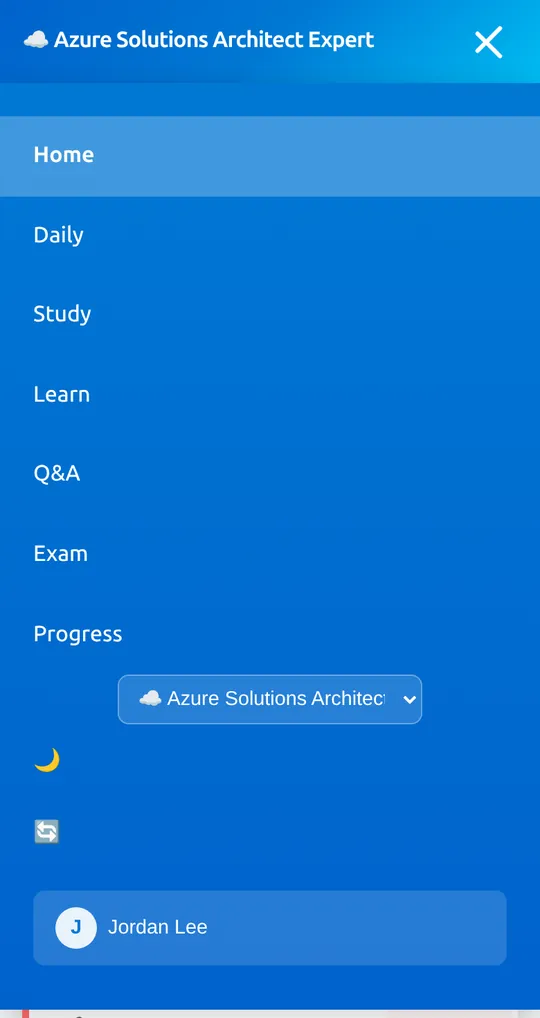
On a phone, ☰ opens the menu. It contains the course list, the theme (🌙) and reload (🔄) buttons and your account. Example account.
## Create an account and sign in
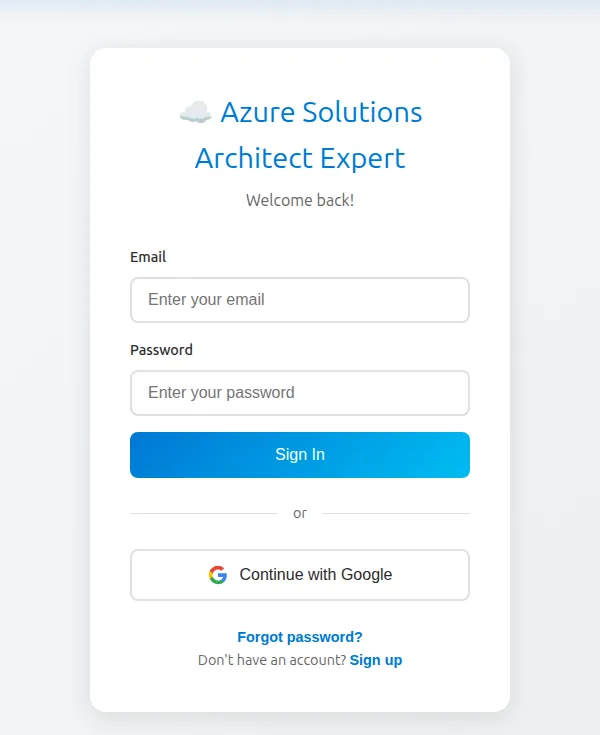
The sign-in page. Sign up switches it to account creation.
**Create an account with email**
1. Select **Sign In**, then **Sign up** (under "Don't have an account?").
2. Enter a **Username**, your **Email**, a **Password** of at least 6 characters, and the same password in **Confirm Password**.
3. Select **Create Account**. You see **Registration successful.** and are signed in. Your name appears at the right of the menu bar.
**Sign in later:** enter your **Email** and **Password** and select **Sign In**. You return to Home.
**Use Google:** select **Continue with Google** and choose your Google account. You return to the app signed in. If no account exists for that email, one is created from your Google name.
**Forgot your password?** **Forgot password?** → **Send Reset Email** shows "If an account exists with this email, a reset link would be sent." However, the app does not send reset emails at present. If you signed up with email and cannot remember your password, ask the site administrator to reset it. If you use Google, just choose **Continue with Google** again.
**Practising as a guest.** You can use every practice mode, study guide and mock exam without an account, but nothing is recorded. The Home statistics stay at 0, **Review** finds no weak areas, and **Progress** shows **Track Your Study Progress** with a **Log In / Create Account** button.
**Your account menu.** Select your name in the menu bar for **👤 Profile**, **📊 My Progress**, **🛠️ Admin Panel** (administrators only) and **🚪 Sign Out**. **Profile** shows your email, your **Username** (select **Edit**, change it, then **Save**) and **Member Since**, with **📊 View Progress** and **🚪 Sign Out** buttons. There is no self-service account deletion or data export; ask the administrator.
## The Home page
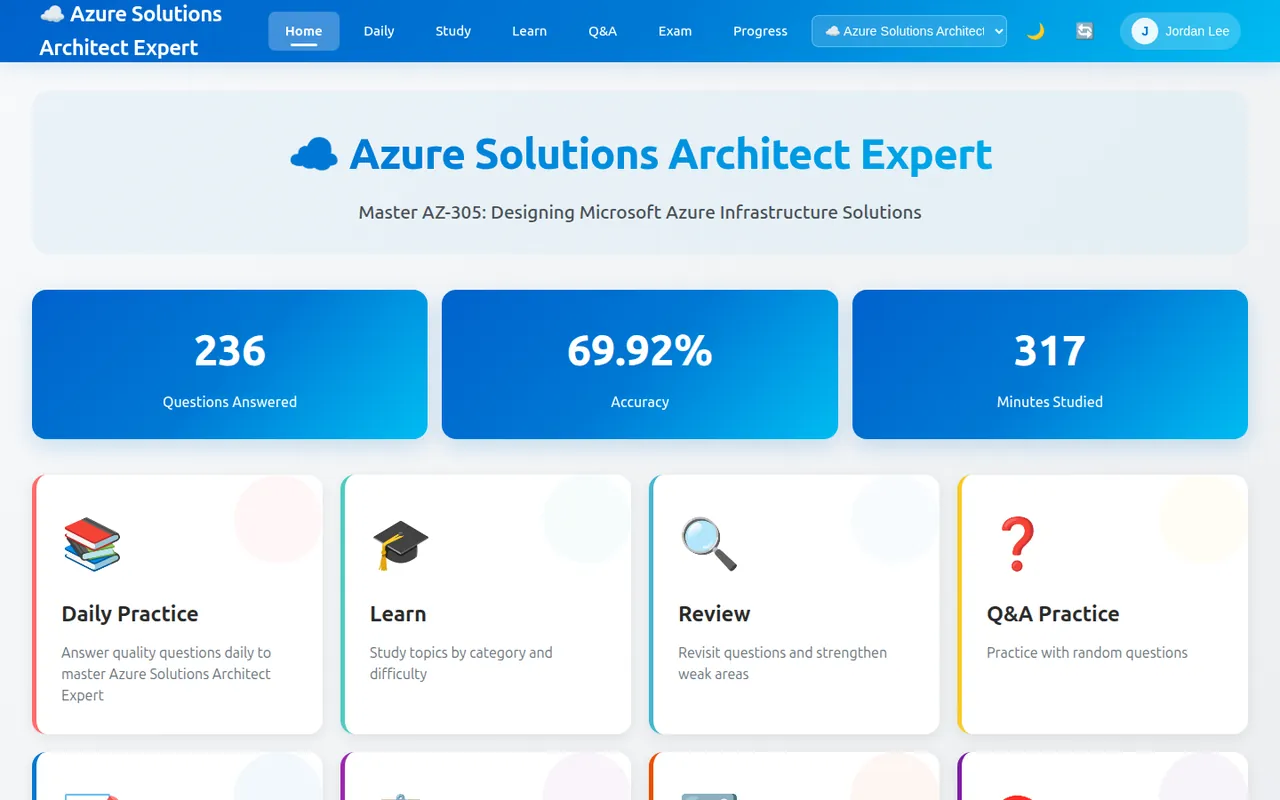
The Home page shows the course name and tagline, three statistics for the current course (**Questions Answered**, **Accuracy** and **Minutes Studied**), and nine shortcut cards.
Home for a signed-in example user with 236 answers so far.
| Card | What it opens |
| --- | --- |
| **📚 Daily Practice** | 40 random questions from the whole course |
| **🎓 Learn** | Practice by exam domain |
| **🔍 Review** | Your weak categories, with a practice button for each |
| **❓ Q&A Practice** | A custom session: category, difficulty and number of questions |
| **📝 Mock Exam** | A timed 50-question exam |
| **📋 Case Studies** | Business scenarios with several linked questions |
| **☑️ Multiple Choice** | Only questions with more than one correct answer |
| **🎯 Drag & Drop** | Only matching (drag-and-drop) questions |
| **📊 Progress** | Your statistics, weak areas, exam history and recent activity |
The menu bar gives quick access to **Home**, **Daily**, **Study**, **Learn**, **Q&A**, **Exam** and **Progress**.
## How practice questions work
Daily Practice, Learn, Q&A Practice, Review practice and the Multiple Choice and Drag & Drop drills all use the same question screen. You get instant feedback after every question.
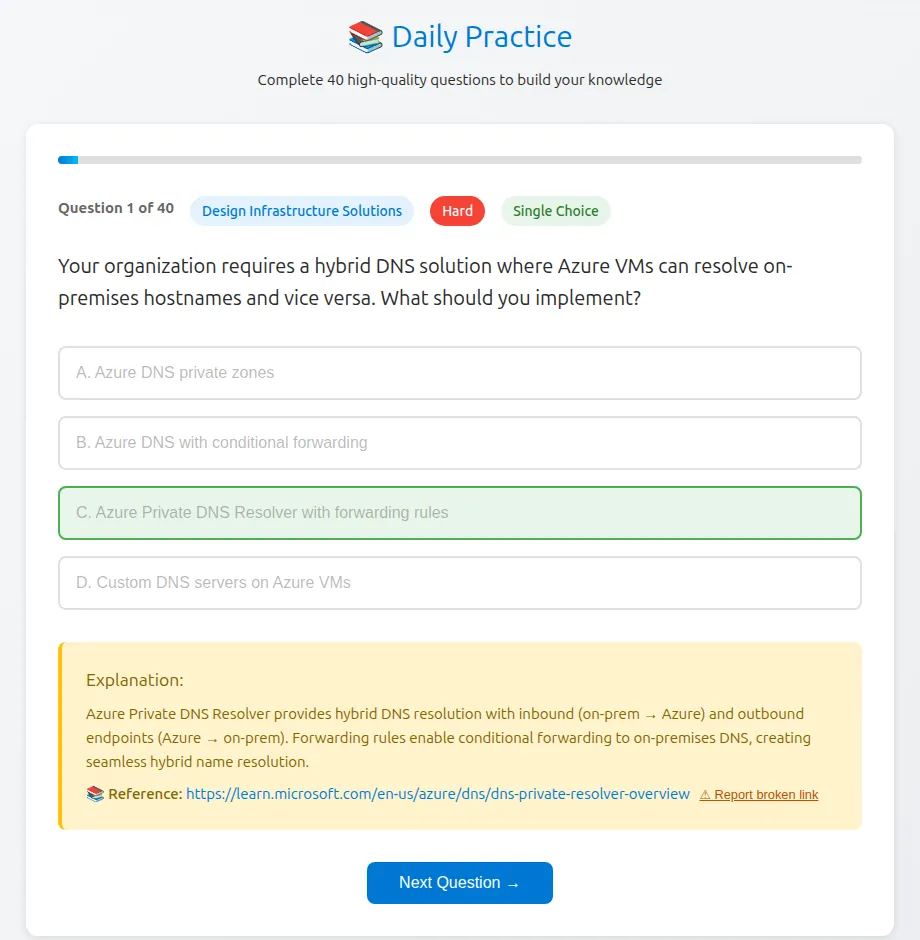
1. Read the header: **Question 1 of 40**, the category (for example **Design Infrastructure Solutions**), the difficulty (**Easy**, **Medium** or **Hard**) and the type (**Single Choice**, **Multiple Choice (2)**, **Drag & Drop**). A bar at the top shows how far through the set you are.
2. Answer the question (see the question types below), then select **Submit Answer**. The button is unavailable until you have selected or placed something.
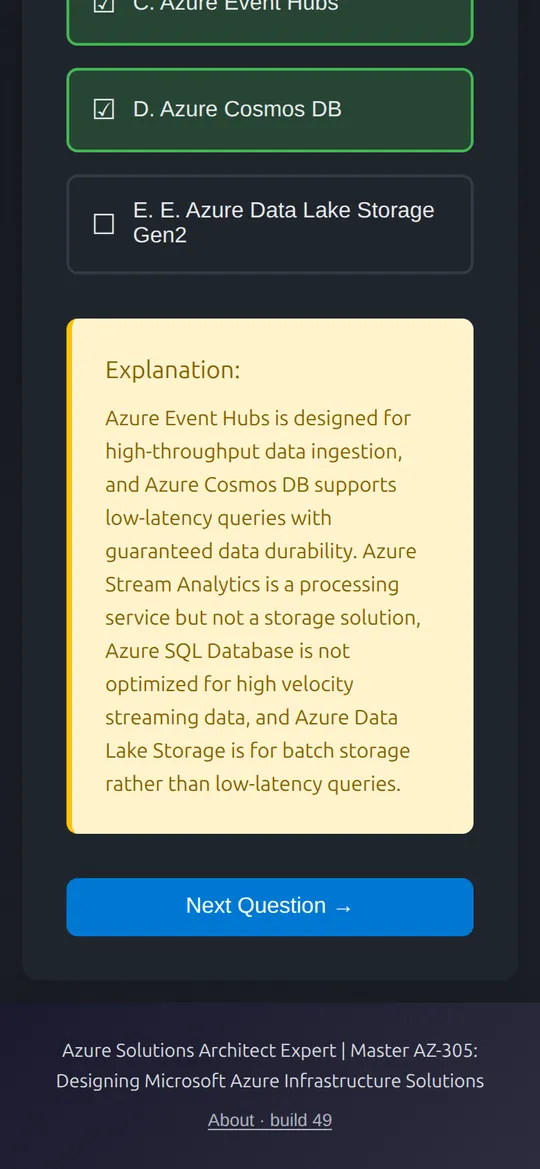
3. The correct answer turns **green**. A wrong choice you made turns **red**. Multiple-answer and drag-and-drop questions also show a **✓ Correct!** or **✗ Incorrect** banner.
4. Read the **Explanation:** box. Most questions also have a **📚 Reference:** link to official documentation (Microsoft Learn, AWS docs or Adobe Experience League). If the link is broken, select **⚠ Report broken link**. It changes to **✓ Reported, thanks** and the administrator is notified.
5. Select **Next Question →**. After the last question you see **🎉 Daily Practice Complete!** and a **Return Home** button.
**← Previous** goes back one question and clears it, so you can answer it again. If you are signed in, every **Submit Answer** is saved to your statistics with the time you spent on it.
A single-answer question after Submit Answer: the correct option is highlighted, followed by the explanation and reference link. Example session.
### Question types
| Type | How to answer | How it is marked |
| --- | --- | --- |
| **Single Choice** | Select one option (A, B, C, D…) | Right if you chose the correct option |
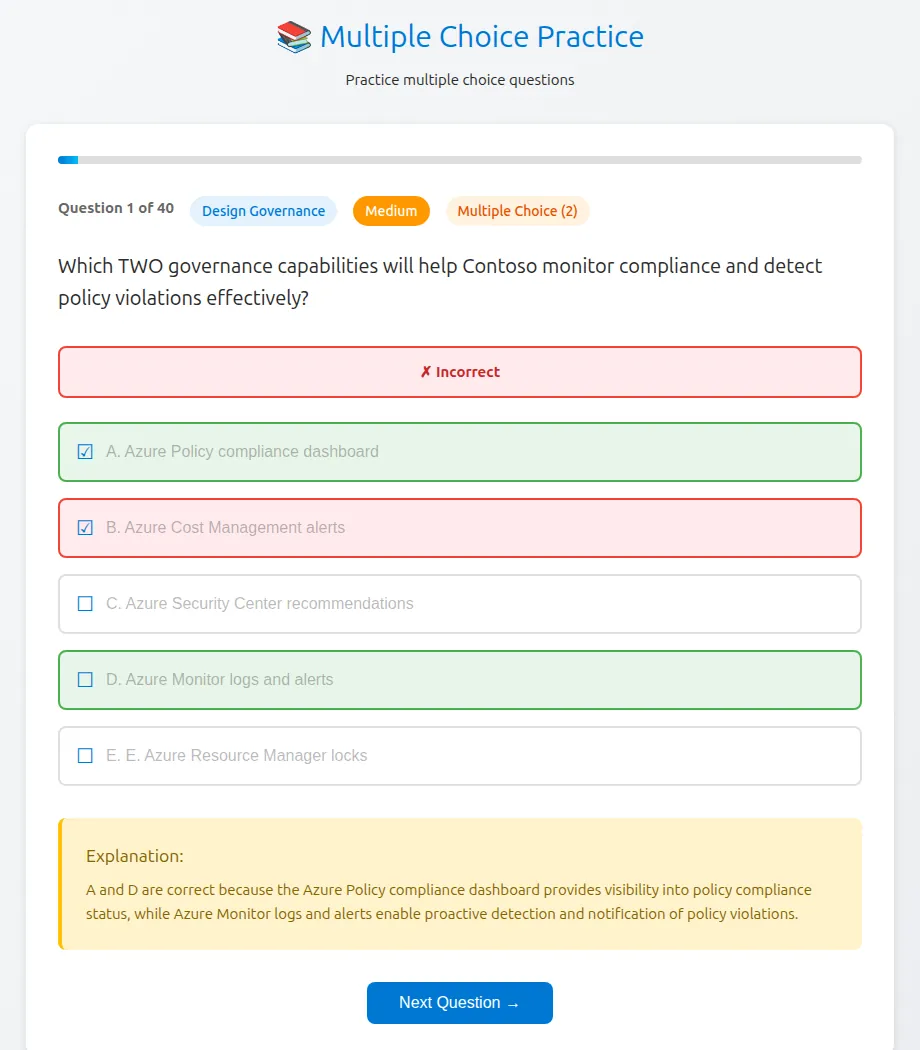
| **Multiple Choice (*n*)** | The hint reads **Select *n* options (*k* selected)**. Select options to tick them (☐ → ☑). Select again to untick | Right only if you ticked exactly the correct set. You can submit with fewer or more ticks, but the answer is then marked wrong |
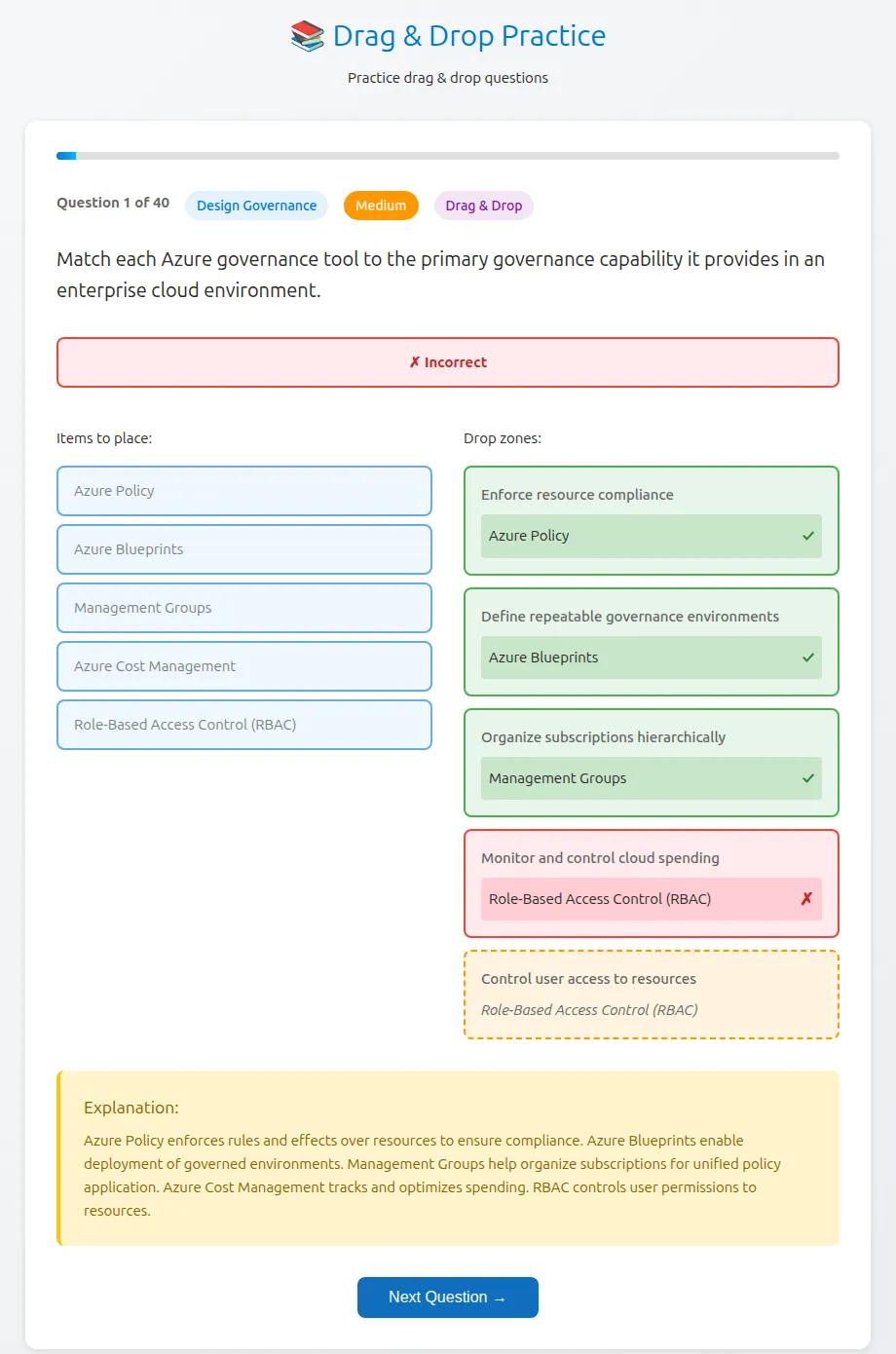
| **Drag & Drop** | Drag each entry from **Items to place:** onto a box under **Drop zones:** (each shows **Drop here**). Placed items fade in the list. Select **×** on a placed item to remove it. On touch screens, press and drag the item | Each zone shows ✓ or ✗. Empty zones show the item that belonged there. Right only if every item is in its correct zone |
| **Case study** | Scenario questions, single or multiple answer, answered in the **Case Studies** mode | Marked when you submit the whole case study |
| **✍️ Written · AI-graded** | Type your answer in your own words, then select **Submit for AI feedback** (it shows **AI grading…**) | An AI examiner scores it out of 100 against a model answer: **✓ Pass** or **✗ Below passing** (the course pass mark), with feedback, **✓ Strengths**, **✗ Missing / to improve** and **Show model answer / rubric**. No current course includes written questions |
A "choose two" question. This example ticked one correct and one wrong option, so it is marked ✗ Incorrect and both correct options are shown in green.Drag and drop after submitting: ✓ and ✗ for each zone. An empty zone shows the item that should have been placed there. Example session.
## Daily Practice
**Daily** (or the **📚 Daily Practice** card) gives you **40 questions drawn at random from the whole course**, of every type and difficulty. A new random set is drawn every time you open it, so you can use it as often as you like. It is not a fixed question of the day.
Use it as a short daily warm-up: answer 10–20 questions, read every explanation, and stop whenever you want. Each answer is saved as you go.
## Learn by domain
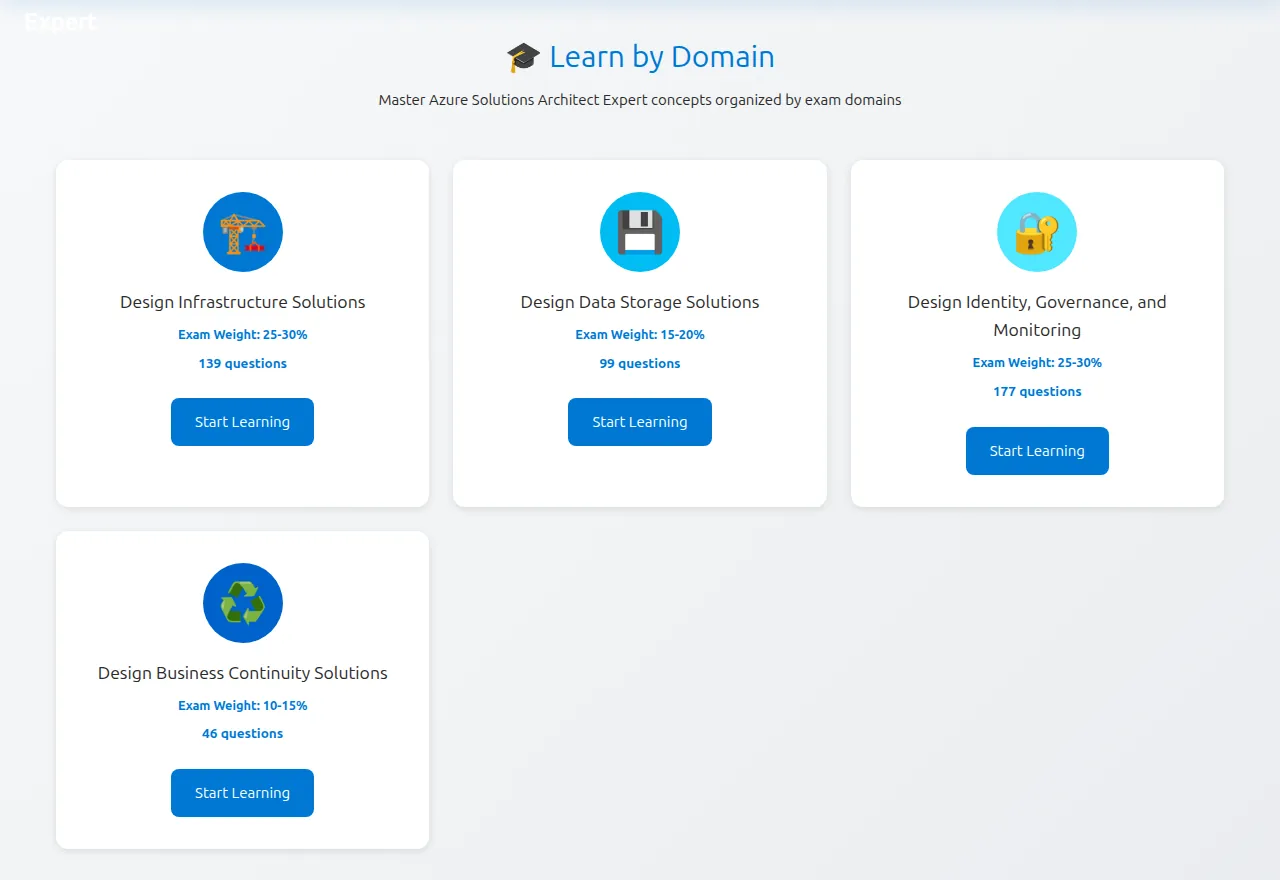
**Learn** (**🎓 Learn by Domain**) shows one card for each exam domain of the current course, with its **Exam Weight** and the number of questions available.
1. Choose the domain you want to work on.
2. Select **Start Learning**. A **📚 Focused Learning** set of up to 40 questions opens, drawn only from that domain.
3. Answer them as described in [How practice questions work](#how-practice-questions-work).
Learn by Domain for AZ-305. Each card shows the exam weight and its question count.
## Read the study guides
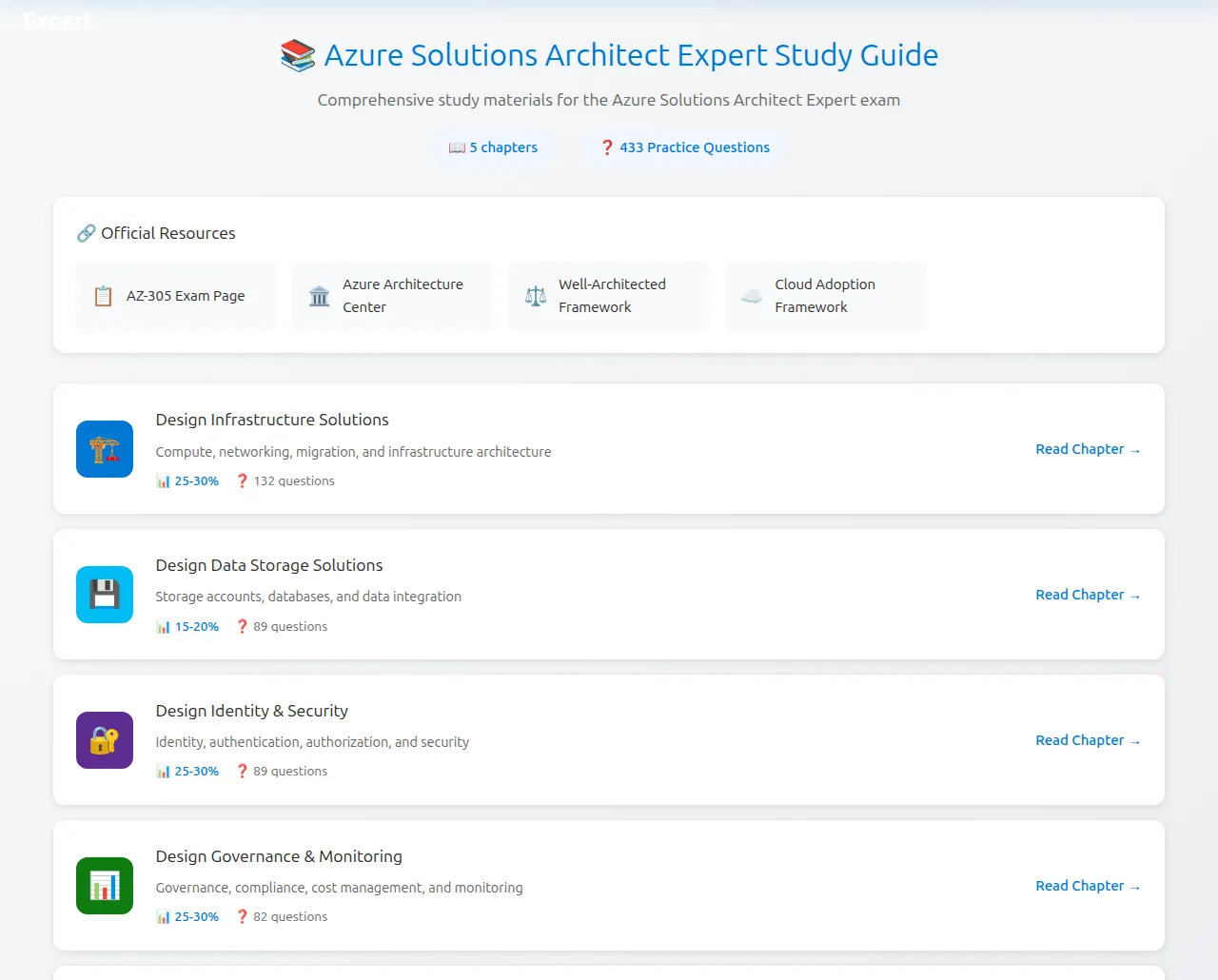
**Study** opens the written study guide for the current course: **📚 *course* Study Guide**, with the number of chapters and practice questions.
- **🔗 Official Resources**: links to the exam page and key documentation. For AZ-305: **AZ-305 Exam Page**, **Azure Architecture Center**, **Well-Architected Framework** and **Cloud Adoption Framework**. For SAA-C03: **SAA-C03 Exam Guide**, **AWS Architecture Center**, **AWS Well-Architected** and **AWS Documentation**. For AD0-E117: **AD0-E117 Exam Guide**, **AEM as a Cloud Service Docs**, **AEM Core Components** and **Experience League**.
- **Chapters**: one card for each domain, with its weight and question count. Select a card (**Read Chapter →**) to read it.
- **💡 Study Tips**: a short checklist of how to use the guide.
In a chapter, use **← Back to Chapters** to return, or **Practice Questions →** to practise. For the AZ-305 Infrastructure and Storage chapters, this opens questions from that domain. For the other chapters, it opens a mixed Daily Practice set, so use **Learn** to practise a specific domain.
| Course | Chapters |
| --- | --- |
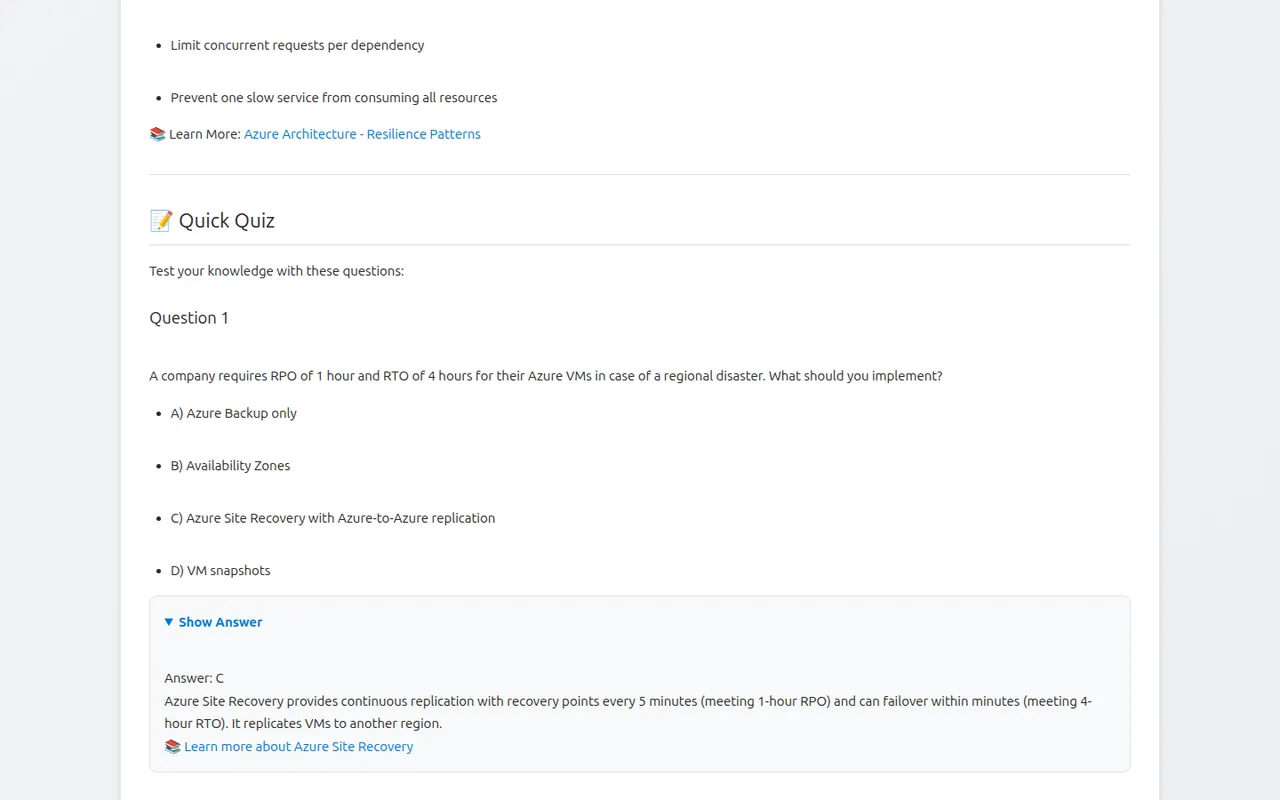
| AZ-305 | Design Infrastructure Solutions · Design Data Storage Solutions · Design Identity & Security · Design Governance & Monitoring · Design Business Continuity. Each is a full chapter with service comparisons, documentation links and a **📝 Quick Quiz**. Select **Show Answer** to check each quiz answer |
| SAA-C03 | Design Secure Architectures · Design Resilient Architectures · Design High-Performing Architectures · Design Cost-Optimized Architectures. Concise summaries with tables, rules of thumb and **Key takeaways** |
| AD0-E117 | Discovery · Solution Design · Implementation · Maintenance. Concise summaries with key points, **Key takeaways** and documentation links |
The AZ-305 study guide: official resources, then one chapter per domain.Each AZ-305 chapter ends with a Quick Quiz. Show Answer reveals the answer, its reasoning and a documentation link.
## Build a custom session (Q&A Practice)
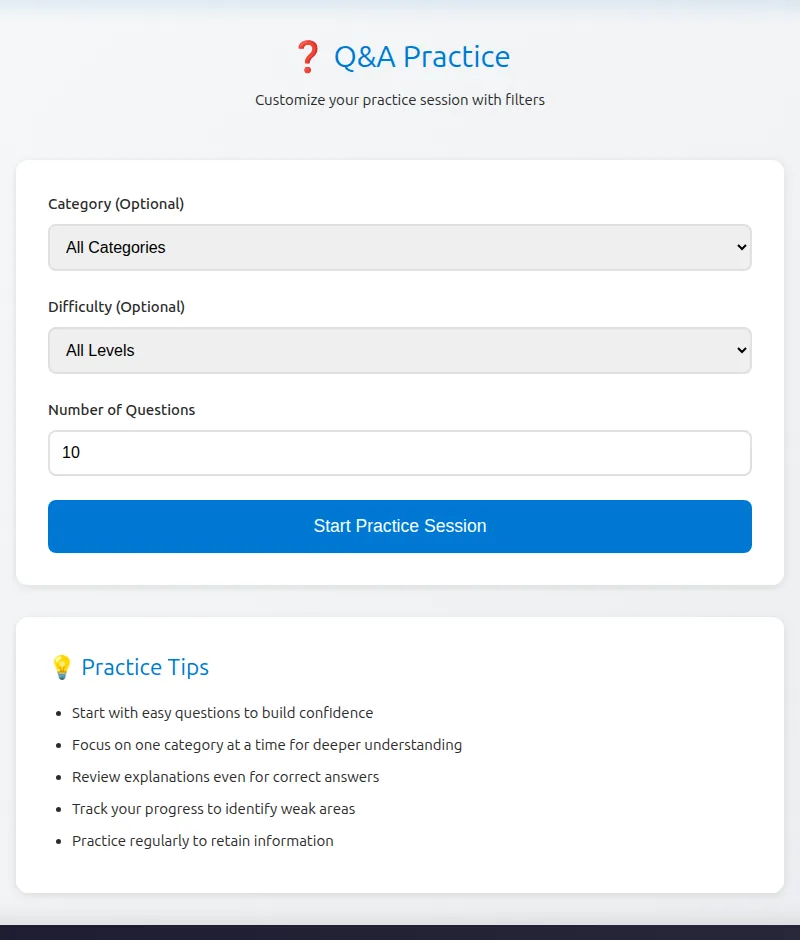
**Q&A** (**❓ Q&A Practice**, "Customize your practice session with filters"):
1. **Category (Optional)**: keep **All Categories** or choose an AZ-305 design area such as **Design Networking** or **Design Data Platform**.
2. **Difficulty (Optional)**: **All Levels**, **Easy**, **Medium** or **Hard**.
3. **Number of Questions**: 5 to 50 (the default is 10).
4. Select **Start Practice Session**. The set opens on the usual question screen (**📚 Focused Learning** when you chose a category).
The **Category** list contains AZ-305 design areas only. In the AWS and AEM courses, keep **All Categories** (choosing one gives an empty set) and use **Learn** or **Review** to focus on a domain.
Q&A Practice: choose a category, difficulty and number of questions.
## Drill multiple-answer and drag-and-drop questions
Two Home cards practise only one question type. They are useful because these types are where most marks are lost.
- **☑️ Multiple Choice** opens **Multiple Choice Practice**: up to 40 questions with more than one correct answer.
- **🎯 Drag & Drop** opens **Drag & Drop Practice**: up to 40 matching questions.
The AZ-305 and AD0-E117 courses have many of both. SAA-C03 currently has only a few multiple-answer questions and no drag-and-drop questions.
## Practise case studies
Case studies mirror the long scenario questions of architect exams: one business scenario followed by several related questions.
1. Choose **📋 Case Studies** on Home. **📋 Case Study Practice** lists each scenario with its opening lines, category and difficulty.
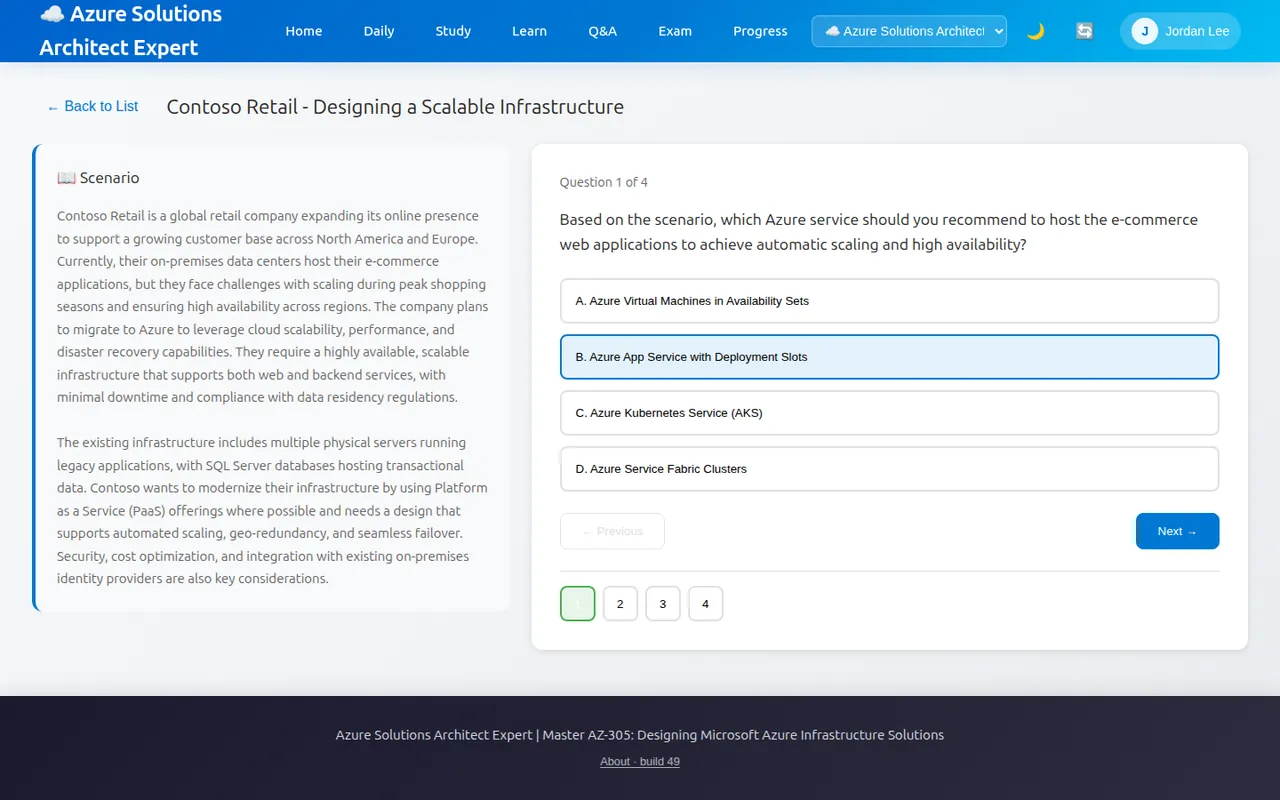
2. Select a case study. The **📖 Scenario** panel stays on the left while you answer on the right (**Question 1 of 4**).
3. Answer each question. **Select 2** shows when a question needs several answers. Move with **← Previous**, **Next →** or the numbered buttons. Answered numbers are highlighted. No answers are shown until you submit.
4. On the last question, select **Submit Answers**.
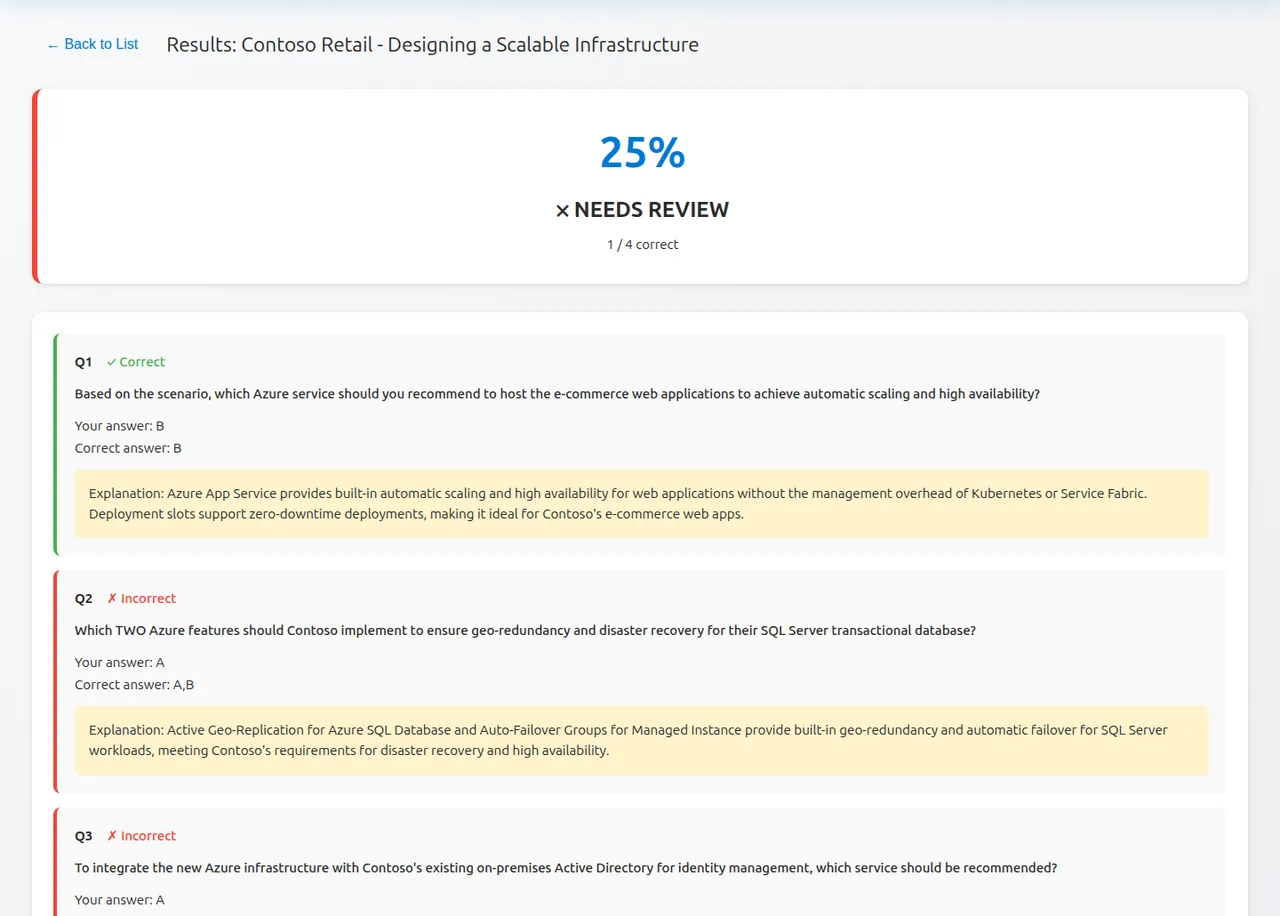
5. **Results:** shows your score, **✅ PASSED** (70% or more) or **❌ NEEDS REVIEW**, and each question with **✓ Correct** or **✗ Incorrect**, **Your answer:** (letters, or **Not answered**), **Correct answer:** and the **Explanation:**.
6. Select **Try Again** to redo the same case, or **Back to Case Studies** (or **← Back to List**) to choose another.
Case-study answers are not added to your Progress statistics.
A case study: the scenario stays visible while you answer its questions.Case-study results list your answer, the correct answer and an explanation for every question. Example attempt.
## Take a mock exam
**Exam** (or the **📝 Mock Exam** card) simulates the real exam. You get no feedback until you submit.
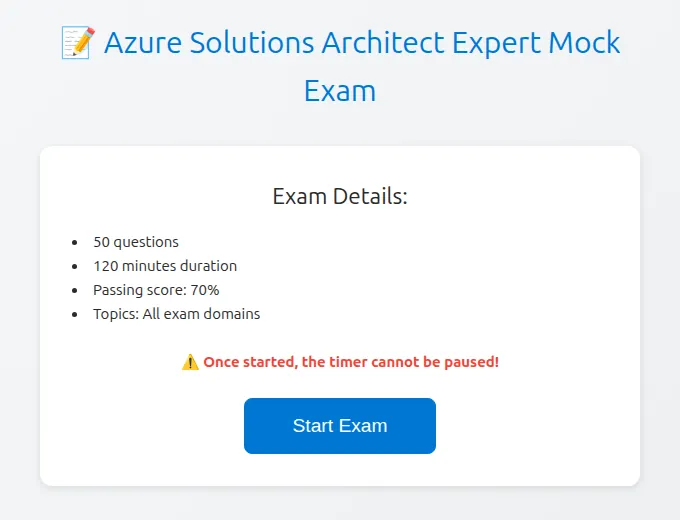
1. Read **Exam Details:**: **50 questions**, **120 minutes duration**, **Passing score: 70%**, **Topics: All exam domains**, and the warning **⚠️ Once started, the timer cannot be paused!**
2. Select **Start Exam**. Fifty questions are chosen at random from the whole course.
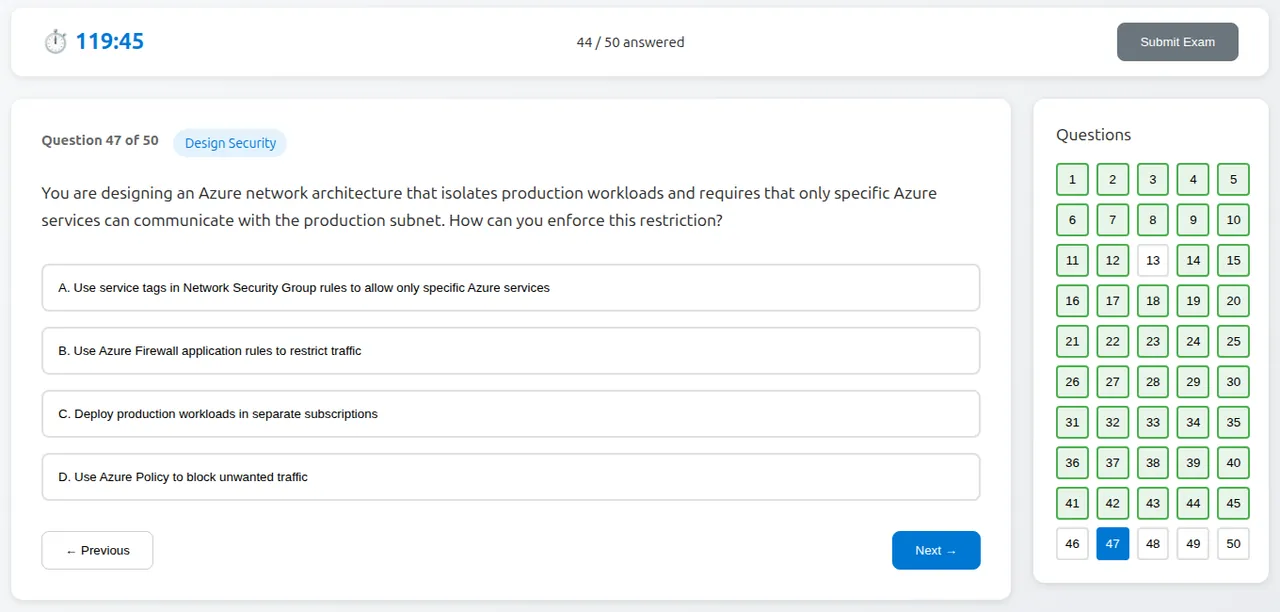
3. The bar at the top shows the countdown (**⏱️ 119:45**, minutes:seconds), how many you have answered (**12 / 50 answered**) and **Submit Exam**. In the last 10 minutes the timer turns red and pulses.
4. Answer each question. Badges show **Select 2** or **Drag & Drop** where relevant. Difficulty is not shown. Use **← Previous** and **Next →**, or select a number in the **Questions** grid to jump anywhere. Answered questions are marked in the grid.
5. Select **Submit Exam** when you are done. It submits immediately, with no confirmation, so check the grid for unanswered numbers first. When the timer reaches 0:00, the exam is submitted automatically.
The start screen. Once started, the timer cannot be paused.During the exam: timer, answered count, the question and a grid for jumping to any question. Example attempt.
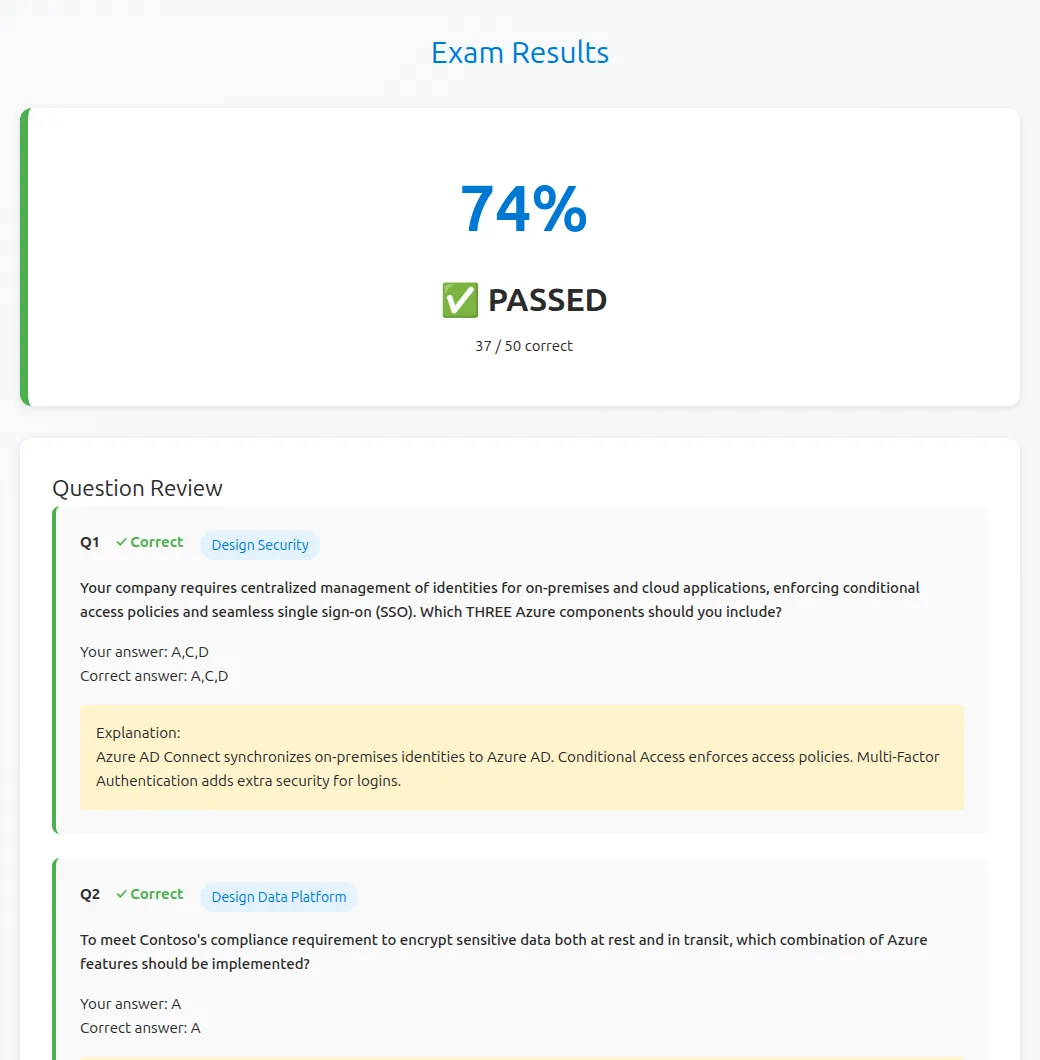
**Results.** **Exam Results** shows your percentage, **✅ PASSED** or **❌ FAILED** and the number correct (for example **37 / 50 correct**). **Question Review** lists every question you answered with **✓ Correct** or **✗ Incorrect**, the category, **Your answer:**, **Correct answer:** (as option letters), the **Explanation:** and the reference link. Unanswered questions are not listed, but they count as wrong. **Take Another Exam** starts a new random set. **Home** leaves.
Results with a full question review. Example attempt.
| Rule | Detail |
| --- | --- |
| Length and time | Always 50 questions and 120 minutes, in every course |
| Pass mark used | The course's own pass mark: AZ-305 70%, SAA-C03 72%, AD0-E117 58%. The start screen always reads 70% |
| Score | Correct answers ÷ 50. Multiple-answer and drag-and-drop questions score only if fully correct |
| Saving | When signed in, the score, pass or fail, time taken and date are saved to **📝 Exam History** on Progress. Mock-exam answers do not change your question statistics or weak areas |
| Leaving the page | The exam is kept only on the open page. If you go to another page or close the tab, that attempt is lost |
| Drag and drop | In the mock exam, drag with a mouse or trackpad. Touch dragging is supported in practice modes |
## Review your weak areas
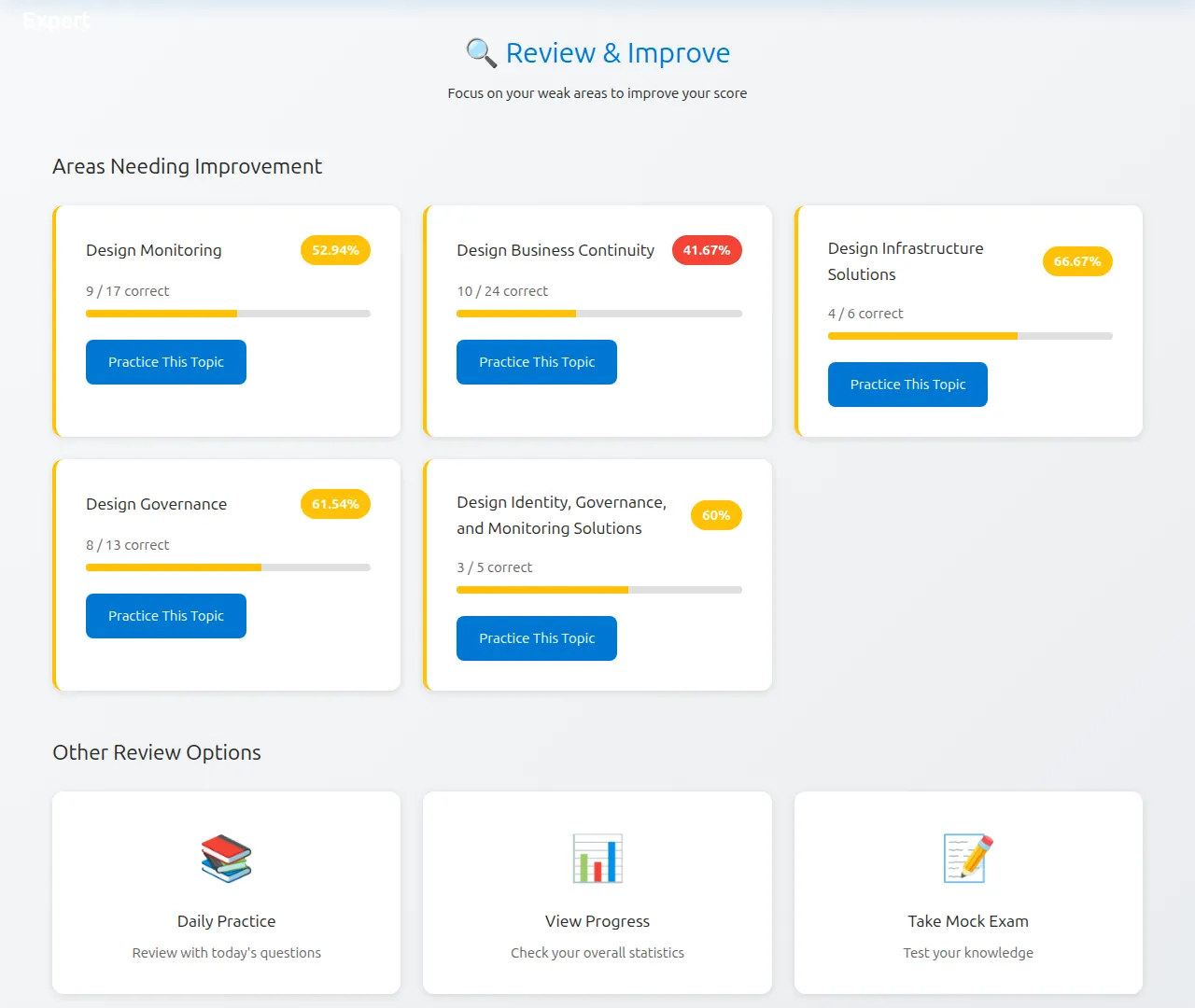
**Review** (**🔍 Review & Improve**, "Focus on your weak areas to improve your score") uses your saved practice answers for the current course.
- **Areas Needing Improvement** lists each question category where your accuracy is **below the course pass mark** (70% for AZ-305, 72% for SAA-C03, 58% for AD0-E117). Each card shows your accuracy (a red badge below 50%), **correct / attempted** and a bar.
- **Practice This Topic** opens a **Focused Learning** set from that category.
- If nothing is below the pass mark, or you are not signed in, you see **🎉 Great Job! You don't have any weak areas identified yet.** and **Continue Practicing**.
- **Other Review Options**: **Daily Practice**, **View Progress** and **Take Mock Exam**.
Categories here are the detailed question categories, such as **Design Monitoring** or **Design Business Continuity**, not the four exam domains. There is no separate list of individual wrong answers and no bookmarks. To revisit mistakes, use the explanations shown after each question, the mock exam **Question Review** and case-study **Results**, and practise the weak categories here.
Weak areas for an example user: every category below the 70% AZ-305 pass mark, each with a Practice This Topic button.
## Track your progress
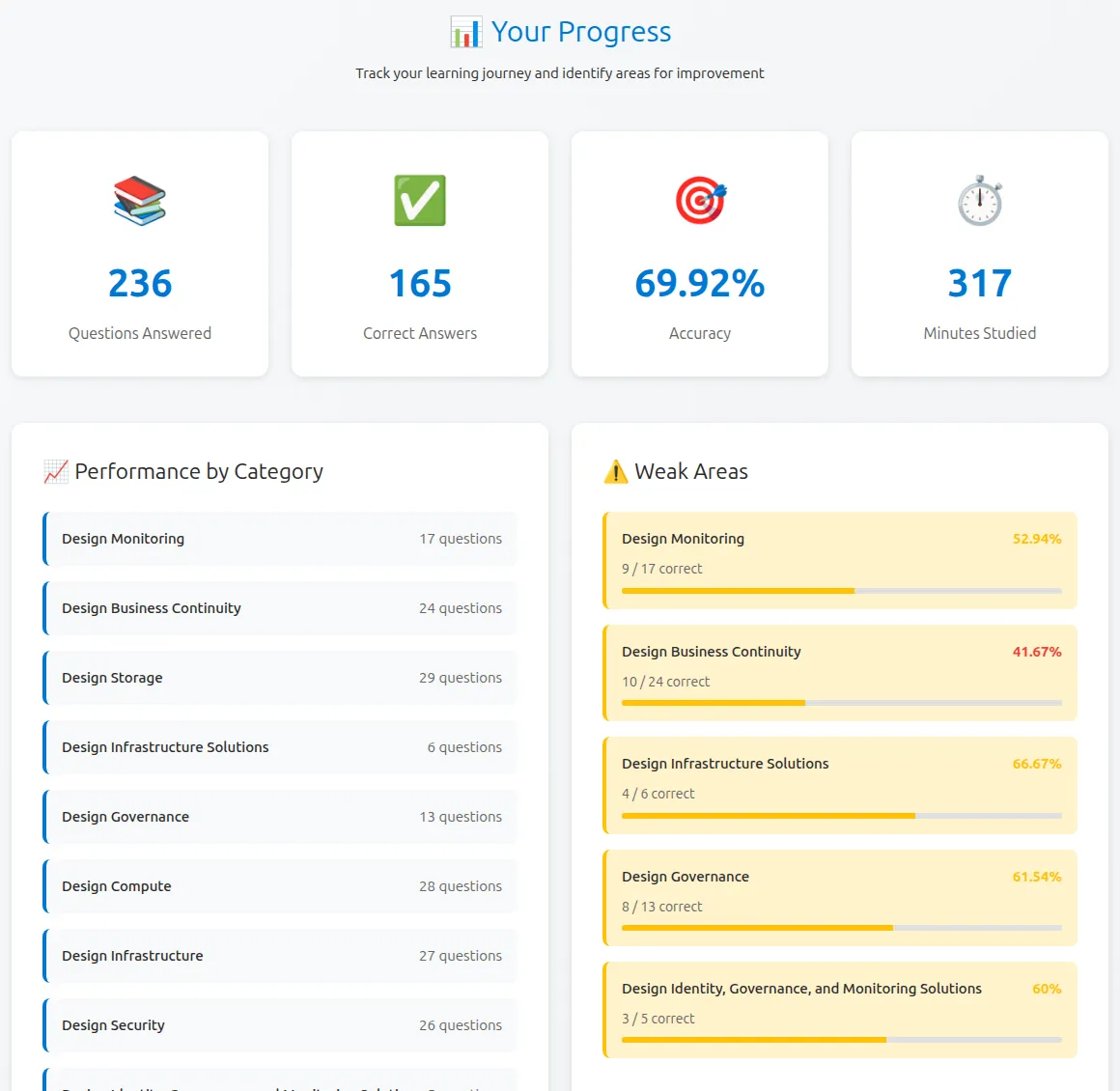
**Progress** (**📊 Your Progress**) is your dashboard for the current course. Switch course to see that course's figures.
| Section | What it shows |
| --- | --- |
| Tiles | **Questions Answered**, **Correct Answers**, **Accuracy** and **Minutes Studied** (the time spent on each practice question, added up) |
| **📈 Performance by Category** | How many questions you have answered in each category |
| **⚠️ Weak Areas** | The same categories below the pass mark as **Review** |
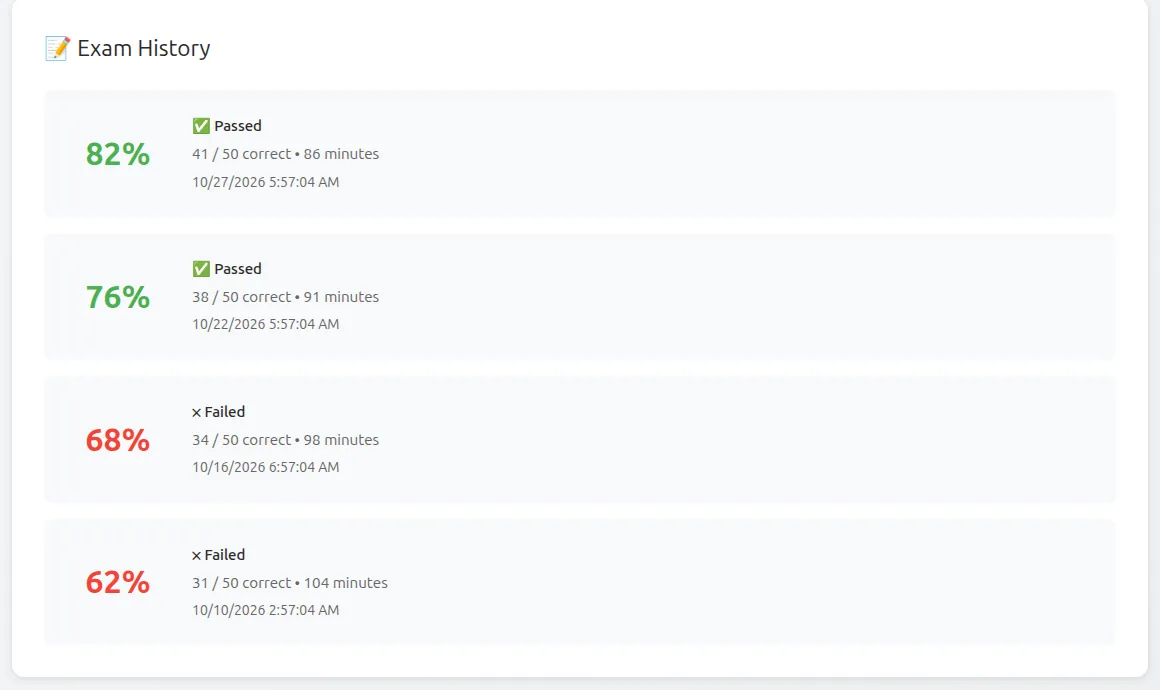
| **📝 Exam History** | Every completed mock exam: score, **✅ Passed** or **❌ Failed**, correct answers, minutes taken, date and time |
| **🕒 Recent Activity** | Your last 10 answers: ✓ or ✗, question number, seconds taken and date |
Statistics count answers from Daily Practice, Learn, Q&A Practice, Review practice and the type drills. Mock exams appear only in Exam History, and case studies are not counted.
Progress for an example user: overall figures, answers per category and weak areas.Exam History shows your mock-exam trend. Example data.
## Settings and app controls
There is no settings page. These controls are in the menu bar (inside **☰** on a phone) and the footer.
| Control | What it does |
| --- | --- |
| Course list | Switches course. The page reloads, and the choice is remembered in this browser |
| **🌙** / **☀️** | Switches between dark and light themes. Until you choose, the app follows your device setting. Your choice is remembered in this browser |
| **🔄** (Clear cache and reload) | Removes the app's offline cache and reloads the latest version. Use it if the app looks out of date |
| Your name ▸ menu | **👤 Profile**, **📊 My Progress**, **🛠️ Admin Panel** (administrators), **🚪 Sign Out** |
| **About · build *N*** (footer) | Shows the course name and tagline, **Version**, **Build** (number and code) and **Build date**. Close it with **✕** |
Dark theme on a phone.
## Use it on a phone and install it
The layout adapts to phones. The menu folds into **☰**, cards stack in one column and buttons widen to full width. Drag-and-drop practice questions support touch dragging.
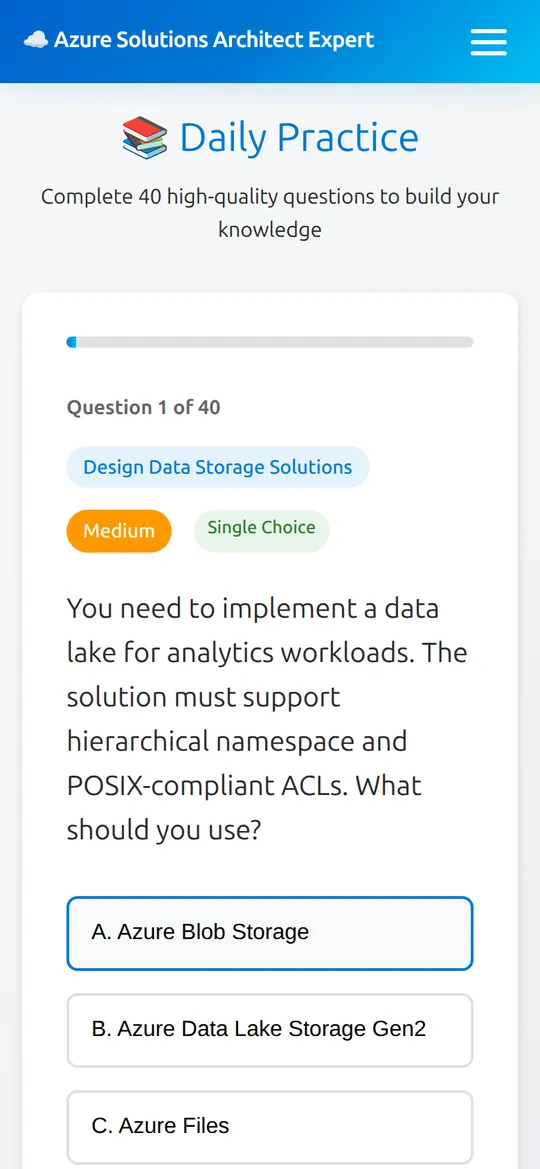
Daily Practice on a phone. Example session.
**Install as an app:**
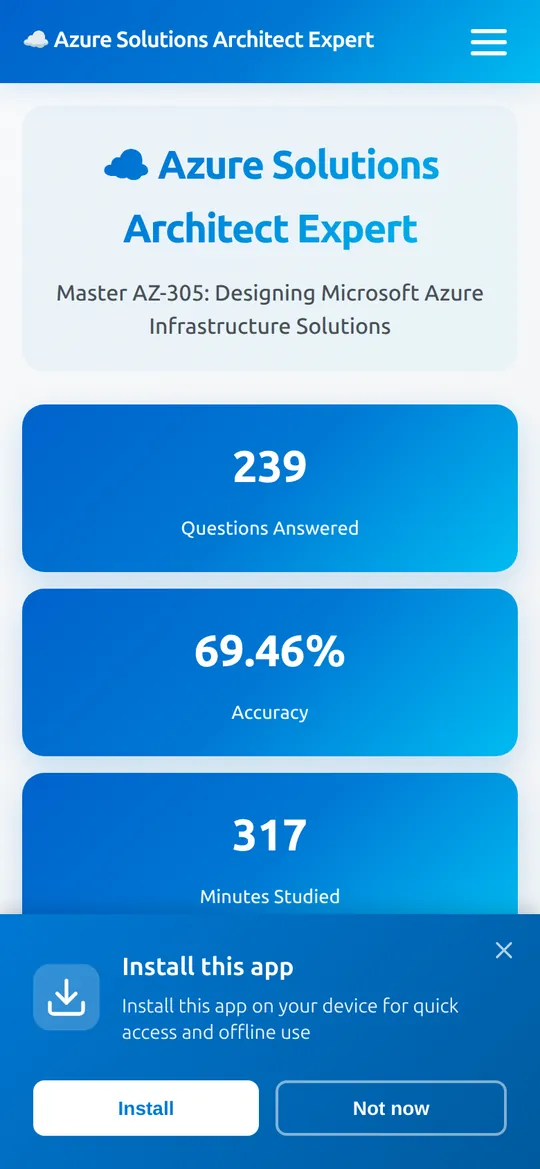
- **Android / desktop Chrome or Edge:** a few seconds after opening the site, an **Install this app** banner may appear ("Install this app on your device for quick access and offline use"). Select **Install**, or **Not now** (or **✕**) to hide it in this browser. You can also use the browser menu: **Install app** or **Add to Home screen**.
- **iPhone / iPad (Safari):** tap **Share** → **Add to Home Screen**.
The installed app is named **AcePrep** and opens in its own window. The app itself loads offline after the first visit, but questions, study chapters, grading and saving progress need an internet connection.
The install banner (shown here by simulating the browser's install event in a test browser).
## Keyboard and accessibility
The app has no keyboard shortcuts. All answer options and buttons are standard buttons, so you can move with **Tab** and choose with **Enter** or **Space**. **Enter** also submits the sign-in form. Drag-and-drop questions need a mouse, trackpad or touch. Reference and documentation links open in a new tab.
## For administrators
Users with the admin role see **🛠️ Admin Panel** in their account menu. Regular users do not need this section.
| Tab | Purpose |
| --- | --- |
| **Dashboard** | Counts of users, questions, case studies, exam sessions and progress records, plus questions by type, for the selected course (**Managing exam:**) |
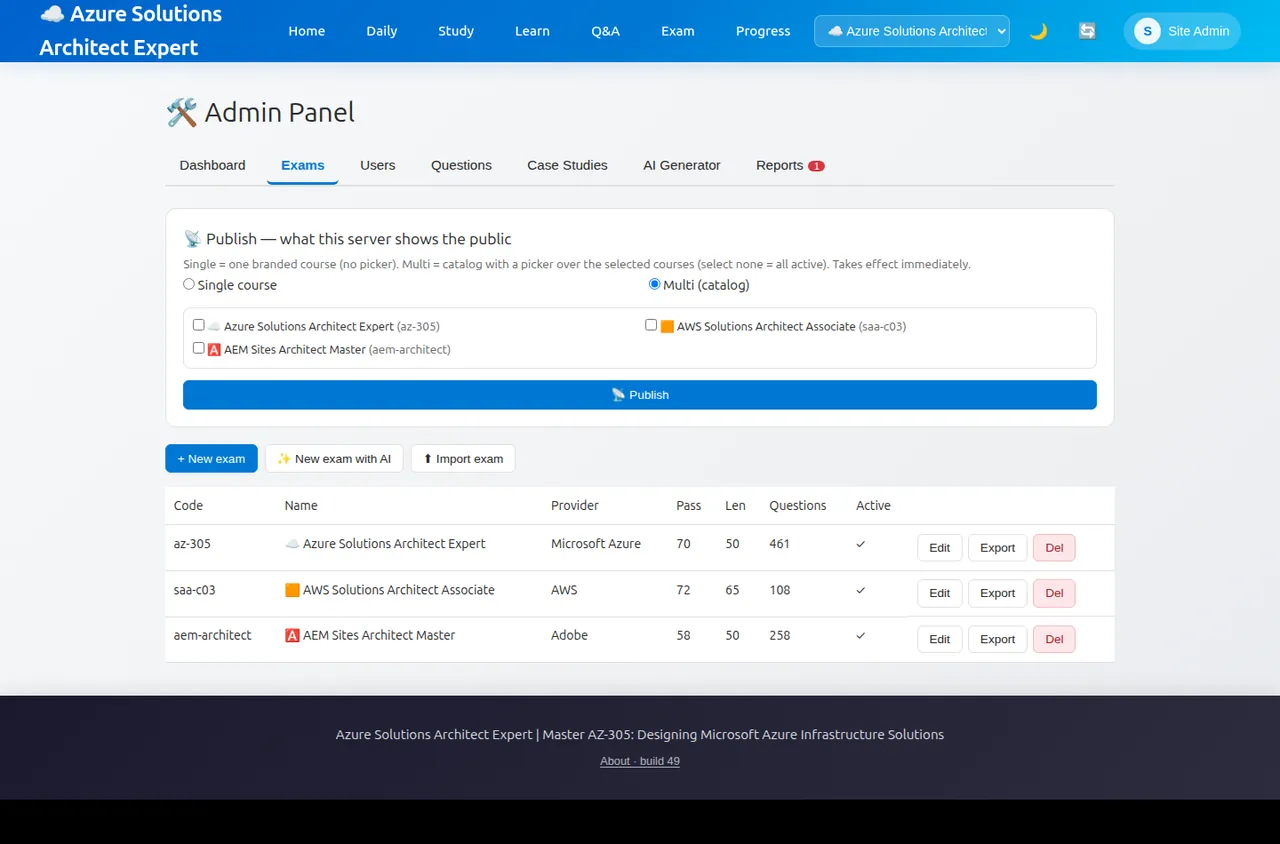
| **Exams** | **📡 Publish**: show one branded course (**Single course**, no course list) or a catalog (**Multi (catalog)**), live immediately. Create courses (**+ New exam**, **✨ New exam with AI**), **Edit** branding, pass mark, length, domains and AI prompt, **Export** or **⬆ Import exam** as JSON, and **Del** |
| **Users** | Search, **+ New user**, **Make admin** / **Revoke admin**, **Reset pw** (email accounts), **Delete** |
| **Questions** | Search and filter by category and type, **+ New question**, **Edit**, **Del**. Types: single, multiple, drag_drop, open (written) |
| **Case Studies** | Create, edit and delete scenarios |
| **AI Generator** | Choose an Anthropic or OpenAI model and generate draft questions (one category, bulk across categories, or a full case study). Review the drafts and **✓ Save selected** |
| **Reports** | Broken-link reports from **⚠ Report broken link**: AI-suggested fix, **✏️ Fix manually** or **Dismiss** |
Admin Panel, Exams tab, on a test server with sample content.
## A study plan that works
1. **Every day (10–15 minutes):** 10–20 **Daily Practice** questions. Read every explanation, even when you were right.
2. **Three times a week:** read one **Study** chapter (do the **Quick Quiz** in AZ-305), then **Learn** → **Start Learning** for that domain.
3. **Weekly:** open **Review**, select **Practice This Topic** for your lowest category, then check **Progress**.
4. **Every week or two:** do one **Case Study** and one full **Mock Exam** in a quiet 2-hour slot. Study every item in **Question Review**.
5. **Before booking:** pass several mock exams with a comfortable margin, clear your weak areas and confirm the current skills outline on the official exam page: [AZ-305](https://learn.microsoft.com/en-us/credentials/certifications/exams/az-305/), [SAA-C03](https://aws.amazon.com/certification/certified-solutions-architect-associate/), [AD0-E117](https://certification.adobe.com/courses/1180).
A mock-exam pass is a sign of readiness, not a guarantee. Real exams use scaled scoring and their own question pools.
## Privacy and limits
- **What is stored:** your email, username and a hashed password (or your Google name and picture link), and, while signed in, each practice answer (question, right or wrong, seconds taken) and each mock-exam result. Guests' answers are not stored. Broken-link reports record the question and link.
- **Where:** on the AcePrep server. Your sign-in token, course choice, theme and install-banner choice are kept in your browser's local storage. **🚪 Sign Out** removes the token from that browser.
- **Not available to users:** self-service account deletion, data export, bookmarks and email password reset. Contact the administrator for these.
- **Content:** questions are practice material written for the exam domains, many of them AI-generated. They are not real exam questions. Report wrong or broken references with **⚠ Report broken link**.
## Troubleshooting
| Problem | What to try |
| --- | --- |
| My answers are not counted | Sign in before practising. Guests' answers are never saved. Check that the right course is selected, because statistics are per course |
| **Progress** shows the sign-in box or empty sections although I am signed in | Open **Home** first, then **Progress** from the menu. Opening the Progress address directly can load before your sign-in is ready |
| **Submit Answer** is unavailable | Select at least one option, or place at least one drag-and-drop item |
| A multiple-answer question was marked wrong although one choice was right | It scores only when you tick exactly the correct set. Read **Select *n* options** |
| Q&A Practice shows a heading but no questions | You chose a category in the AWS or AEM course. Choose **All Categories**, or use **Learn**/**Review** for a domain |
| "Not enough questions available" when starting a mock exam | The course has fewer than 50 questions. Use the practice modes instead |
| My mock exam disappeared | Leaving the Exam page abandons the attempt. Stay on the page until you select **Submit Exam** |
| I can't drag items in the mock exam on my phone | Use a mouse or trackpad for mock exams. Practice-mode drag-and-drop works by touch |
| **Forgot password?** sends no email | Reset emails are not sent. Ask the administrator to reset your password, or use **Continue with Google** if your account uses Google |
| Google sign-in fails in the installed app | Open the site in your browser, sign in there, then reopen the app |
| The app looks outdated or a page won't load | Select **🔄** (Clear cache and reload). If you are offline, reconnect: questions need a connection |
| A reference link is broken | Select **⚠ Report broken link**, then search the topic in the official documentation |
| The wrong course appears | Pick the course in the menu-bar course list (inside **☰** on a phone) |
## FAQ
**Is it free?** Yes. There are no paid plans in the app.
**Why is it called AcePrep?** The site began as Azure Exam Prep for AZ-305. It now hosts several courses under the name AcePrep. The main address is [aceprep.micstec.com](https://aceprep.micstec.com).
**Is Daily Practice the same for everyone each day?** No. Every visit draws 40 new random questions from the course.
**Does a mock exam reflect the real exam length?** All courses use 50 questions in 120 minutes. The real SAA-C03 and AD0-E117 exams have their own length and time limits, so check the official exam pages.
**Can I pause a mock exam?** No. Once started, the timer cannot be paused, and leaving the page abandons the attempt.
**Is there a video or app-store version?** No. AcePrep is a web app only, with no app-store listing or official video. Install it from the browser as described above.