# CloudBrowser
CloudBrowser runs a private Chromium browser on the server and streams its picture and sound to your computer, phone or tablet. Use [mb.micstec.com](https://mb.micstec.com/) to browse with desktop, Android or iPhone site profiles, touch/trackpad controls, remote typing and a shared session across your own devices. It is a limited beta with account approval. The desktop interface retains some **n.eko** branding from its streaming foundation.
| At a glance | Details |
| --- | --- |
| Access | Email/password registration or Google sign-in, followed by administrator approval |
| Requirements | Modern browser with WebRTC/H.264 support and a stable network connection |
| Your remote browser | A private worker for your account, subject to deployment capacity and idle cleanup |
| Several devices | They see the same browser/tabs; one controls it at a time |
| Phone controls | Touch, Trackpad, Keyboard, Clipboard, Screen and Full screen |
| Storage and privacy | Website sign-ins and page content exist inside the server browser; this is not an anonymity service |
| Beta limitations | Managed browser restrictions, temporary sessions and incomplete physical-phone acceptance |
**On this page**
- [Create an account and wait for approval](#create-an-account-and-wait-for-approval)
- [Connect and understand the two browsers](#connect-and-understand-the-two-browsers)
- [Navigate addresses, history and tabs](#navigate-addresses-history-and-tabs)
- [Choose Auto, Android, iPhone or Desktop site](#choose-auto-android-iphone-or-desktop-site)
- [Use Touch and Trackpad on a phone](#use-touch-and-trackpad-on-a-phone)
- [Type, paste and use the remote clipboard](#type-paste-and-use-the-remote-clipboard)
- [Set screen size and enter fullscreen](#set-screen-size-and-enter-fullscreen)
- [Continue the same browser on another device](#continue-the-same-browser-on-another-device)
- [Control sound and recover a connection](#control-sound-and-recover-a-connection)
- [Use optional desktop panels and settings](#use-optional-desktop-panels-and-settings)
- [Approve users and administer access](#approve-users-and-administer-access)
- [Understand session lifetime, privacy and beta limits](#understand-session-lifetime-privacy-and-beta-limits)
- [Troubleshooting](#troubleshooting)
## Create an account and wait for approval
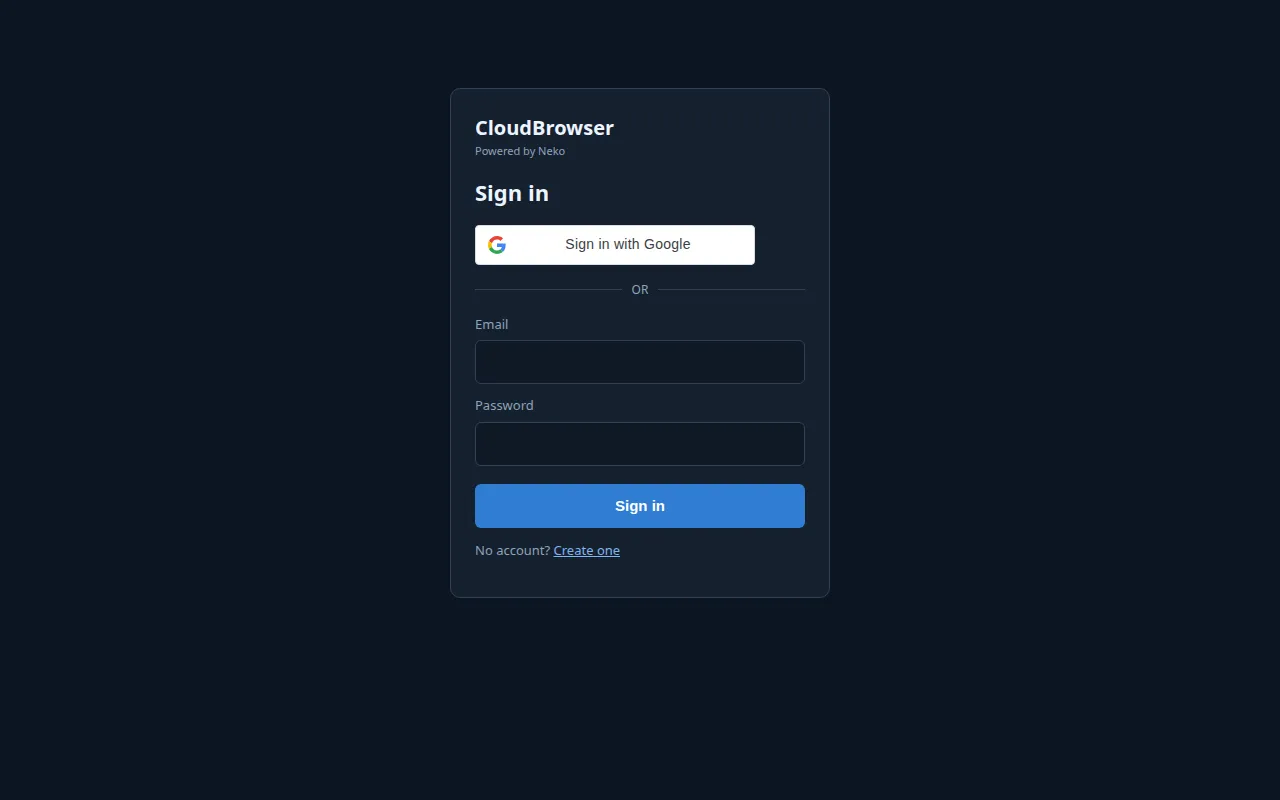
1. Open [CloudBrowser](https://mb.micstec.com/). Unauthenticated visits lead to **Sign in**.
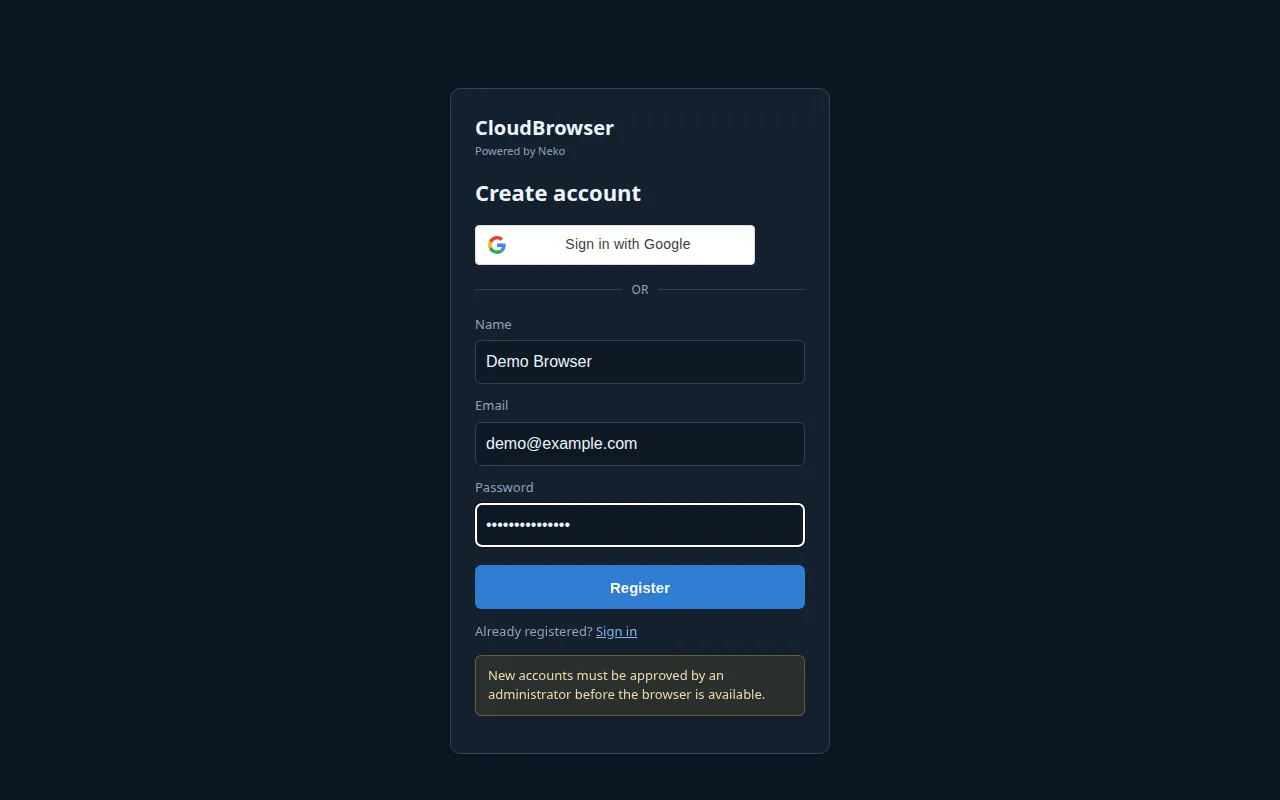
2. Use Google where available, or choose **Create one** to register an email/password account.
3. Enter **Name**, **Email** and **Password** of at least eight characters, then **Register**.
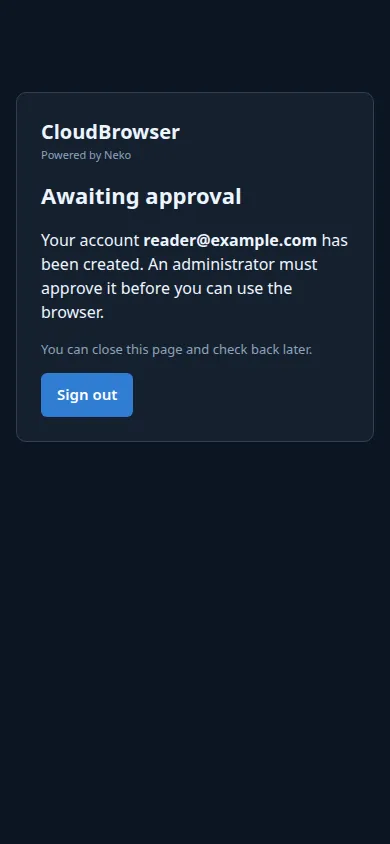
4. A new normal account sees **Awaiting approval**. Ask the administrator for approval, then return/sign in again.
5. Once approved, opening the browser starts or reconnects your private worker automatically.
CloudBrowser's sign-in page on the isolated test deployment. Select the image to enlarge it.Registering a fictional account on the isolated test deployment. Select the image to enlarge it.
The first account on a fresh installation becomes its administrator. Normal users should not expect that on an existing service. A pre-approved email can register/sign in without repeating the approval process. The beta has no email-verification or password-reset workflow; contact the operator if access fails.
The Awaiting approval page for a second fictional demo account. Select the image to enlarge it.
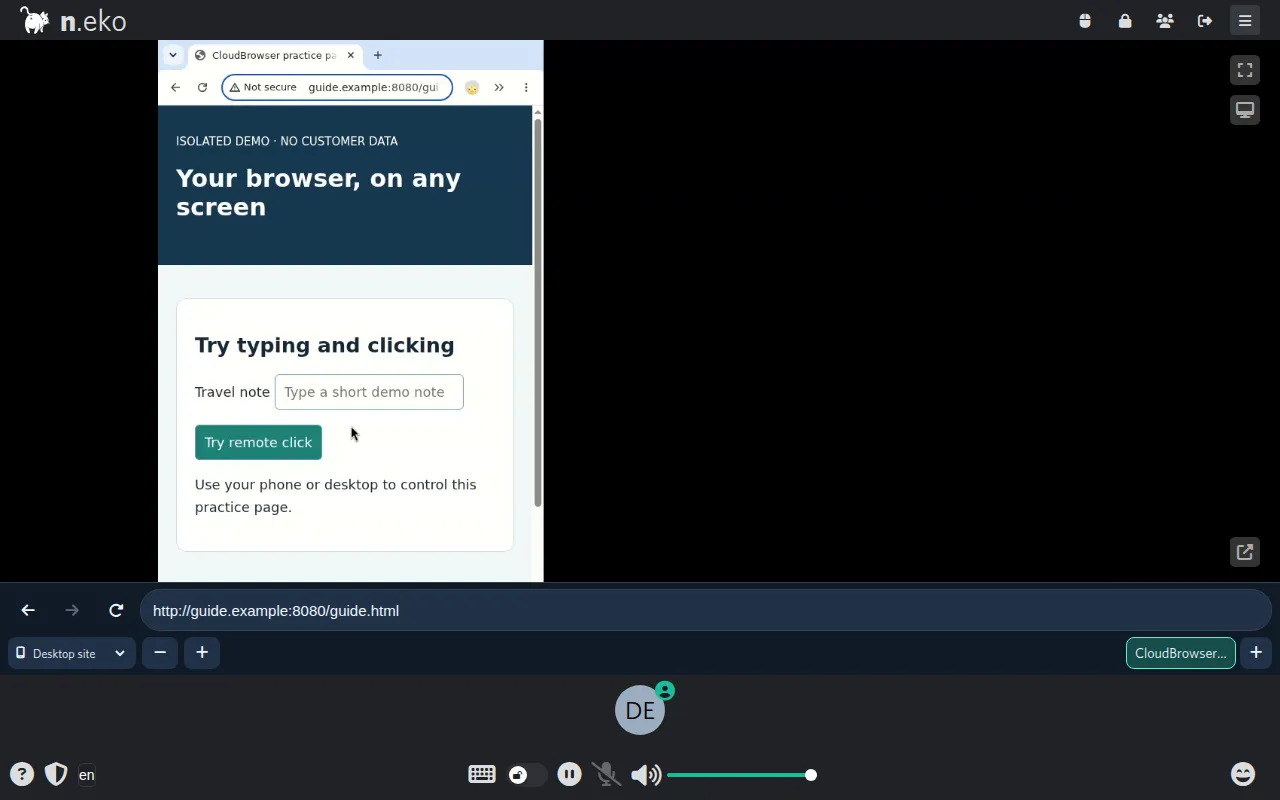
Every screenshot in this guide comes from a separate test service and disposable remote Chromium container. The practice page is written for this walkthrough and contains no customer data. The tests observed live video frames, navigation, profile changes and a desktop-to-phone control handoff. Phone screenshots use browser emulation; they do not prove every physical iPhone/Android keyboard, cellular or background behavior.
## Connect and understand the two browsers
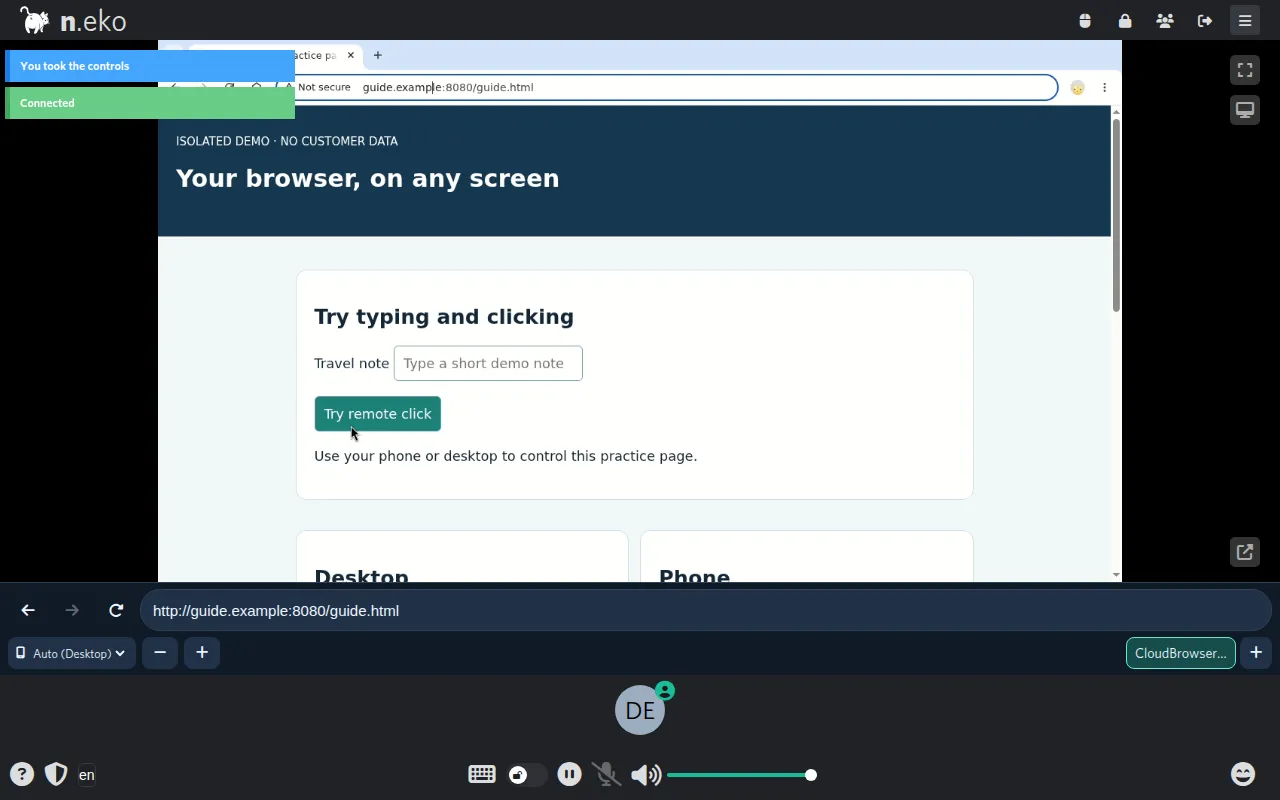
The browser on your device is the **viewer**. The Chromium browser running on the server loads the actual website. The navigation bar inside CloudBrowser controls that remote Chromium instance.
Wait for **Connected** and visible video. The first viewer normally takes vacant control. When another device already controls the account, a new viewer can watch but cannot navigate, type or resize until it takes over.
An initial worker can take time to start. If the old Neko room-password form appears during a failed start, reload the approved account page once the worker is ready. The public account flow should provide worker access automatically; it does not require you to discover an internal room password.
A real streamed Chromium browser displaying the self-contained fictional practice page. Select the image to enlarge it.
## Navigate addresses, history and tabs
| Control | Procedure and result |
| --- | --- |
| **Address** / **Search or enter address** | Enter a URL or search terms and press Enter |
| **Back / Forward** | Move through the active remote tab's history; disabled when unavailable |
| **Reload** | Reload the active remote page |
| **New tab** | Create another remote tab |
| Tab-title buttons | Activate the corresponding remote tab |
| **Zoom in / Zoom out** | Change the remote webpage's zoom in quarter-step increments |
The address field does not change your viewer's own address bar. Opening a link inside the streamed page also acts in the remote browser. In the tested beta, a newly navigated background tab sometimes needed its tab-title button selected before it became visible; a tab activation could also report a warning despite switching successfully. Use Reload on the intended tab and check the displayed page before continuing. If a site opens a new tab, look for it in the tab list. The CloudBrowser bar provides switching/new-tab actions; ordinary Chromium tab controls in the stream may offer other browser operations.
Remote tabs shown in CloudBrowser's browser bar after New tab was used. Select the image to enlarge it.
Zoom ranges from 0.25× to 4×. Zooming changes the page presentation; choosing a site profile or remote screen size is a separate operation.
## Choose Auto, Android, iPhone or Desktop site
Open **Site mode** beside the browser bar.
| Mode | Behavior |
| --- | --- |
| **Auto (device)** | Selects a profile based on the active controlling viewer |
| **Android** | Advertises the Android profile and touch capabilities |
| **iPhone** | Advertises the iPhone profile and touch capabilities |
| **Desktop site** | Uses desktop user agent/client hints, fine pointer and hover behavior |
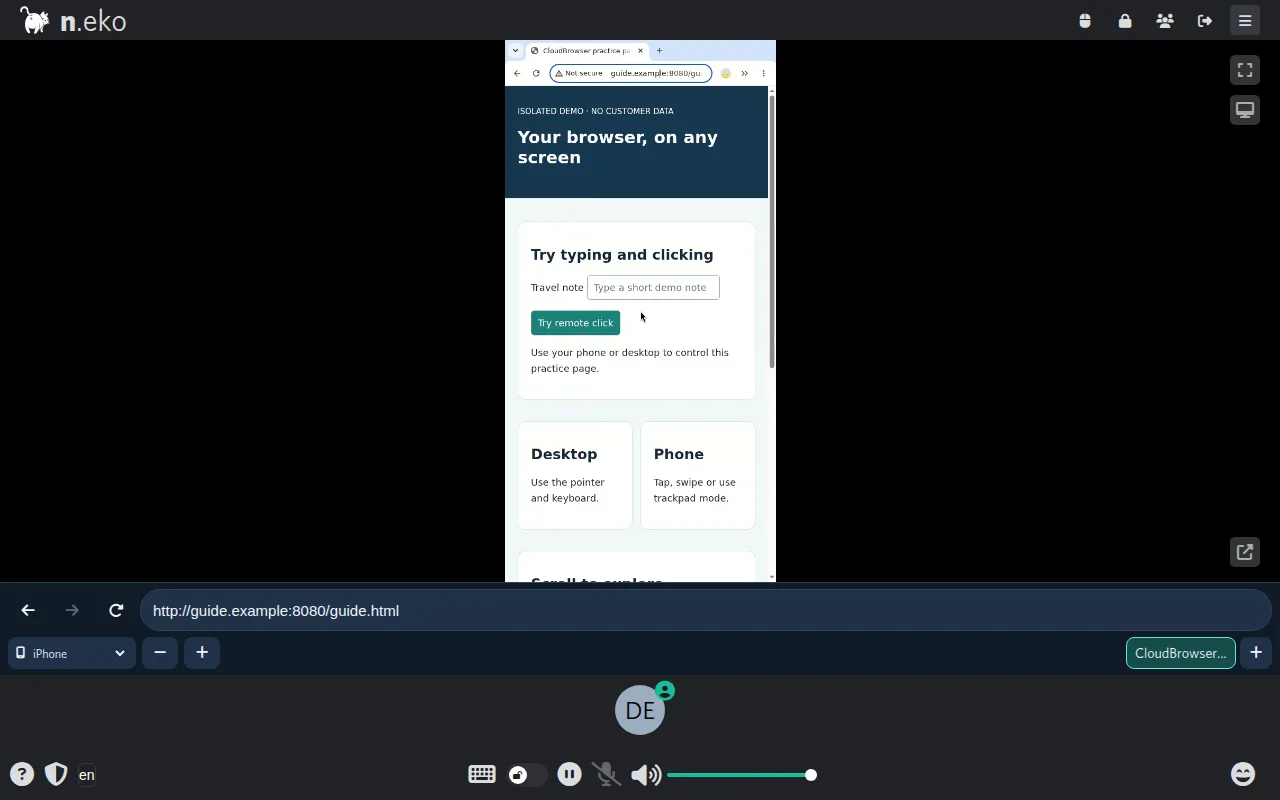
The iPhone site profile selected while using the desktop viewer. Select the image to enlarge it.
Phone profiles normally choose a 512 × 1024 remote display, while desktop selects 1280 × 720. Chromium's minimum window width means the phone profile is not a literal hardware-sized iPhone display. Site mode changes the identity/capabilities reported to websites; it does not turn Chromium into Safari or Android's operating system.
An explicit mode is remembered. Auto follows whichever viewer currently controls the session. Reload a website after switching if it retains its old layout. Some sites still choose their own responsive layout or reject a cloud browser.
## Use Touch and Trackpad on a phone
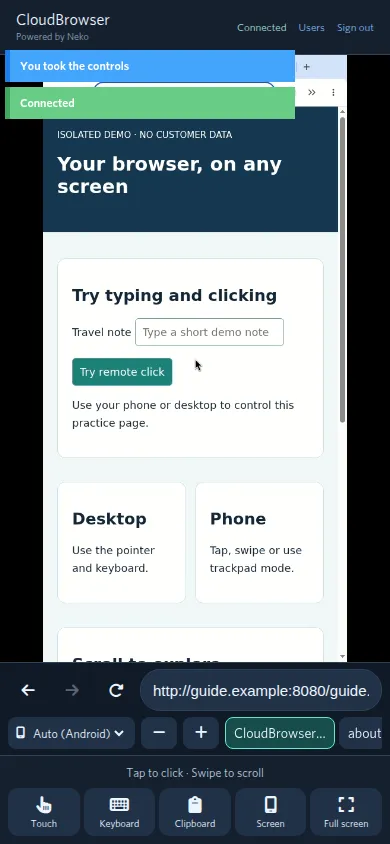
The toolbar beneath the stream gives a status hint and five actions. If the first button says **Control**, tap it to take over. When you have control it becomes the Touch/Trackpad mode switch.
| Mode | Gestures |
| --- | --- |
| **Touch** | Tap to click, swipe to scroll and pinch to zoom where supported |
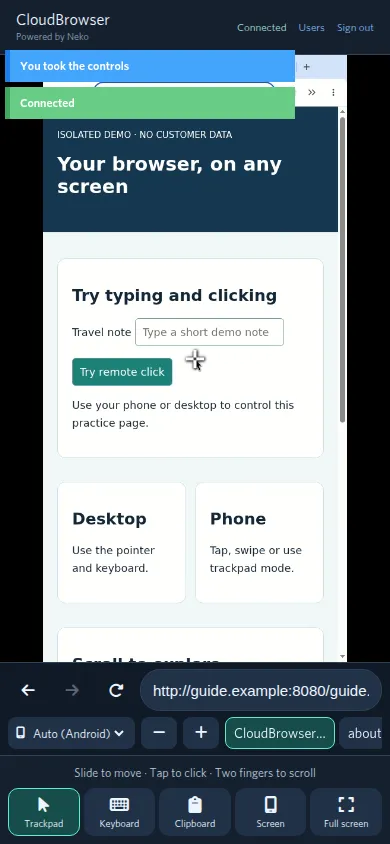
| **Trackpad** | Slide for relative pointer movement, tap to click, two-finger scroll |
The live remote practice page in an emulated Android phone viewer with Touch mode. Select the image to enlarge it.
Use Touch for ordinary pages and Trackpad for small controls or hover-dependent interfaces. After changing profile or display size, wait for **Preparing browser display…** to finish. Input is intentionally held until the stream geometry and input channel are ready, preventing taps at the wrong coordinates.
The same live phone viewer switched to Trackpad mode. Select the image to enlarge it.
## Type, paste and use the remote clipboard
1. Tap a field inside the remote page.
2. Choose **Keyboard** to focus the viewer's text-input bridge and open the device keyboard where supported.
3. Type and confirm the result in the remote page before submitting.
4. On desktop, click the stream and use the physical keyboard; remote control must be held by this viewer.
Ordinary typing and committed IME composition use the browser bridge. Rich selection, autocorrect and some physical-device keyboard behaviors remain beta work. A browser-emulated phone does not display a real operating-system keyboard.
**Clipboard** is designed to open **Remote clipboard**, a text box that synchronizes text to the remote clipboard after editing. Desktop browser permission can also enable clipboard integration. In the tested beta, the phone Clipboard popup dismissed immediately after its toolbar click, so that popup was not verified as a reliable mobile paste route. Use keyboard paste into a focused field where the device supports it, or ask the operator about the current clipboard behavior.
Copying text into a remote clipboard is different from inserting it into a form: the page still needs its paste action. Avoid putting passwords or other sensitive text into a shared clipboard unless needed for the intended remote site.
## Set screen size and enter fullscreen
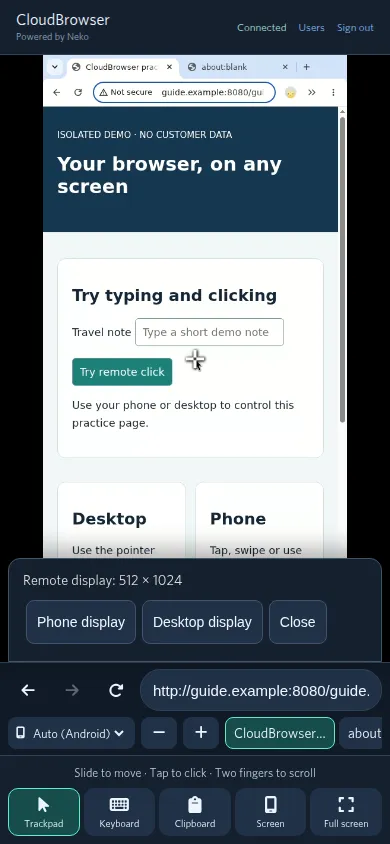
Choose **Screen** on a phone to open **Remote display size**:
- **Phone display** selects 512 × 1024.
- **Desktop display** selects 1280 × 720.
- **Close** leaves the menu without another selection.
The phone Screen menu with the two remote-display sizes. Select the image to enlarge it.
Screen controls the streamed desktop's geometry. It is independent of Site mode: you can keep a desktop site profile while selecting a different display size. Only the active controller can change the private browser's resolution. Desktop also provides a display-resolution control where the worker permits it.
**Full screen** expands the viewer and its controls where allowed. **Exit screen** returns to the browser window. A browser that refuses fullscreen can still use the normal page. On phones, rotation, browser toolbars and the virtual keyboard can change the available visible viewport; give the display time to settle before tapping precise controls.
## Continue the same browser on another device
1. Sign in with the same approved account on the second device.
2. The second viewer sees the same remote tabs and pages.
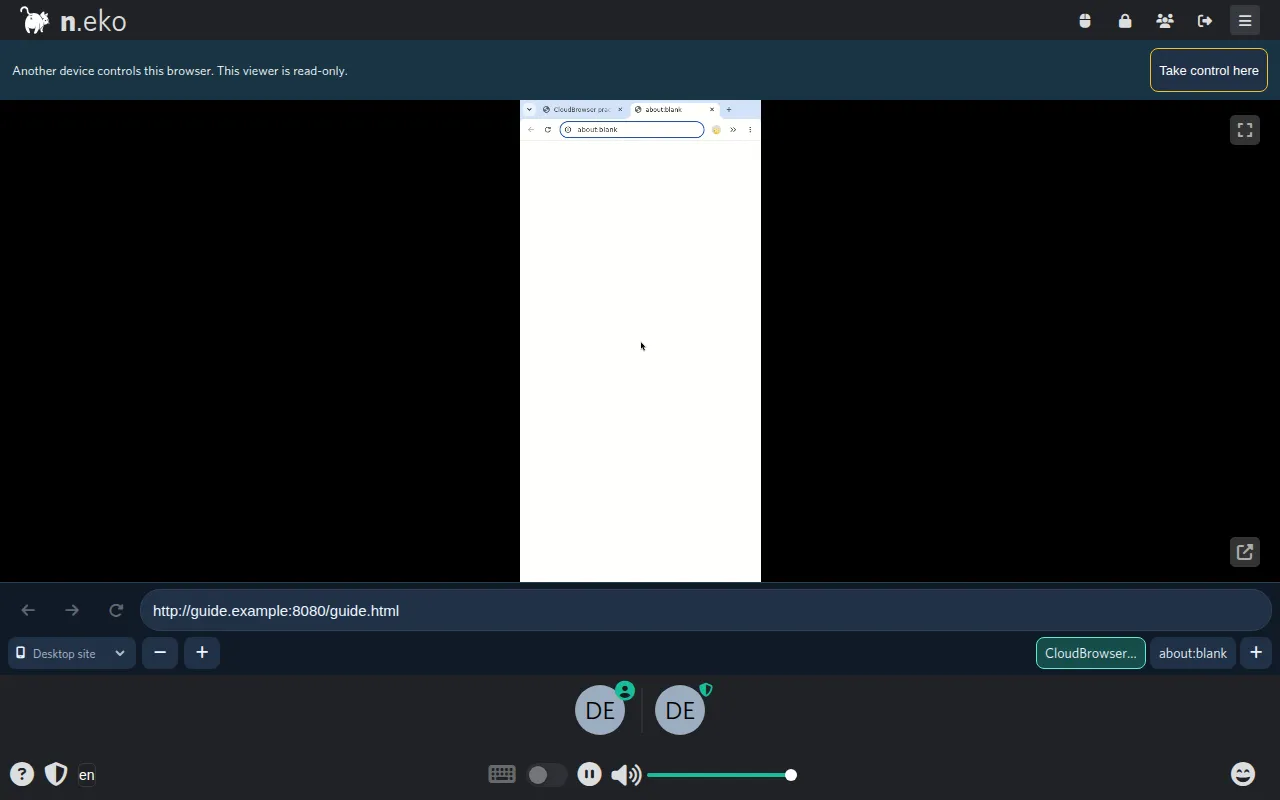
3. Choose **Take control here** on desktop, or **Control** on phone.
4. The former controller becomes read-only; Auto site mode follows the new controller.
5. Switch back with the same action on the original viewer.
The desktop viewer becomes read-only after the phone takes control of the same private browser. Select the image to enlarge it.
This handoff was observed with two simultaneous test viewers. A reconnecting former controller does not forcibly interrupt another device that already has control. Read-only viewers should not be able to type, navigate or resize the remote browser. Avoid opening different accounts when you intend to continue one session.
## Control sound and recover a connection
Desktop's media controls can pause/resume the local stream and adjust/mute its volume. **Unmute audio** appears when autoplay starts muted. Your device must allow playback; muting a viewer does not necessarily stop the website playing inside the remote browser.
If connectivity drops, the banner reads **Connection lost. Reconnecting…** and offers **Reconnect now**. The client retries and waits for video/input readiness before restoring input. The same running worker can retain tabs during a viewer disconnect. If the worker itself has ended or been cleaned up, reconnecting cannot restore its discarded profile.
For repeated black video or failed WebRTC, the operator may need to inspect worker health, network reachability or relay configuration. Repeatedly changing the site URL does not repair a broken video connection.
## Use optional desktop panels and settings
The inherited desktop side menu provides **Chat** and **Settings** when expanded. Its language selector includes English and Chinese among the available translations.
| Setting/action | Purpose |
| --- | --- |
| **Scroll Sensitivity / Invert Scroll** | Adjust remote scrolling behavior |
| **Autoplay Video** | Viewer autoplay preference |
| **Ignore Emotes / Play Chat Sound** | Presentation of inherited chat/emote features |
| **Keyboard Layout** | Select the remote keyboard layout |
| **log out** | Leave the Neko streaming connection; account Sign out is the separate account action |
| Remote control request/release/lock controls | Control ownership tools where the deployment exposes them |
The inherited member context menu can include request/give/release controls, ignore/mute, kick and ban actions depending on room permissions. The approved-account service uses private workers; these inherited room features are not a public invitation system for unrelated users.
Some server-enabled Neko options, such as microphone forwarding or **Live Broadcast**, depend on operator configuration. They were reviewed in source and were not exercised as working public beta features. The **Files** tab is disabled in the documented deployment, so this guide does not promise upload/download through it. Native remote-browser download/password-saving restrictions also depend on the managed deployment; a remote browser is not a general file-transfer substitute.
## Approve users and administer access
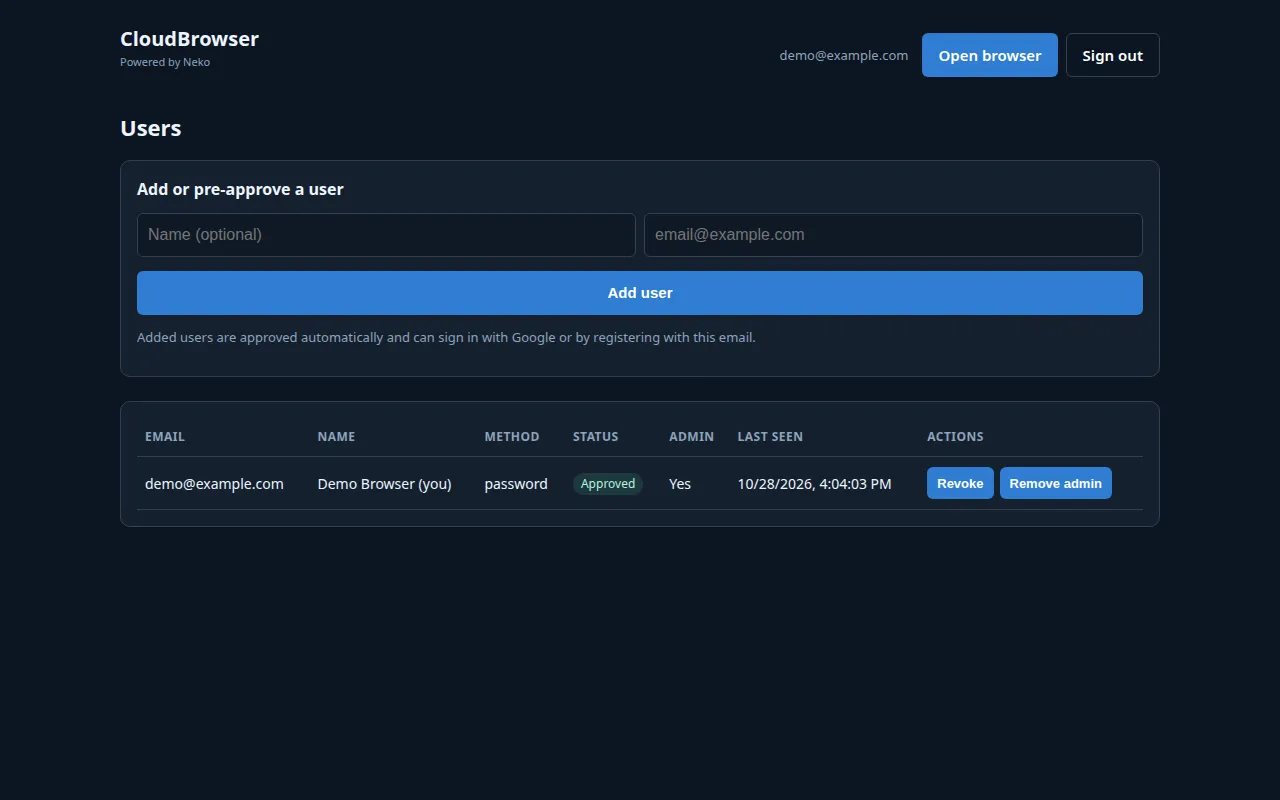
An account administrator opens **Users** or `/auth/admin`.
1. Review each user's **Email**, **Name**, **Method**, **Status**, **Admin** and **Last seen**.
2. Choose **Approve** to activate a pending account or **Revoke** to withdraw approval.
3. Choose **Make admin / Remove admin** to change administrative authority, subject to self/last-administrator protections.
4. **Delete** removes another account after confirmation.
5. Under **Add or pre-approve a user**, enter an email and optional name, then **Add user**. The person can later register/sign in using that address.
The Users administration page containing only the fictional test administrator. Select the image to enlarge it.
Approval is separate from control ownership inside a worker. A viewer can be approved but read-only because another device controls that same account's browser. A pending account cannot bypass approval by opening a worker URL.
## Understand session lifetime, privacy and beta limits
The service creates a private remote worker per account, within its configured concurrency quota. Idle sessions are cleaned up automatically; the reviewed default is fifteen minutes, but the operator can change it. Treat remote tabs, website cookies and unsaved work as temporary. Closing a viewer page does not immediately stop the worker, and account sign-out should not be treated as proof that all remote website sessions were erased.
Websites make network requests from the server browser and see its network address and advertised profile. Viewer connections, account access and the server itself remain part of the trust model. Sign out of sensitive websites inside the remote browser when finished, and retain needed work outside an idle-expiring session.
The client build targets modern browser baselines with WebRTC and H.264 support; a stated browser version alone does not guarantee that local network, codec or hardware requirements are satisfied. File transfer, persistent password management and extension workflows should not be assumed available. No native app-store listing, installer for end users or rendered tutorial/promo video was found in the reviewed project. Access is through the website.
## Troubleshooting
| Symptom/message | Action |
| --- | --- |
| **Awaiting approval** | Ask the administrator to approve the account, then return/sign in again |
| No password-reset link | Contact the operator; the beta has no email recovery flow |
| Old Neko password form after a failed start | Reload the approved account page after the worker is ready; do not guess internal passwords |
| Read-only notice | Choose **Take control here** or **Control** on the intended device |
| **Preparing browser display…** | Wait for ready video and geometry before typing/tapping |
| **Remote input is locked** | Release the lock or contact the operator depending on permissions |
| Wrong website layout | Select the intended Site mode and reload the remote page |
| Small desktop page on phone | Try Phone display, mobile site mode and appropriate zoom |
| Phone Clipboard disappears | Observed in the test beta; use supported keyboard paste and report the issue |
| Typing/IME behaves unexpectedly | Test a plain input and inspect committed text; physical-device support remains beta |
| Frozen/black stream | Use Reconnect now or reload; check network and worker availability |
| Browser bar warning/bridge unavailable | Retry the connection; basic pointer fallback can be limited |
| Silent stream | Use Unmute audio/volume and allow playback on this viewer |
| Fullscreen refused | Continue in the normal browser window |
| Tabs/sign-ins disappeared | The worker may have expired or been restarted; sessions are temporary |
| No Files tab | File transfer is disabled in the documented deployment |
Report device/browser, whether the issue affects navigation or the stream, and the exact status. Do not post account cookies, worker credentials or private website contents in a public screenshot.