# Droppy
Droppy is a self-hosted file manager that runs in your browser. Upload files and whole folders, browse them in a fast list that updates live, view photos, video, audio, PDFs and web pages, edit text and code, mark up images, unpack archives, and send share links with optional passcodes, custom addresses and visitor uploads. Administrators manage users and folder permissions from the same screen, and a command-line client (`droppy_cli`) handles scripted uploads, downloads and links. This guide covers [droppy.micstec.com](https://droppy.micstec.com).
| | |
| --- | --- |
| **Best for** | Keeping files on your own server and sharing them without a third-party cloud drive |
| **You need** | A Droppy account (username and password) from the administrator; a modern browser |
| **Works on** | Desktop and mobile browsers (Chrome, Edge, Firefox, Safari); installable as an app; command-line client for Linux, macOS and Windows |
| **Where files live** | On the Droppy server's own disk. Nothing is copied to a third-party cloud |
| **Live updates** | Changes made by other people, or directly on the server, appear in the list without reloading |
| **Cost** | No price is shown in the app; ask the administrator for an account |
**On this page**
- [What you can do at a glance](#what-you-can-do-at-a-glance)
- [Sign in](#sign-in)
- [Find your way around](#find-your-way-around)
- [Upload files](#upload-files)
- [Create, rename, copy, move and delete](#create-rename-copy-move-and-delete)
- [Download files and folders](#download-files-and-folders)
- [Search](#search)
- [View photos, video, audio and PDFs](#view-photos-video-audio-and-pdfs)
- [Edit images](#edit-images)
- [Edit text and code](#edit-text-and-code)
- [Render HTML and Markdown](#render-html-and-markdown)
- [Extract archives](#extract-archives)
- [Share links](#share-links)
- [Run server-side agents](#run-server-side-agents)
- [Preferences](#preferences)
- [Users and permissions (administrators)](#users-and-permissions-administrators)
- [Install and use on a phone](#install-and-use-on-a-phone)
- [The droppy_cli command-line client](#the-droppy_cli-command-line-client)
- [Run your own Droppy (administrators)](#run-your-own-droppy-administrators)
- [Privacy and security](#privacy-and-security)
- [Limits](#limits)
- [FAQ](#faq)
- [Troubleshooting](#troubleshooting)
## What you can do at a glance
| Task | Where |
| --- | --- |
| Upload files, folders or a pasted image | Toolbar buttons, drag and drop, or `Ctrl+V` |
| Open photos, video, audio, PDFs | Select the file name |
| Edit text and code | Select a text file, or **Edit** in its menu |
| Read Markdown or HTML as a page | **Render** in the file's menu |
| Crop, rotate or highlight an image | **Edit image** in the photo viewer |
| Unpack ZIP, 7z, RAR or TAR archives | **Extract** in the archive's menu |
| Rename, copy, move, delete | The **Actions** menu (⋮ or right-click), drag between two views |
| Download a file or a whole folder as ZIP | **Download** / **Download zip** on each row |
| Find files in all subfolders | **Search** |
| Share a link, lock it with a passcode, give it a readable address, accept uploads | **Share** on a row |
| Review and revoke your links | **Preferences → Share Links** |
| Manage users and folder access (administrators) | **Preferences → Users & Access** |
| Run batch jobs such as thumbnails or photo compression | **Agents** |
| Script uploads and downloads | `droppy_cli` |
## Sign in
1. Open [droppy.micstec.com](https://droppy.micstec.com). The sign-in page shows the Droppy logo, **Username**, **Password** and **Sign in**.
2. Enter the username and password your administrator gave you and choose **Sign in**. Usernames are not case-sensitive.
3. If the details are wrong you see **Wrong login!** Wait two seconds between attempts; faster retries are refused.
Sign-in is remembered on that browser. A session that is not used for about a month expires and you sign in again. Choose **Sign out** (the arrow at the far right of the toolbar) on shared computers.
You only see the folders your account can use. A normal account always has its own home folder named after the username (for example `/alice`), where you can read, write and share. The administrator can give you access to other folders, possibly read-only. Administrators see and can change everything.
## Find your way around
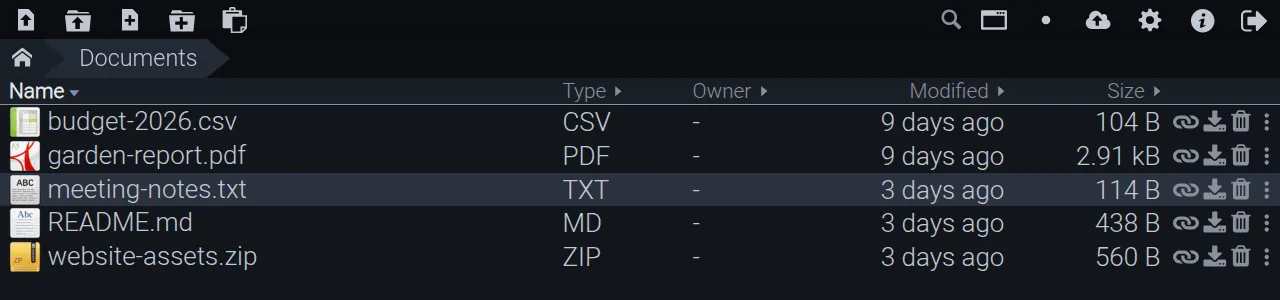
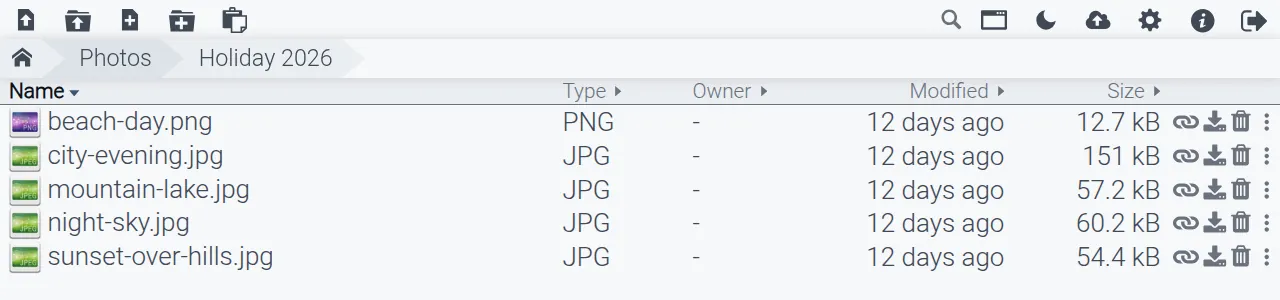
The file list (example data). The toolbar is at the top, the path bar below it, and each row has Share, Download, Delete and Actions buttons at the right.
- **Path bar:** the house icon is the top level; each folder name after it is a step back up. The browser's Back and Forward buttons also move between folders, and every folder has its own address you can bookmark.
- **Open a folder:** select its name. **Open a file:** select its name; it opens in the matching viewer, or downloads if it cannot be shown.
- **Columns:** **Name**, **Type**, **Owner**, **Modified** and **Size**. Select a column heading to sort by it; select it again to reverse. Droppy remembers the sort order for each folder on this browser. Folder sizes include everything inside.
- **Row buttons:** **Share** (link icon), **Download** (or **Download zip** for a folder), **Delete** (bin) and **Actions** (⋮). Right-clicking a row also opens the Actions menu.
- **Empty folders** show a cloud icon with **Add files**; select it to upload.
- **Live list:** uploads, edits and deletions by anyone appear automatically. **Reload View** forces a refresh.
### Toolbar
Hover over a button to see its name.
| Button | What it does |
| --- | --- |
| **Upload files from disk** | Choose files to upload into the current folder |
| **Upload folder from disk** | Upload a folder and everything in it, keeping its structure |
| **Create file** | Add an empty file and type its name |
| **Create folder** | Add a folder and type its name |
| **Paste clipboard image (name it and save here)** | Save the image on your clipboard into this folder |
| **Search** | Search names in this folder and all its subfolders |
| **Reload View** | Re-read the current folder from the server |
| **Create new View** / **Close this view** | Open or close a second, side-by-side pane |
| **Toggle theme** | Switch between light and dark |
| **Install app** | Install Droppy on this device (shown only when the browser offers it) |
| **Agents** | Run server-side batch jobs on a folder |
| **Preferences** | Editor, list and share settings; your links and API tokens; user management for administrators |
| **About** | App name, version and build |
| **Sign out** | End this session |
Upload and create buttons are greyed out in folders where you cannot write.
## Upload files
| Method | How |
| --- | --- |
| **Drag and drop** | Drag files or folders from your computer onto the file list. A cloud icon shows where they will land |
| **Choose files** | **Upload files from disk**, then pick one or more files. On a phone this also offers the camera and photo library |
| **Choose a folder** | **Upload folder from disk** (desktop browsers). Subfolders are recreated on the server |
| **Paste an image** | Copy an image, then press `Ctrl+V` (`Cmd+V` on a Mac) in the file list, or choose **Paste clipboard image** |
| **Paste text** | Copy text and press `Ctrl+V` in the file list; it is saved as `pasted-text-.txt` |
While uploading, a bar at the bottom of the list shows the percentage, the file name (or the number of files), the time remaining and the speed; the browser tab title shows the percentage too. Select **✕** on the bar to cancel. When the upload finishes in a background tab, Droppy can show a desktop notification (**Upload finished**) if you allow notifications.
If some files already exist, Droppy asks **Overwrite Files** — "Some uploaded files already exist. Overwrite them?". Choose **Overwrite** to replace them. To keep both versions, rename one of the files before uploading.
### Name a pasted image
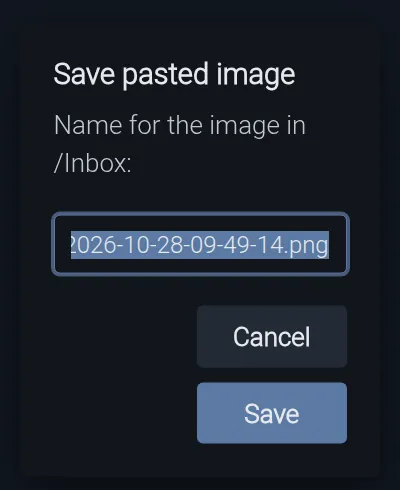
Pasting an image asks for a file name first (example).
1. Copy an image (for example a screenshot), open the destination folder and press `Ctrl+V`, or choose **Paste clipboard image**.
2. In **Save pasted image**, keep the suggested `pasted-image-.png` or type a name. If you leave out the extension, Droppy adds it.
3. Choose **Save** (or press `Enter`). **Cancel** (or `Esc`) discards it.
If the browser blocks clipboard access, Droppy says so — press `Ctrl+V` inside the folder instead.
File names cannot contain `< > : " | ? *` or control characters, cannot be `.` or `..`, and cannot be longer than 255 characters. Your administrator may also set a maximum size per file.
## Create, rename, copy, move and delete
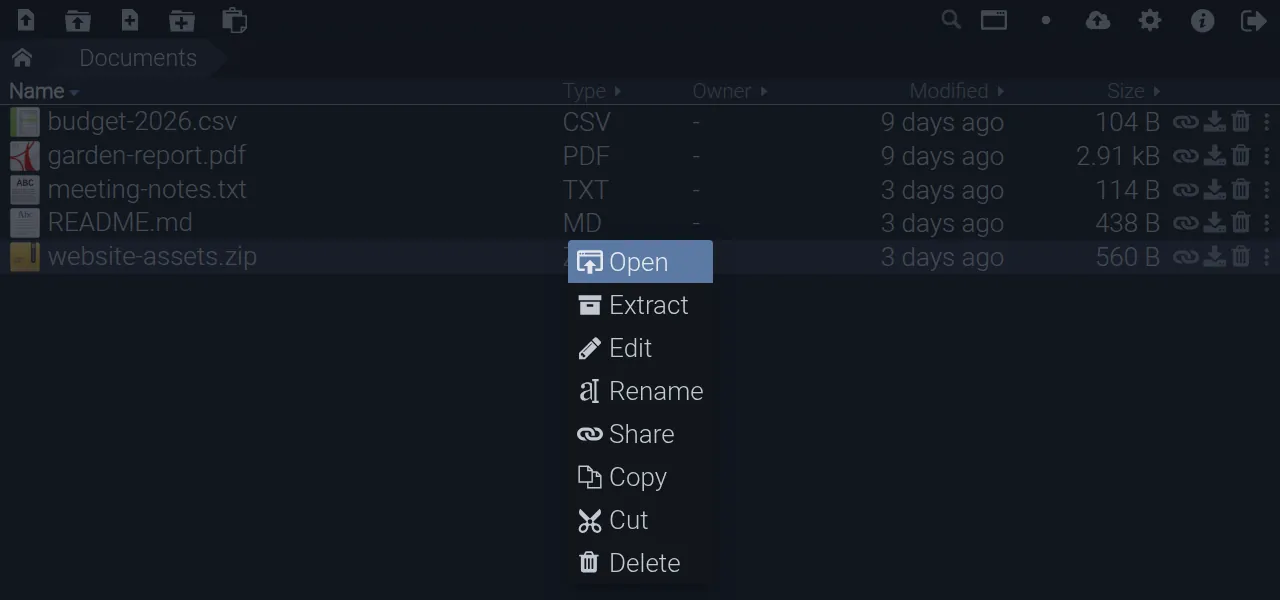
The **Actions** menu (⋮ on the row, or right-click) lists only what applies to the item:
| Entry | Shown for | What it does |
| --- | --- | --- |
| **Play** | Audio files | Plays in the audio bar |
| **Open** | Everything | Opens the folder or file |
| **Render** | HTML and Markdown files | Shows the file as a web page |
| **Extract** | Archives | Unpacks the archive next to itself |
| **Edit** | Files | Opens the file in the text editor |
| **Rename** | Everything | Edit the name in place |
| **Share** | Everything | Creates a share link |
| **Copy** / **Cut** | Everything | Puts the item on Droppy's clipboard |
| **Delete** | Everything | Deletes after confirmation |
The Actions menu for an archive includes Extract (example data).
- **Create a file or folder:** choose **Create file** or **Create folder**, type the name in the new row and press `Enter`. `Esc` cancels. The row shakes and turns red if the name is not allowed or already exists.
- **Rename:** choose **Rename**. The name without its extension is selected; type the new name and press `Enter` (or click elsewhere). `Esc` cancels. Renaming or moving an item keeps its share links working.
- **Copy or move with the clipboard:** choose **Copy** or **Cut**, open the destination folder, then choose the **Paste here** button that appears. If an item with the same name is already there, the pasted copy gets a new name.
- **Delete:** choose **Delete** (or the bin on the row). Confirm in **Delete Item** with **Delete**. There is no recycle bin, and share links to the deleted item stop working.
### Work in two folders at once
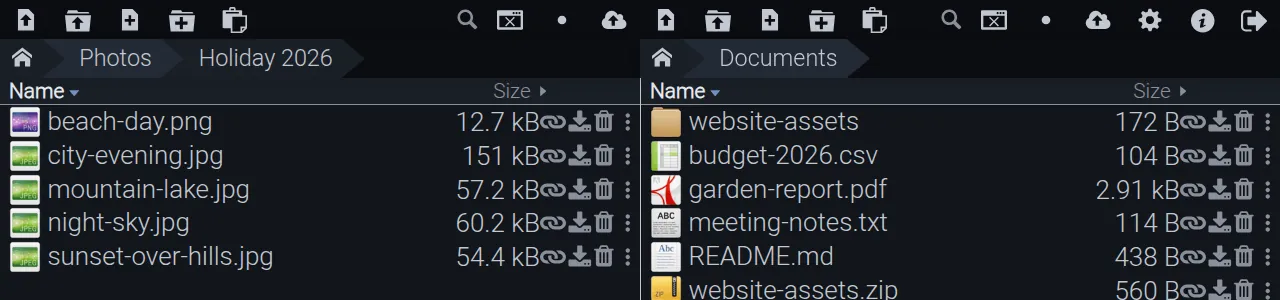
Create new View splits the window into two independent panes (example data).
1. Choose **Create new View**. A second pane opens on the same folder; browse each pane separately.
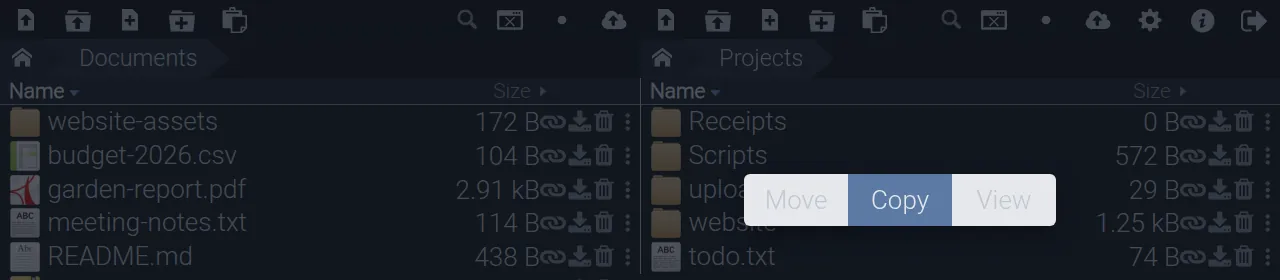
2. Drag a file or folder from one pane and drop it on the other pane's list.
3. A small menu offers **Move**, **Copy** or **View** (open the dragged item in that pane). Hold `Ctrl`, `Cmd` or `Alt` while dropping to copy straight away, or `Shift` to move.
4. Choose **Close this view** in either pane to go back to one pane.
Dropping an item into the other pane asks whether to move it, copy it or view it (example).
Moving an item into the folder it is already in does nothing; copying a folder into itself is refused (**Can't copy directory into itself**).
## Download files and folders
- **One file:** select **Download** on its row. Files Droppy cannot display (for example `.docx` or `.exe`) also download when you select their name.
- **A whole folder:** select **Download zip** on the folder's row. Droppy builds the ZIP on the fly, so the download starts immediately and has no size shown in advance.
- **From the text editor or a rendered page:** use **DL** / **Download** in that window.
## Search
Search results include matches from every subfolder, shown with their paths (example).
1. Select **Search** (magnifier) and type a word in **Term**.
2. Results appear after you stop typing for a second, or immediately when you press `Enter`.
3. The search covers file and folder names in the current folder and all folders below it. It ignores capitals and matches any part of a name. It does not search inside files.
4. Results show their path relative to where you searched; open, share or download them as usual. **No results** means nothing matched.
5. Press `Esc` in the box (or select the magnifier) to return to the folder.
## View photos, video, audio and PDFs
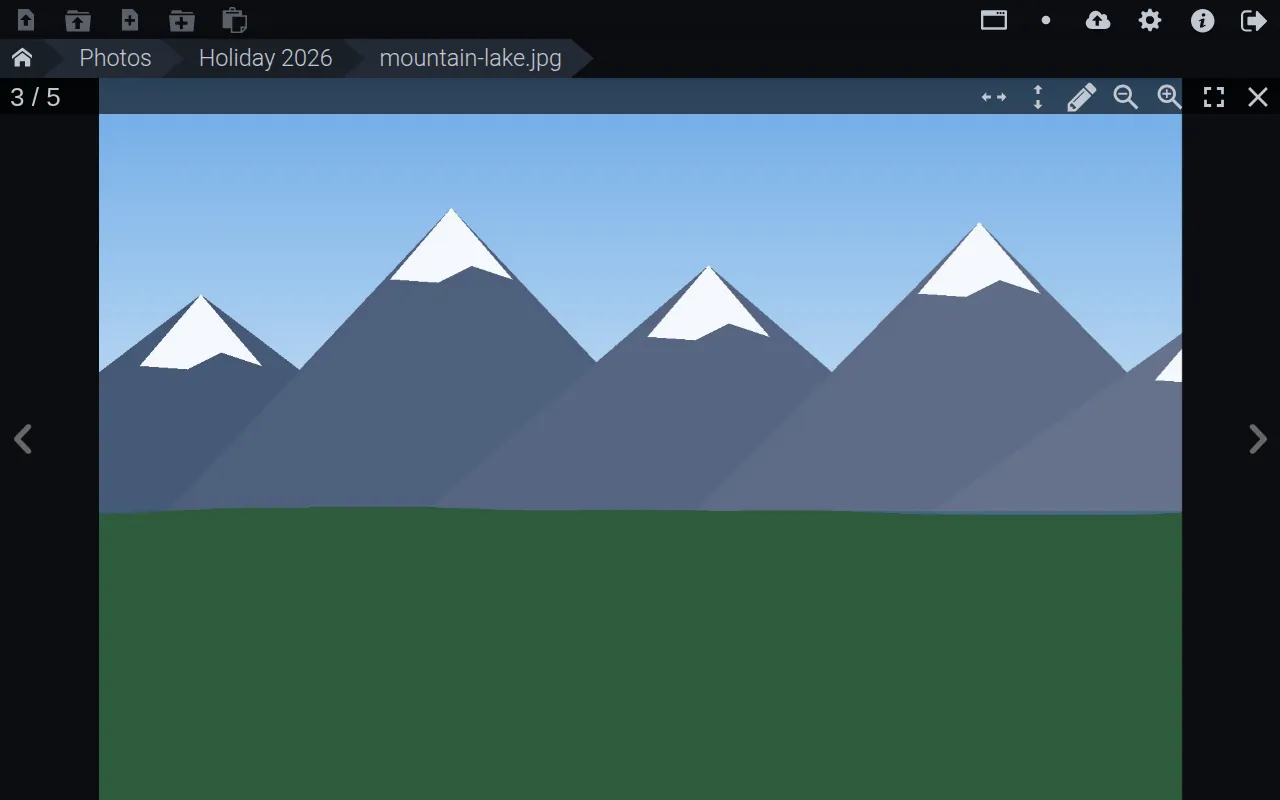
Select a file to open it. Photos, videos and PDFs in the same folder form one gallery: the counter (for example **3 / 5**) shows your position.
The photo viewer, with previous/next arrows and the toolbar at the top right (example image).
| Control | What it does |
| --- | --- |
| Arrows / swipe | Previous or next item in the folder |
| **Zoom in** / **Zoom out** | Zoom photos and PDFs; pinch or double-tap also zooms on touch screens |
| **Fit vertically** / **Fit horizontally** | Fill the screen height or width with the photo |
| **Edit image** | Open the quick image editor (photos only) |
| **Autoplay next** | When a video ends, go to the next item |
| **Loop videos** | Replay the current video (on by default) |
| **Toggle fullscreen** | Full screen |
| **Close** | Back to the folder |
Keyboard: `Space`, `→`, `↓` or `Enter` for next; `Shift+Space`, `←`, `↑` or `Backspace` for previous; `F` or `Alt+Enter` for full screen; `Esc` closes dialogs.
**Supported types:** photos — PNG, APNG, JPEG, GIF, BMP, ICO, SVG, WebP; video — MP4, M4V, MOV, WebM, MKV, OGV, 3GP and similar; audio — MP3, M4A, AAC, FLAC, OGG, Opus, WAV and similar; and PDF. Whether a particular video or audio file plays depends on your browser's codecs; if it cannot, Droppy says **Your browser can't play this file** — download it instead.
### Video
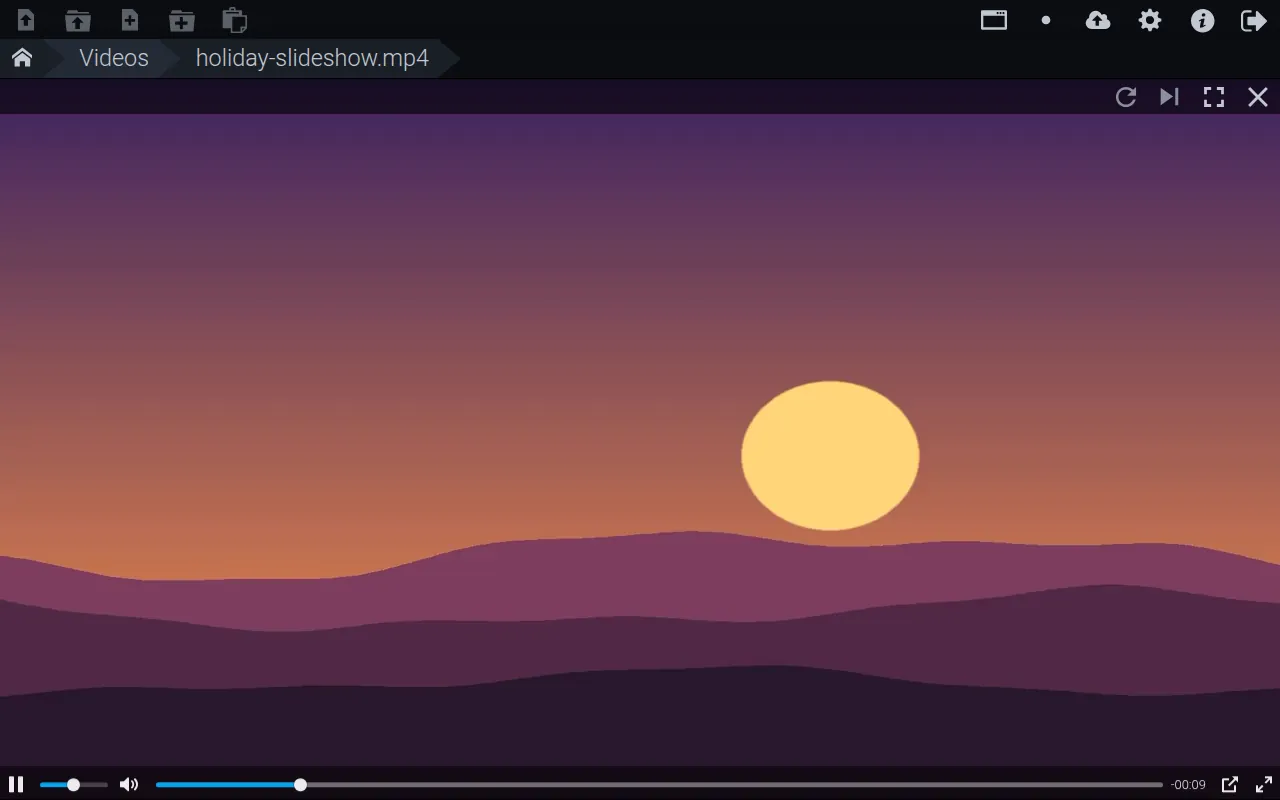
Video plays inside the gallery with play, volume, seek, picture-in-picture and full-screen controls (example clip).
Videos start playing on desktop (on phones, tap play). The player bar has play/pause, volume, a seek bar with time, mute, **picture-in-picture**, full screen and captions. If you close the viewer, switch tabs or switch apps while a video is playing, Droppy pops it into a small floating picture-in-picture window where the browser supports it, so you can keep watching while you browse. Playback also appears in your system's media controls.
### Audio
Select an audio file (or **Play** in its menu). An audio bar appears at the bottom of the folder with **volume** (select the speaker to show the slider; the mouse wheel also adjusts it), **previous**, **pause/play**, **stop**, **shuffle** and **next**, plus the title, elapsed and total time. Click anywhere on the bar to jump to that point. When a track ends, the next audio file in the folder plays, and the list wraps around to the first.
### PDF
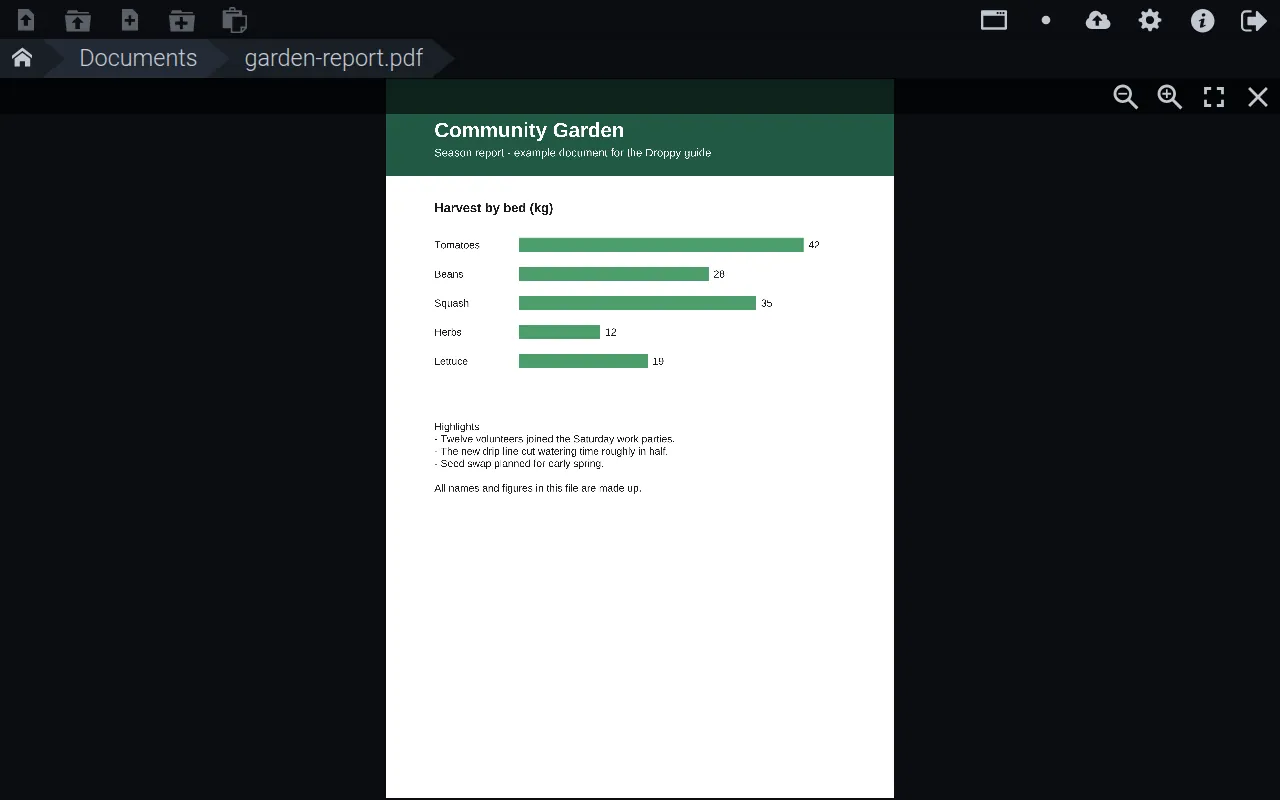
PDFs open in the same viewer with every page drawn one under another. Scroll to read, use **Zoom in** / **Zoom out**, and download the original with the row's **Download** button.
A PDF in the built-in viewer (made-up example report).
## Edit images
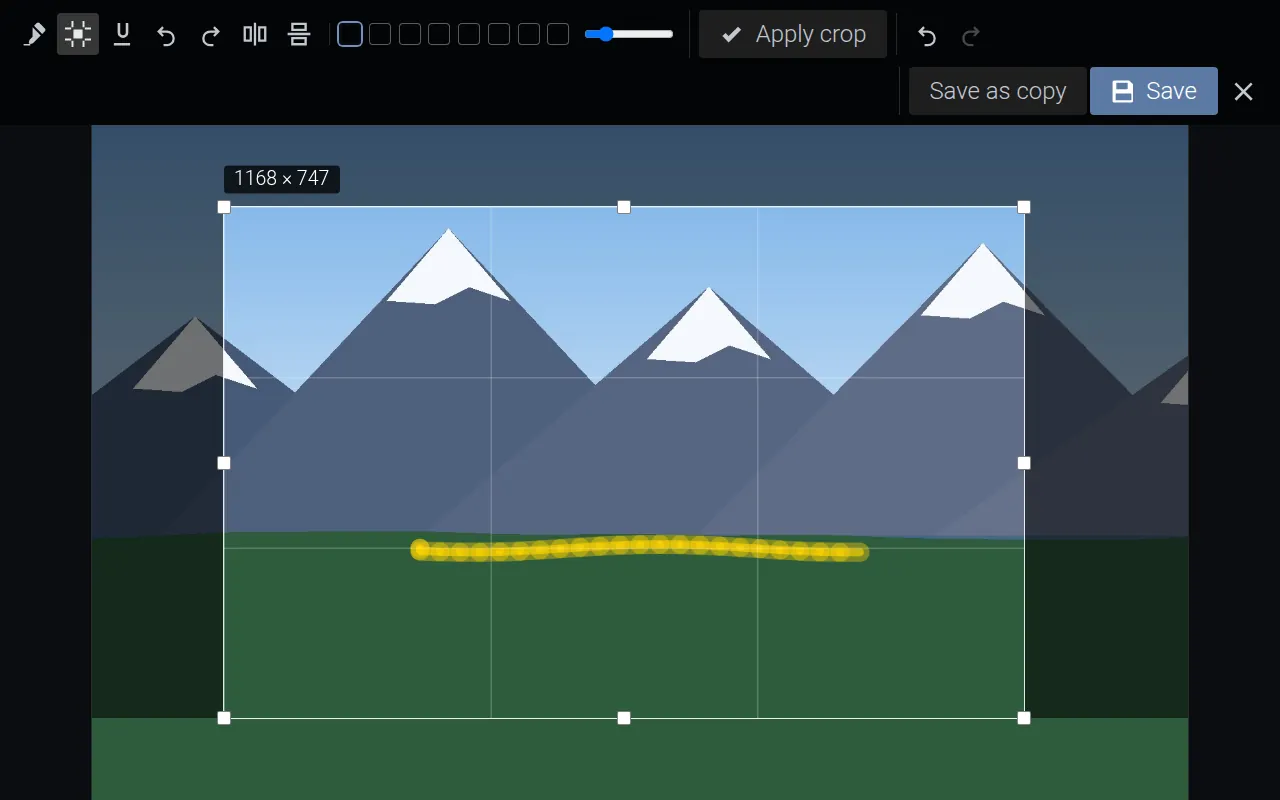
The quick image editor: a highlight stroke and a crop selection with its size in pixels (example image).
1. Open a photo and choose **Edit image** (pencil) in the viewer.
2. Use the toolbar:
| Tool | Key | What it does |
| --- | --- | --- |
| **Highlight** | `H` | Paint a translucent marker stroke |
| **Underline** | `U` | Draw an underline stroke |
| **Crop** | `C` | Drag a rectangle (its size is shown in pixels), adjust the handles, then **Apply crop** or press `Enter` / `Space` |
| **Rotate left** / **Rotate right** | | Turn 90° |
| **Flip horizontally** / **Flip vertically** | | Mirror the image |
| Colour swatches | | Yellow, Green, Pink, Blue, Orange, Red, White, Black |
| Brush size slider | `[` / `]` | Thinner or thicker strokes |
| Undo / Redo | `Ctrl+Z` / `Ctrl+Shift+Z` or `Ctrl+Y` | Step back or forward (up to 24 steps) |
| **Save** | `Ctrl+S` | Overwrite the original file |
| **Save as copy** | `Ctrl+Shift+S` | Save next to the original as `-edited-.` |
| Close | `Esc` | Leave the editor; asks **Discard changes?** if you have unsaved edits |
All edits are applied at the image's full resolution. After saving, the viewer reopens on the updated image. JPEGs are saved with a white background where the image had transparency. If you cannot write to the folder, the editor shows **Read-only: you have no write access here** and saving is disabled.
## Edit text and code
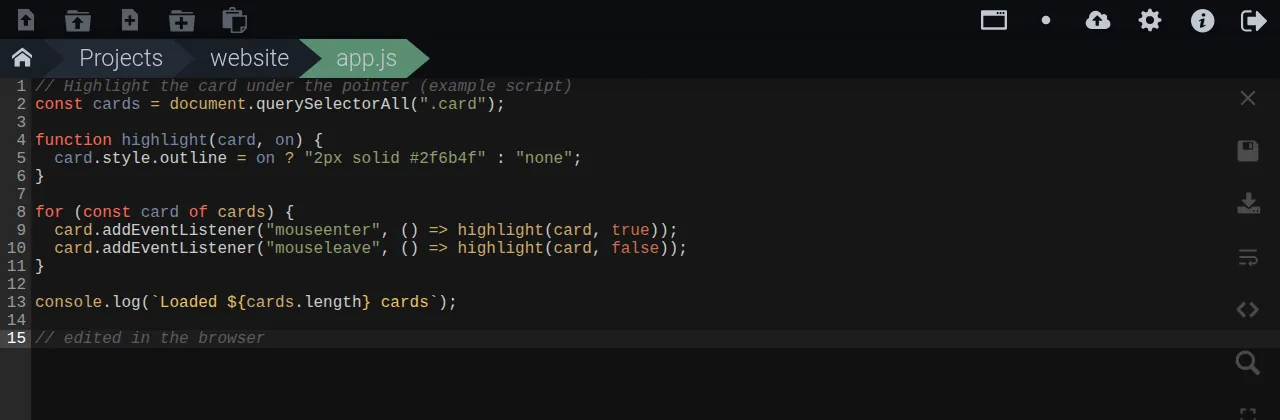
The built-in editor with syntax highlighting; the file name in the path bar turns green after a successful save (example code).
Select any text file (Droppy checks whether a file is text) or choose **Edit** in a file's menu. The sidebar on the right has:
| Button | What it does |
| --- | --- |
| **Close** | Back to the folder |
| **Save** | Save to the server (also `Ctrl+S` / `Cmd+S`) |
| **DL** | Download the text exactly as it is in the editor |
| **Wrap** | Turn word wrap on or off |
| **Syntax** | Choose the highlighting language from the list |
| **Find** | Search within the file |
| **Full** | Full screen |
While a file has unsaved changes, its name in the path bar is marked; after **Save** it briefly turns green (saved) or red (failed). The highlighting language is chosen from the file extension or a `#!` first line. The editor uses Sublime Text-style keys; `Ctrl+Space` comments or uncomments lines, and `Tab` indents with your preferred tabs or spaces. Windows (CRLF) line endings are kept. Change the theme, font size, indentation and wrapping in **Preferences**.
## Render HTML and Markdown
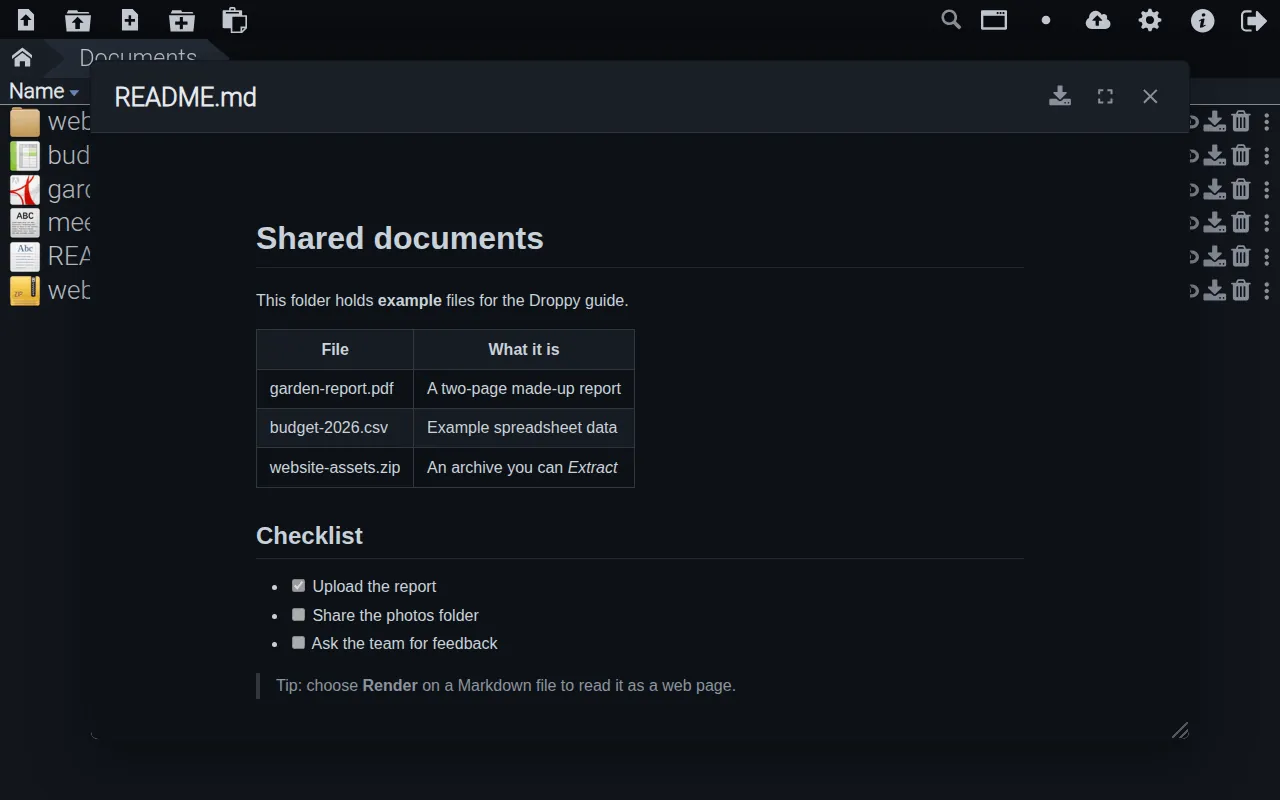
Render shows a Markdown file as a formatted page in a floating window (example document).
Choose **Render** in the menu of an `.html`, `.htm`, `.md` or `.markdown` file. It opens in a floating window titled with the file name:
- drag the title bar to move it, and drag the bottom-right corner to resize it;
- **Download**, **Fullscreen** and **Close** are at the top right; `Esc` also closes it;
- the window does not block the list, so you can keep browsing behind it.
Markdown is formatted with headings, tables, code blocks and lists, and follows your system's light or dark setting; links open in a new tab. HTML pages load their own images, styles and scripts from the same folder, inside a sandbox.
## Extract archives
1. Open the archive's menu and choose **Extract**.
2. Droppy shows **Extracting …**, then **Extracted to ** and, if the tab is in the background, a notification.
3. If the archive contains a single top-level folder or file, it lands next to the archive. Otherwise a new folder named after the archive is created. Existing files are never overwritten — a clashing name gets a new one.
Supported: ZIP, 7z, RAR, TAR (including `.tar.gz`, `.tgz`, `.tar.bz2`, `.tar.xz`, `.tar.zst` and similar), CAB, ISO, CPIO and LZH/LHA, plus single compressed files (`.gz`, `.bz2`, `.xz`, `.zst`, `.lzma`). You need write access to the folder. The archive itself is kept.
## Share links
Anyone who has a share link can open it without a Droppy account. You need **share** permission on the item (your home folder always has it).
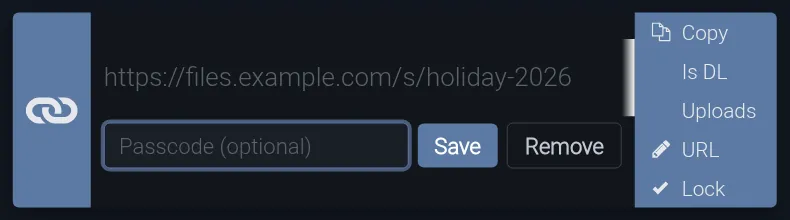
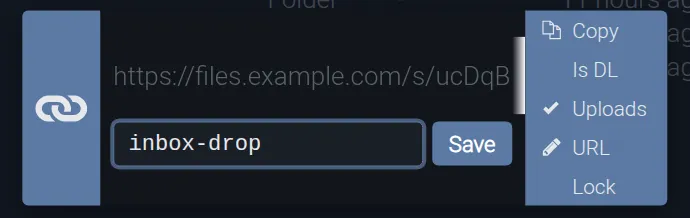
The share dialog for a folder with a custom address and a passcode (example address).
1. Select **Share** (link icon) on a row, or **Share** in its menu. Droppy creates a short link such as `…/s/aB3xK` and selects it.
2. Use the options on the right:
| Option | Tooltip | What it does |
| --- | --- | --- |
| **Copy** | Copy to clipboard | Copies the link |
| **Is DL** | Trigger a download when opened | On: the link downloads the file (a folder downloads as a ZIP). Off: the link opens a preview page (a folder opens as a browsable list). Toggling changes the existing link; the address stays the same |
| **Uploads** | Let visitors upload into this folder | Turns a folder link into a drop box (administrators only, folders only) |
| **URL** | Set a custom URL for this link | Type a readable address (letters, digits, `_` and `-`, up to 64 characters) and **Save**. The new link is copied and the dialog closes |
| **Lock** | Set passcode for this link | Type a passcode and **Save**; a tick shows the link is locked. **Remove** clears the passcode |
3. Close the dialog by clicking outside it, then send the link. Send any passcode separately.
Good to know:
- **Is DL** starts in the state set by **Preferences → Sharelink download** (**Default On** unless you change it).
- Sharing the same item again with the same settings gives you the same link rather than a new one.
- Custom addresses are unique and not case-sensitive: `/s/Holiday` and `/s/holiday` are the same link. If one is taken you see **Custom URL "…" is already taken**.
- Changing a link's address breaks the old address; visitors to a locked link must enter the passcode again.
- A link stops working when you revoke it, delete the item, or lose access to it. Renaming or moving the item keeps the link working. A dead link sends visitors to the sign-in page.
### What visitors see
A locked link asks for the passcode before showing anything (example).
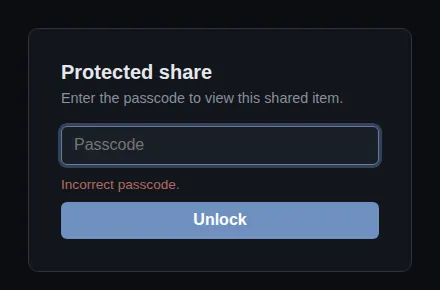
- **Locked links** show **Protected share** — "Enter the passcode to view this shared item." — and **Unlock**. A wrong entry shows **Incorrect passcode.** After unlocking, that browser stays unlocked for that link (including its subfolders) until the passcode changes.
- **Files** open in the browser (photos, video, PDFs, text) or download, depending on **Is DL**. Shared Markdown files open as a formatted page.
- **Folders** open as a simple list with the folder path as clickable steps and a **Download zip** button; select a subfolder to go in, or a file to open it in a new tab.
- On the command line, `curl -OJ ` or `wget --content-disposition ` saves a shared file under its real name.
### Collect files with an upload link
An administrator turns a folder link into a drop box with Uploads (example).
Administrators can let people send files to a folder without an account:
1. Share a **folder**, turn **Is DL** off, and tick **Uploads**. Optionally set a **URL** and a **Lock** passcode.
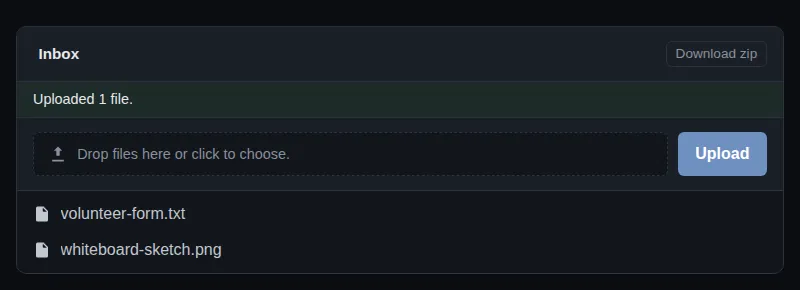
2. Visitors see **Drop files here or click to choose.** and an **Upload** button above the folder's list.
3. During the upload they see a progress bar with percentage, size, speed, time remaining and **Cancel**; afterwards **Uploaded N files.**
The visitor's view of an upload link after sending a file (example).
A visitor can send up to 50 files per upload, and one upload per second. Files whose names already exist are saved under a new name, so nothing is overwritten. Visitors can also see and download what is in the folder, so use a dedicated folder.
### Manage your links
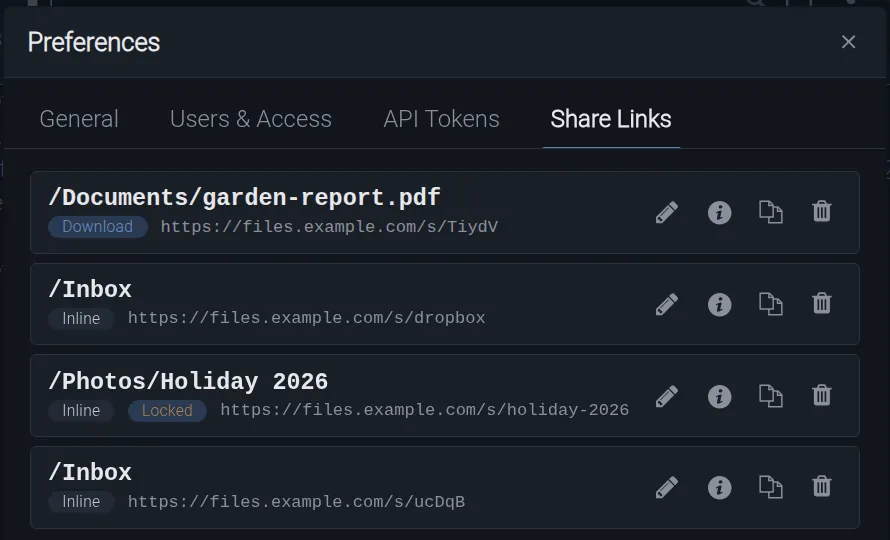
Preferences → Share Links lists every link you created (example addresses).
Open **Preferences → Share Links**. Each row shows the shared path, an **Inline** or **Download** badge, **Locked** for passcode-protected links, and the full address. The buttons are:
- **Rename / set custom URL** — type a new address and **Rename** (or **Cancel**);
- **Set passcode** / **Change or clear passcode** — **Save** a new passcode, or **Remove** it;
- **Copy URL** — copies the address (the tooltip briefly says **Copied!**);
- **Revoke link** — confirm in **Revoke Link**; the address stops working immediately.
You only see links you created. "No share links yet. Create one from a file's menu." means you have none.
### Embed a share on another website
Site owners can open a Droppy share in a pop-up window on their own pages. Add `` to the page, then give any button the attribute `data-droppy-share=""` (optionally `data-droppy-title`). Clicking it opens the share — including passcode and upload forms — in an overlay with **Open ↗** and **×**; `Esc` or clicking the backdrop closes it. Passcode-protected embeds need HTTPS.
## Run server-side agents
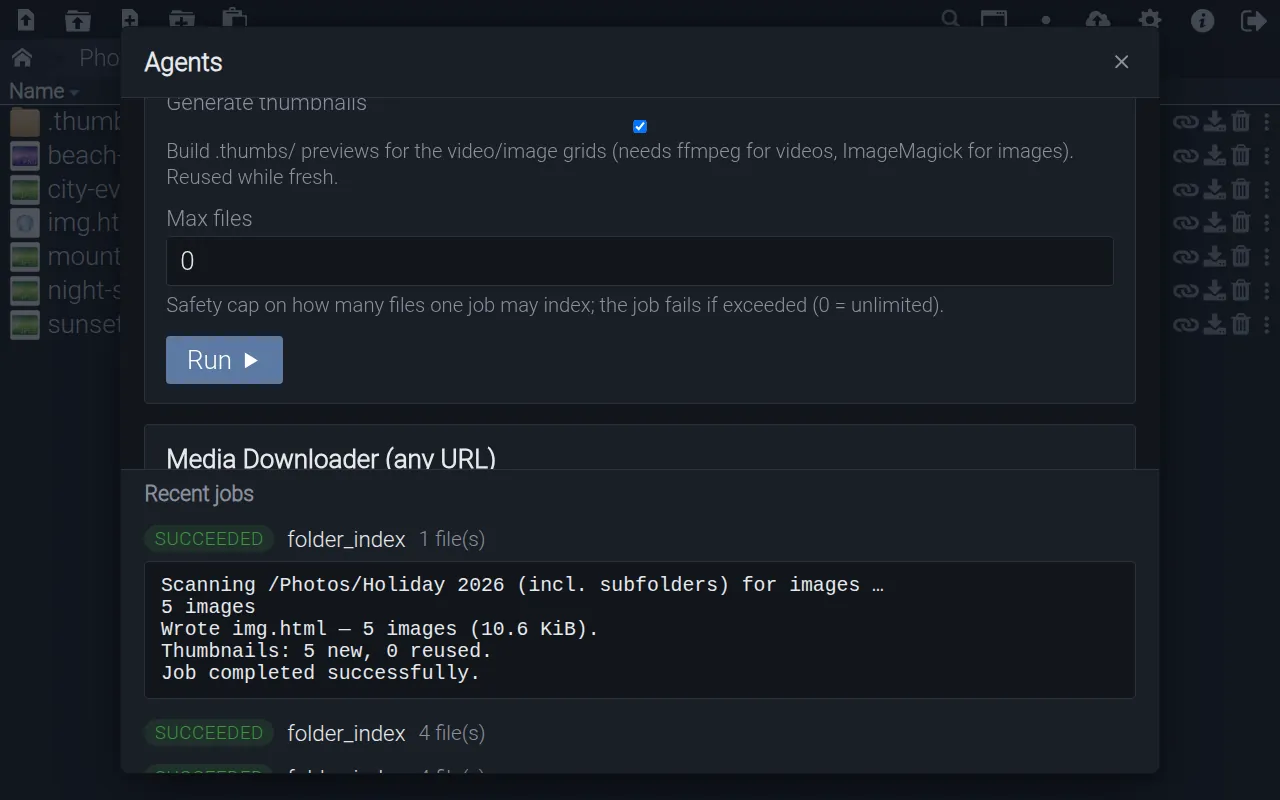
Agents: fill in a form, choose Run, and follow the job's log under Recent jobs (example job).
**Agents** runs longer jobs on the server. Every signed-in user can use them, but only on folders they are allowed to use.
1. Open the folder you want to work on and choose **Agents**. Each agent's **Folder** field is pre-filled with that folder.
2. Adjust the fields and choose **Run**.
3. Under **Recent jobs**, each job shows **queued**, **running**, **succeeded**, **failed** or **canceled** and a summary. Select a job to show its log; select the stop button to cancel a running job. The list refreshes while jobs run.
| Agent | What it does | Main fields |
| --- | --- | --- |
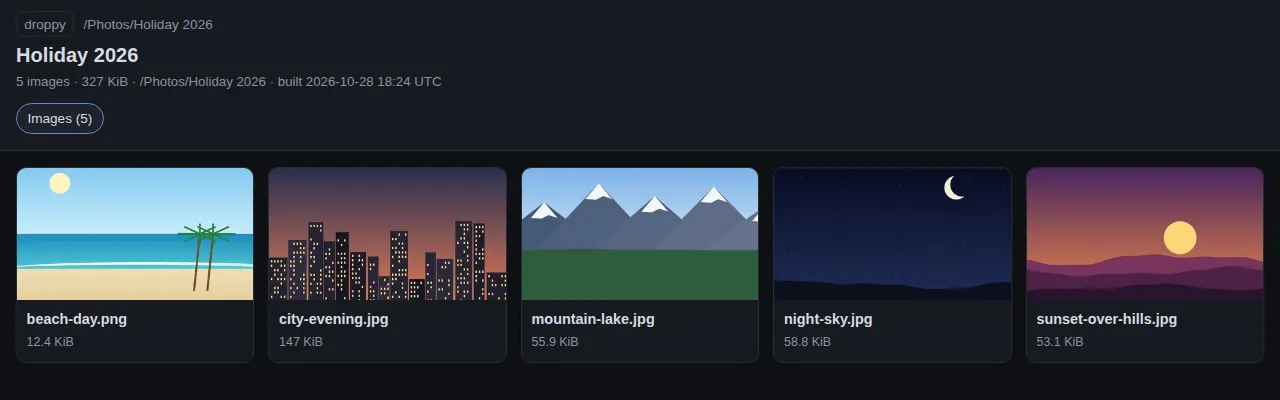
| **Folder Index (browse pages)** | Writes browsable pages into the folder: `vid.html` (video grid with player), `img.html` (photo grid with lightbox), `pdf.html` (PDF list and viewer) and `md.html` (Markdown). Thumbnails are cached in a hidden `.thumbs` folder. The pages also work through a share link | **Folder**, **Pages** (`vid`, `img`, `pdf`, `md` or `all`), **Page title**, **Include subfolders**, **Generate thumbnails**, **Max files** |
| **Photo / Image Processor** | Compresses, resizes, rotates or converts images (to JPG, PNG, WebP or GIF; HEIC and AVIF can be read). Originals move to `orig/`, results to `compressed/` | **Folder to process**, **Mode** (`compress`, `rotate`, `convert`, `scan`), **Quality**, **Max dimension (px)**, **Rotation**, **Target format**, **Strip metadata**, **Skip copy if not smaller** |
| **Video Compressor (scan a folder)** | Compresses each video to H.264 with the same `orig/` and `compressed/` layout; `scan` only lists what would be processed | **Folder to scan**, **Mode**, **Quality**, **Audio**, **Max height (px)**, **Min size (MB)**, **Max files** |
| **Media Downloader (any URL)** | Downloads video or audio from a web page or direct link into one of your folders | **Media URL(s)** (one per line), **Destination folder**, **Format**, **Max duration (seconds)** |
An img.html page made by Folder Index, opened through a share link (example photos).
Jobs are private to you and are lost if the server restarts. Processed files are never picked up twice because `orig/` and `compressed/` are skipped. Download or process only content you have the right to use. The list of agents on a given installation may differ; agents that need tools the server does not have will fail with a message in their log.
## Preferences
Choose **Preferences** (gear). Changes save immediately; the window can be moved by its title bar on desktop.
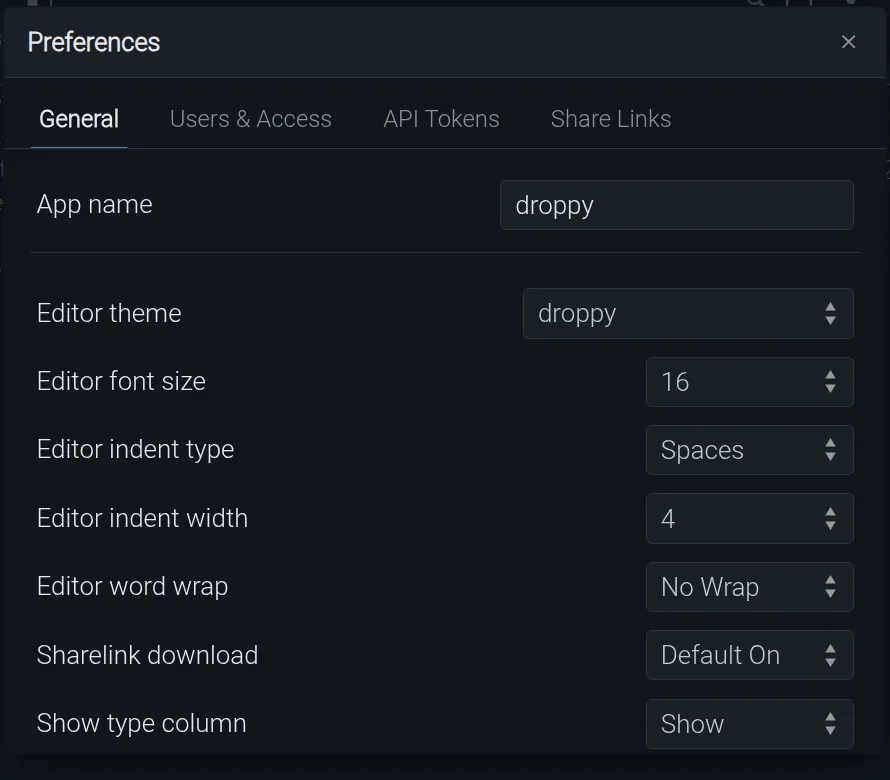
Preferences → General as an administrator sees it (example).
| Tab | Who sees it | Contents |
| --- | --- | --- |
| **General** | Everyone | Editor and list settings (below); administrators also see **App name** |
| **Users & Access** | Administrators | Users, home folders and folder grants |
| **API Tokens** | Everyone | Your tokens for `droppy_cli` and scripts |
| **Share Links** | Everyone | Your share links |
**General** settings (stored in this browser):
| Setting | Choices (default) |
| --- | --- |
| **Editor theme** | `droppy` plus the CodeMirror themes |
| **Editor font size** | 10–30 (16 on desktop, 12 on phones) |
| **Editor indent type** | **Tabs** or **Spaces** (Spaces) |
| **Editor indent width** | 1, 2, 4 or 8 (4) |
| **Editor word wrap** | **Wrap** or **No Wrap** (No Wrap) |
| **Sharelink download** | **Default On** or **Default Off** — the starting state of **Is DL** (Default On) |
| **Show type / owner / modified / size column** | **Show** or **Hide** on desktop (all shown) |
| **Mobile type / owner / modified / size column** | **Show** or **Hide** on narrow screens (only size shown) |
| **App name** (administrators) | The name shown in the browser tab, the About box and the installed app. It changes for everyone straight away |
Theme (light or dark) is switched with **Toggle theme** in the toolbar; Droppy starts with your system setting and remembers your choice on this browser.
The light theme (example data).
### API tokens
Preferences → API Tokens lists your tokens (example).
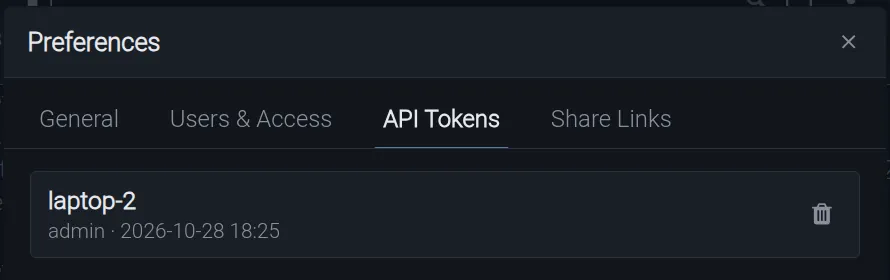
An API token lets `droppy_cli` or a script act as you, with exactly your permissions. Tokens start with `drp_`. **Preferences → API Tokens** lists your tokens (name, user, creation time); select the bin to revoke one (**Revoke Token**). The quickest way to create a token is `droppy_cli login` (see below), which signs in with your password and saves a new token; administrators can also create tokens on the server. A token's full value is shown only once. Token names are unique on the server, so a second `laptop` becomes `laptop-2`.
## Users and permissions (administrators)
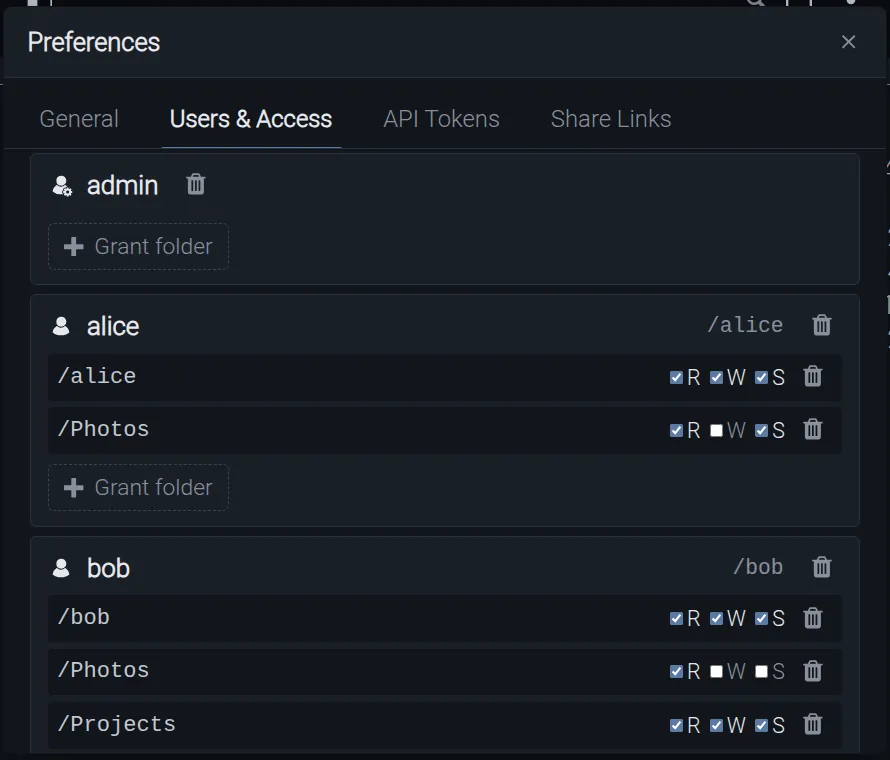
Preferences → Users & Access with three example accounts.
Open **Preferences → Users & Access**.
- **Add a user:** choose **Add or update a user**, enter the username and password when asked, then answer **Make this user privileged?** with **Privileged** (administrator) or **Cancel** (normal user). A normal user automatically gets a home folder `/` with full access.
- **Change a password:** add the same username again with the new password.
- **Delete a user:** the bin next to the name, then **Delete**. You cannot delete yourself. The user's sessions and tokens are removed.
- **Grant a folder:** **Grant folder** under a user, type the folder path (for example `/Projects`), then answer **Allow writes?** and **Allow share links?**. Read access is always included.
- **Change a grant:** tick or untick **R** (read), **W** (write) and **S** (share). Unticking all three, or the bin on the row, removes the grant.
| Permission | Allows |
| --- | --- |
| **R** read | See, open and download; also copy from here |
| **W** write | Upload, create, edit, rename, move, delete and extract here |
| **S** share | Create share links for items here |
A grant covers the folder and everything inside it. Users see only the folders they have grants for, plus the path leading to them. Normal users can also create a new folder at the top level, which then belongs to them (shown in the **Owner** column). Administrators have full access everywhere, and only administrators can create upload-enabled share links. Share links stop working if their creator loses read or share access to the item.
## Install and use on a phone
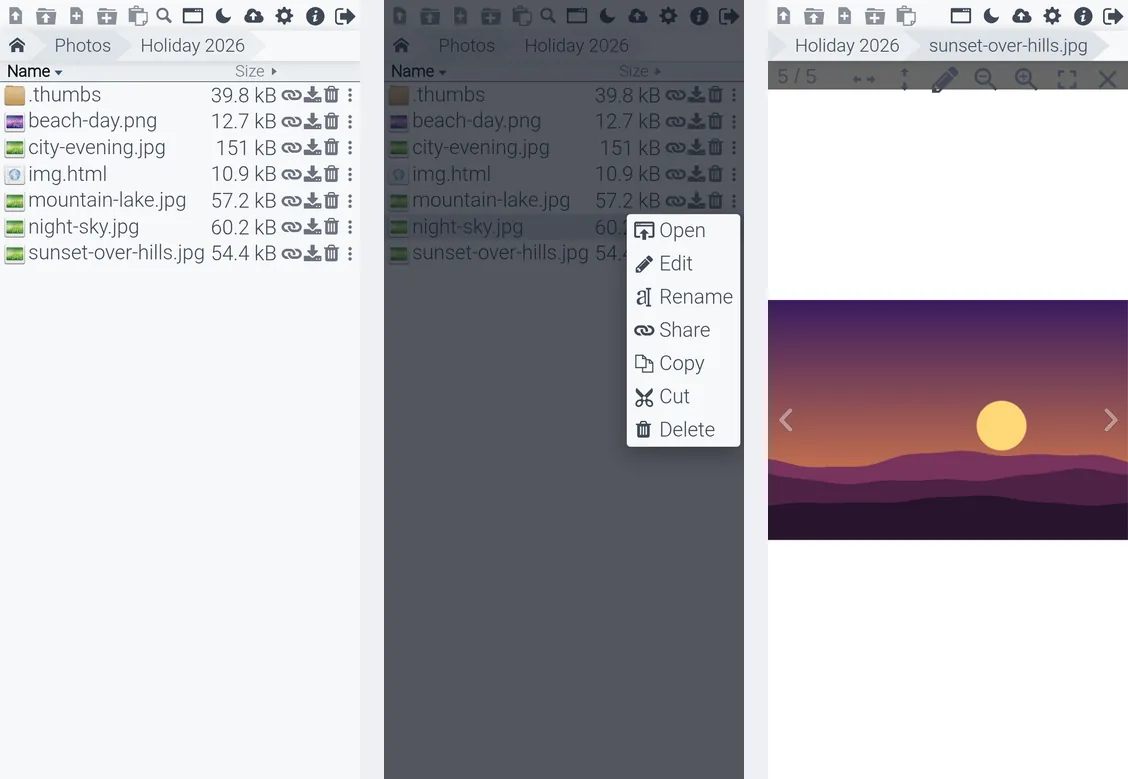
On a phone: the file list, the Actions menu (⋮) and the gallery (example account with read-only photo access).
- **Install:** choose **Install app** in the toolbar when your browser offers it (Chrome, Edge, Android), or use the browser's **Add to Home Screen** (Safari on iPhone and iPad). The installed app opens full screen. On droppy.micstec.com it is named after the installation's app name, **Micstec**.
- **Narrow screens** show only **Name** and **Size** by default; change this with the **Mobile … column** preferences.
- **Tap** a name to open it; tap **⋮** for the Actions menu. Swipe through photos and pinch to zoom.
- **Upload** with **Upload files from disk**, which offers the camera and photo library. Keep the screen on and Droppy open until large uploads finish.
- Videos can continue in picture-in-picture when you switch apps, where the phone supports it.
## The droppy_cli command-line client
`droppy_cli` (also built as `droppy-cli`) manages your files from a terminal or script over HTTPS, using an API token. Standalone binaries exist for Linux (x64, arm64), macOS and Windows; ask your administrator where to download one.
### Sign in and profiles
```sh
droppy_cli login --url https://droppy.micstec.com # asks for username and password
droppy_cli whoami # active profile, server and user
droppy_cli ls /
```
`login` creates a token and saves it as a **profile** in `~/.droppy-cli/profiles/.json` (readable only by you). A profile holds one server, one user and one token, so you can keep several:
| Command | What it does |
| --- | --- |
| `login [--profile NAME] [--name TOKEN-NAME] [--no-switch]` | Sign in and save a profile (`--username`, `--password` skip the prompts) |
| `profiles` | List profiles; the active one is marked |
| `use NAME` | Switch the active profile |
| `--profile NAME ` | Use another profile for one command |
| `logout [--all]` | Revoke the token on the server and delete the profile |
| `tokens list` / `tokens revoke NAME` | List or revoke your tokens |
| `passwd` | Change your own password (administrators: `passwd USER` resets someone else's and signs them out everywhere) |
For scripts, `DROPPY_URL` and `DROPPY_TOKEN` (environment or a `.env` file), or `--url` and `--token`, override any profile.
### Files
| Command | What it does |
| --- | --- |
| `ls [path]` | List a folder: type (`d`/`f`), size in bytes, modified time (Unix seconds), path |
| `upload LOCAL REMOTE-DIR` | Upload a file, or a folder with everything in it (`./docs` becomes `REMOTE-DIR/docs`) |
| `download REMOTE-FILE [LOCAL-PATH]` | Download a file |
| `mkdir PATH` | Create a folder |
| `cp SRC DST` / `mv SRC DST` | Copy, or move/rename |
| `rm PATH` | Delete a file or folder |
| `browse [path]` | Full-screen terminal file browser |
In `browse`: `↑`/`↓` move, `Enter` opens, `Backspace` goes up, `n` new folder, `u` upload, `d` download, `r` rename, `m` move, `c` copy, `D` delete, `p` go to a path, `R` refresh, `?` help, `q` quit.
### Share links
```sh
droppy_cli share /alice/report.pdf # inline link; prints the URL
droppy_cli share /alice/photos --download # folder downloads as a ZIP
droppy_cli share /alice/report.pdf --slug q3-report --passcode "open-sesame"
droppy_cli share list # 🔒 marks locked links
droppy_cli share rename q3-report q3-final
droppy_cli share passcode q3-final --clear
droppy_cli share revoke q3-final
```
Administrators can add `--upload` to a folder link (visitor uploads), or change it later with `share update LINK --upload/--no-upload`. Without `--download`, CLI links open as previews. Administrators also have `user list|add|del|grant|revoke` and `acl`.
A menu-driven helper, `droppy_cli_tui.sh`, wraps these commands with a **Setup wizard**, a **Remote file browser**, **Server/Admin droppy commands**, **Profiles & login**, **Settings** and a **Command reference**.
## Run your own Droppy (administrators)
Droppy is open source (BSD licence, based on [silverwind/droppy](https://github.com/silverwind/droppy)) and runs on Node.js or in Docker.
- **Start:** `droppy start -c /srv/droppy/config -f /srv/droppy/files`. It listens on port 8989; put it behind HTTPS.
- **First sign-in:** a new installation creates the account `admin` / `admin` and immediately asks you to **Set a new admin password.**
- **Server commands:** `droppy list`, `add [p]` (`p` = administrator), `del`, `grant read,write,share`, `revoke`, `acl`, and `token add|list|revoke`. In Docker run them with `docker exec droppy … -c /config -f /files`.
- **Useful settings** in `config/config.json`: `appName`, `readOnly` (no changes allowed), `public` (no sign-in, read-only), `maxFileSize`, `linkLength` (default 5 characters), `ignorePatterns` and `listeners` (ports and TLS).
- Archive extraction needs `bsdtar` and `7z`; the agents need tools such as `ffmpeg`, ImageMagick and `yt-dlp` on the server. The Docker image includes them.
## Privacy and security
- Files stay on the Droppy server; Droppy does not send them anywhere else. Search engines are told not to index the site.
- Passwords and API tokens are stored only as salted hashes. Treat tokens like passwords and revoke any you no longer use.
- A share link is public to anyone who has it. Use **Lock** for anything sensitive, send the passcode through a different channel, and revoke links when you are done.
- Upload links let strangers add files; use a dedicated folder and review what arrives.
- The administrator of an installation can see every file on it.
- Sign out on shared computers.
## Limits
| Limit | Value |
| --- | --- |
| File size | Unlimited unless the administrator sets `maxFileSize` |
| Upload duration | Up to 7 days per upload request |
| Visitor uploads | Up to 50 files per upload, one upload per second |
| Sign-in attempts | One every 2 seconds per connection |
| Custom link address | 1–64 letters, digits, `_` or `-`; not case-sensitive |
| Idle sessions | Removed after about a month without use |
| Image editor | Up to 24 undo steps |
| Agent jobs | Kept in memory only; log limited to the last 2,000 lines |
## FAQ
**Can I recover a deleted file?** Not from Droppy — there is no recycle bin. Ask the administrator whether the server is backed up.
**Why can't I upload, rename or delete in a folder?** You have read-only access there, or the whole installation is read-only. The buttons are greyed out or you see **Permission denied**.
**Why does my share link download instead of opening?** **Is DL** is on. Open the share dialog again and turn it off, or set **Sharelink download** to **Default Off**.
**Do people need an account to open my link?** No. They need only the link (and the passcode if you set one).
**Can visitors change files through an upload link?** They can add files; existing files are not overwritten.
**Does search look inside documents?** No, only at file and folder names.
**Can I use Droppy offline?** No. It needs a live connection to the server; the installed app is a shortcut to the website.
## Troubleshooting
| Problem or message | What to try |
| --- | --- |
| **Wrong login!** | Check the username and password; wait two seconds before retrying. Ask the administrator to reset the password |
| **Permission denied** | You lack the needed read, write or share access for that folder. Ask the administrator for a grant |
| **Files are read-only.** | The installation is in read-only mode |
| **No write permission in this folder.** (when pasting) | Paste into a folder you can write to, such as your home folder |
| **Clipboard blocked by browser…** / **No image in clipboard…** | Press `Ctrl+V` inside the folder instead of using the button, or copy the image again |
| **Your browser doesn't support directory uploading** | Drag the folder onto the list instead, or use a desktop Chrome, Edge or Firefox |
| **Invalid file path: …** | A name contains a forbidden character such as `:` `?` `*` `"` `<` `>` `|`. Rename it and retry |
| **Maximum upload size of … exceeded.** | The file is larger than the limit set by the administrator. Compress or split it, or ask for the limit to be raised |
| An upload stops or shows **Server responded with HTTP …** | The connection dropped or the server refused the request. Keep the page open, use a stable connection, and retry |
| **Your browser can't play this file** | The browser lacks the codec. **Download** the file, or ask for the Video Compressor agent to convert it |
| **Couldn't load the file. Maybe disable your ad-blocker?** | An extension blocked the request. Allow the site in the blocker |
| **Extract** is missing | The file is not a supported archive type |
| **Custom URL "…" is already taken** | Choose another address |
| **Only admins can create upload-enabled share links** | Ask an administrator to create the upload link |
| A recipient sees the sign-in page instead of the share | The link was revoked, the item was deleted, or its creator lost access. Create a new link |
| A recipient keeps being asked for the passcode | The passcode or the link's address changed; send the current ones |
| **Can't copy directory into itself** | Choose a destination outside the folder you are copying |
| Changes made elsewhere do not appear | Choose **Reload View** |
| **Create token** in API Tokens does nothing | Create the token with `droppy_cli login` instead, or ask the administrator |