# MicsPad
MicsPad turns your phone into a wireless keyboard, touchpad, mouse and keyboard-based game pad for a computer, tablet or TV. The free Android app from [Google Play](https://play.google.com/store/apps/details?id=com.micstec.micspad) pairs as a real Bluetooth keyboard and mouse, so nothing is installed on the device you control. The Web Remote at [micspad.micstec.com](https://micspad.micstec.com) works in any phone browser, including on an iPhone. It sends your input over the internet to a small free helper on a Windows, macOS or Linux computer. The Android app can also act as a Web Remote. This guide covers both modes, every control, voice input, quick words, the full-screen pads, the game pad, helper setup and troubleshooting.
| | |
| --- | --- |
| **Best for** | Controlling a PC, Mac, Linux desktop, smart TV or tablet from the couch, presenting, typing on a device with no keyboard, and playing keyboard-controlled games from a phone |
| **Bluetooth mode** | [MicsPad on Google Play](https://play.google.com/store/apps/details?id=com.micstec.micspad) (free, no ads). Needs Android 9 or later with Bluetooth HID device support. Works with anything that accepts a Bluetooth keyboard and mouse. Nothing to install on the device, and no internet needed |
| **Web Remote mode** | [micspad.micstec.com](https://micspad.micstec.com) in any phone browser, or **Web Remote** in the Android app, plus the free `micspad_agent` helper on the computer. Ready-made helpers are available for Windows x64 and Linux x64. macOS and Linux arm64 use a Python 3 install. Linux needs an X11 session |
| **Account** | None. The Web Remote uses a room key that you choose or that the Linux launcher creates |
| **Languages** | Android app: English and Simplified Chinese (switch in **⋮ → Language**). Web Remote: English |
| **Privacy** | No analytics or ads in the Android app. Bluetooth input goes straight from the phone to the paired device. Web Remote input passes through the MicsPad relay, which forwards it without storing it. Anyone with your room key could send input while the helper runs |
**On this page**
- [Watch the overview](#watch-the-overview)
- [Which mode should I use?](#which-mode-should-i-use)
- [Requirements](#requirements)
- [Get MicsPad](#get-micspad)
- [The Android main screen](#the-android-main-screen)
- [Bluetooth mode](#bluetooth-mode)
- [Web Remote mode](#web-remote-mode)
- [Touchpad and mouse](#touchpad-and-mouse)
- [Keys, modifiers and shortcuts](#keys-modifiers-and-shortcuts)
- [Type text](#type-text)
- [Voice input](#voice-input)
- [Quick words and emoji](#quick-words-and-emoji)
- [Full keyboard](#full-keyboard)
- [Full-screen modes](#full-screen-modes)
- [Game pad](#game-pad)
- [Install the Web Remote as an app](#install-the-web-remote-as-an-app)
- [Settings, languages and help](#settings-languages-and-help)
- [Privacy and security](#privacy-and-security)
- [Troubleshooting](#troubleshooting)
- [Frequently asked questions](#frequently-asked-questions)
## Watch the overview
This 47-second Google Play promo video shows the touchpad, landscape keyboard, Bluetooth pairing, voice input, the full-screen pads and the game pad. You can also [watch it on YouTube](https://www.youtube.com/watch?v=vWiLZM9hpMA). The first 21 seconds are an animated demonstration. The later feature scenes use real Android screenshots, and the voice scene uses sample text.
## Which mode should I use?
| If… | Use |
| --- | --- |
| You have an Android phone and the device is nearby | **Bluetooth.** No software is needed on the device, and it works with TVs and tablets |
| You have an iPhone, or your Android phone cannot act as a Bluetooth keyboard | **Web Remote** in the phone's browser |
| The computer has no Bluetooth, is in another room or is on another network | **Web Remote.** It works over the internet |
| You cannot install software on the computer | **Bluetooth** |
| You want to type Chinese, emoji or other non-keyboard characters | **Web Remote.** Bluetooth can only type characters from a standard US keyboard |
| You want to control several computers | Either. Bluetooth remembers each paired computer, and Web Remote lists every helper that uses your room key |
The touchpad, keys, shortcuts, text box, voice input, quick words, full keyboard, full-screen pads and game pad work the same way in both modes.
## Requirements
| Item | Requirement |
| --- | --- |
| Android app | Android 9 (Pie) or later. Bluetooth mode also needs a phone whose Bluetooth supports the HID *device* role. Some manufacturers leave it out, and the app tells you if your phone lacks it |
| Device controlled over Bluetooth | Anything that accepts a Bluetooth keyboard and mouse: Windows, macOS, Linux, ChromeOS, Android tablets and many smart TVs |
| Web Remote phone | A current browser on any phone. Voice input appears only where the browser supports speech recognition |
| Web Remote computer | Windows x64 (ready-made `.exe`), Linux x64 (ready-made binary) or macOS / Linux arm64 (installer sets up Python 3). Run it in a desktop session where you are logged in. Linux must use X11, because Wayland blocks input injection. macOS needs **Accessibility** permission |
| Network | Bluetooth mode needs none. Web Remote needs internet on both the phone and the computer |
| Game pad over Web Remote | Helper version 1.2.0 or newer |
| Chinese or emoji typing on Linux | `xclip` or `xsel` on the computer. Without one, the helper falls back to typing key by key |
## Get MicsPad
- **Android app:** [MicsPad on Google Play](https://play.google.com/store/apps/details?id=com.micstec.micspad) (package `com.micstec.micspad`). It is free, with no ads, accounts or in-app purchases.
- **Web Remote:** open [micspad.micstec.com](https://micspad.micstec.com) in your phone's browser. You can [install it to your home screen](#install-the-web-remote-as-an-app).
- **Computer helper (`micspad_agent`, Web Remote only):** use the [one-command Linux launcher](#linux-one-command-room) or the installers for [Windows, macOS and Linux](#windows-macos-and-linux-install-the-helper). Every file is on the [agent download page](https://tnas_d.micsapp.com/s/micspad_agent/).
- **Privacy policy:** [micspad.micstec.com/privacy.html](https://micspad.micstec.com/privacy.html).
## The Android main screen
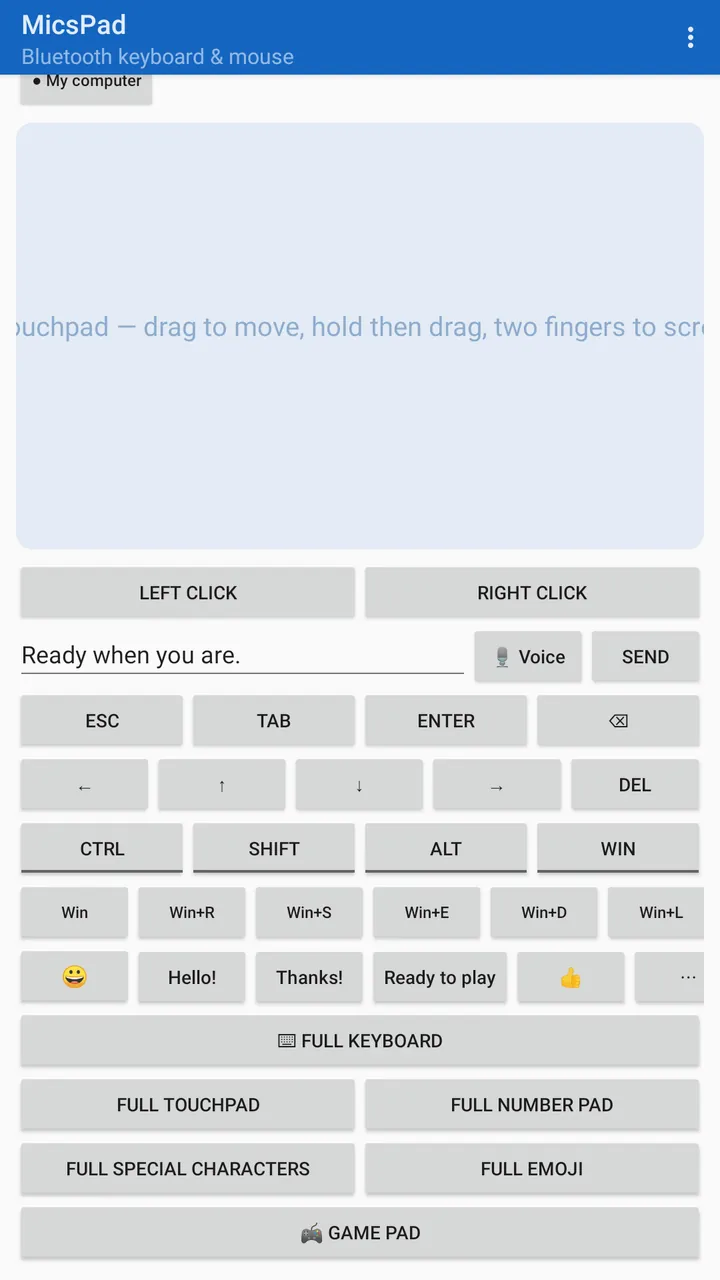 The MicsPad Android app, scrolled just below the mode switch. This is a real native Google Play screenshot with example quick words. The selected computer chip "My computer" sits above the touchpad.
From top to bottom, the Android screen has these parts. The screen scrolls if it does not fit.
| Area | What it does |
| --- | --- |
| Status line | Shows the connection state, for example **Registered — pair from the host, or pick a device** or **Connected to …** |
| **Bluetooth** / **Web Remote** | Switches between the two modes. The active mode is fully opaque, and the app remembers your choice |
| Bluetooth: **Register** · **Discoverable** · **Connect** | Starts the keyboard role, makes the phone visible for pairing, or connects to an already-paired device. **Register** becomes **Stop** while it is active |
| Bluetooth: computer chips | Every computer you have connected to. **●** marks the connected one |
| Web Remote: **Room key (from the computer agent)** · **Connect** | Enter the room key, then connect. **Connect** becomes **Disconnect** |
| Web Remote: computer chips | The helpers that are online for your room key. **●** marks the one you are controlling |
| Touchpad | The large area: drag, tap and scroll. See [Touchpad and mouse](#touchpad-and-mouse) |
| **Left click** · **Right click** | Mouse buttons |
| Text box · **🎙 Voice** · **Send** | Type or dictate text, then send it |
| **Esc · Tab · Enter · ⌫** and **← ↑ ↓ → · Del** | Single keys |
| **Ctrl · Shift · Alt · Win** | Modifiers that latch for the next key |
| Shortcut strip | One-tap key combinations. Swipe sideways for more |
| Quick words row | **😀**, your most-used snippets, then **⋯** or **More…** |
| **⌨ Full keyboard** | Landscape keyboard with a touchpad |
| **Full touchpad · Full number pad · Full special characters · Full emoji · 🎮 Game pad** | Full-screen modes |
The **⋮** menu has **Full keyboard**, **Fullscreen modes**, **Help** (the built-in user manual), **Language** and **About**. **About** shows the version, build number, build time and build ID.
## Bluetooth mode
In this mode the phone itself becomes a Bluetooth keyboard and mouse, called **MicsPad Keyboard/Mouse**. Nothing is installed on the computer, and no internet connection is used.
### Pair for the first time
1. Install MicsPad from Google Play and open it. Tap **Bluetooth** at the top if it is not already selected.
2. Tap **Register**. On Android 12 or later, allow the **Nearby devices** (Bluetooth) permission when asked. If you refuse it, the app shows **Bluetooth permission denied — the app cannot work without it**.
3. Wait for the status **Registered — pair from the host, or pick a device**.
4. Tap **Discoverable** and accept Android's prompt. The phone becomes visible for 120 seconds.
5. On the computer, tablet or TV, open the Bluetooth settings, add a device and choose **MicsPad Keyboard/Mouse**.
6. When the status says **Connected to *name***, the touchpad and keys control that device. The device also appears as a chip under the Bluetooth buttons.
You can also pair from the phone's own Bluetooth settings first. Then tap **Register**, tap **Connect**, and pick the computer from **Connect to paired device**.
### Reconnect, switch and forget computers
- **Tap a chip** to connect to that computer. If another computer is connected, MicsPad disconnects it first and the status shows **Switching to …**. Only one computer can be connected at a time. This is a Bluetooth keyboard limitation.
- **Tap the active (●) chip** to disconnect.
- **Long-press a chip** to forget it in MicsPad. The pairing is still kept on the computer and the phone.
- **Automatic reconnect:** when you return to MicsPad, it registers again and reconnects to the last computer, unless you tapped **Stop**.
- **Stop** ends the keyboard role and disconnects.
- While you are connected, the phone's screen stays on so that a screen timeout does not drop the link. The Google Play version has no background service, so keep MicsPad open while you use it.
### Bluetooth status messages
| Status | Meaning |
| --- | --- |
| **Idle — tap Register to begin** | Nothing is running yet |
| **Acquiring HID device profile…** | Starting up |
| **Registered — pair from the host, or pick a device** | Ready to pair or connect |
| **Connecting to …** / **Reconnecting to …** / **Switching to …** | Connection in progress |
| **Connected to …** | Input goes to this device |
| **Disconnected — ready to reconnect** | The link dropped. Tap the chip, or let MicsPad reconnect |
| **Host unplugged the virtual cable (unpaired)** | The computer removed the pairing. Pair again |
| **Bluetooth is off — enable it and retry** | Turn Bluetooth on |
| **Register first, then connect** | Tap **Register** before **Connect** |
| **This phone's Bluetooth stack has no HID device role** / **Registration rejected — HID device role unavailable** / **Registration revoked by the Bluetooth stack** | This phone cannot act as a Bluetooth keyboard. No setting fixes it, so use Web Remote |
### Bluetooth limits
- **Text:** Bluetooth sends US-keyboard key presses, so only standard keyboard characters can be typed: letters, digits, common punctuation and space. If you send Chinese, emoji or other characters, MicsPad shows **Bluetooth can only type standard keyboard characters. For Chinese or emoji, use Web Remote mode.** and skips them. **Full emoji** is disabled in this mode.
- **Keyboard layout:** if the computer uses a non-US layout, some symbols, and on some layouts some letters, may come out differently.
- **Media keys:** **Mute**, **Vol-** and **Vol+** on the full keyboard use a separate media report. If you paired before MicsPad 1.9.0, remove the pairing and pair again for these keys to work.
## Web Remote mode
In Web Remote mode the phone sends input to the MicsPad relay at `micspad.micstec.com`. The relay forwards it to a helper (`micspad_agent`) running on the computer, and the helper types and moves the pointer there. The phone and the helper find each other with a shared **room key** of at least 6 characters. No account is needed.
1. Start the helper on the computer with a room key.
2. Enter the same key on the phone and connect.
3. Pick the computer, then use the controls.
### Linux: one-command room
On the Linux desktop you want to control, open a terminal in your graphical X11 session and run:
```
curl -fsSL https://tnas_d.micsapp.com/s/micspad_agent/micspad-host.sh | bash
```
The launcher does the following:
1. Checks for a graphical session. It warns and asks before continuing over plain SSH or with no display. It warns that a Wayland-only session restricts input.
2. Creates a room key, such as `abcd-efgh-jkmn` (12 characters with no easily confused letters), and saves it to `~/.config/micspad/roomkey`. On later runs it reuses the saved key, so your phone's saved key keeps working.
3. Finds the helper in this order: an installed `micspad_agent`, a local build, a fresh download of the Linux binary, then the Python source in a checkout.
4. Prints **MicsPad host ready — room created**, the room key, and the phone steps: open micspad.micstec.com or choose Web Remote in the Android app, enter the key, tap **Connect**, and pick the computer by name. If `qrencode` is installed, it also shows a QR code for the web app.
5. Starts the helper. Keep the terminal open, and press **Ctrl+C** to stop controlling this computer.
To pass options when piping from curl, add `-s --` after `bash`. For example, this creates a new key:
```
curl -fsSL https://tnas_d.micsapp.com/s/micspad_agent/micspad-host.sh | bash -s -- --new
```
| Launcher option | Effect |
| --- | --- |
| `--new` | Creates and saves a new room key. Enter the new key on your phone |
| `--key YOURKEY` | Uses your own key of at least 6 characters, and saves it for next time |
| `--name "Office Linux"` | Sets the computer name shown on the phone. The default is the hostname |
| `--install` | Installs `micspad_agent` permanently first, then starts the host |
| `--setup` | Installs the Python packages for the checkout's source fallback |
| `--server wss://…/ws` | Uses a different relay. The phone must use the same relay |
| `--help` | Shows the usage text |
If the launcher reports that no clipboard tool was found, install `xclip`, for example `sudo apt install xclip`. Without it, Chinese and emoji may not type correctly.
### Windows, macOS and Linux: install the helper
Install once, then start the helper with a room key you choose each time.
**Windows (PowerShell):**
```
irm https://tnas_d.micsapp.com/s/micspad_agent/install.ps1 | iex
micspad_agent --key YOURKEY
```
The installer puts `micspad_agent.exe` in `%LOCALAPPDATA%\micspad\bin` and adds it to your user `PATH`, so open a new terminal before running it. You can instead download [micspad_agent-win-x64.exe](https://tnas_d.micsapp.com/s/micspad_agent/micspad_agent-win-x64.exe) and run it from a terminal with `--key YOURKEY`. The helper does not start without a key.
**macOS or Linux (Terminal):**
```
curl -fsSL https://tnas_d.micsapp.com/s/micspad_agent/install.sh | bash
micspad_agent --key YOURKEY
```
The script downloads the ready-made binary where one exists (Linux x64). On macOS and Linux arm64 it creates a private Python 3 environment instead, so Python 3 must be installed. It installs to `/usr/local/bin` (or `/opt/homebrew/bin` on Apple Silicon Macs, using `sudo` if needed), otherwise to `~/.local/bin`.
**macOS permission:** open **System Settings → Privacy & Security → Accessibility** and allow `micspad_agent` (or the Terminal you run it from). Without this permission, the pointer and keys do nothing.
| Installer option | Effect |
| --- | --- |
| `--user` (bash) | Installs to `~/.local/bin` |
| `--prefix DIR` (bash) | Installs to a folder you choose |
| `--python` (bash) / `-Python` (PowerShell) | Skips the binary and uses the Python install |
| `--uninstall` (bash) / `-Uninstall` (PowerShell) | Removes the helper |
To use an option with the bash installer, run `curl -fsSL https://tnas_d.micsapp.com/s/micspad_agent/install.sh | bash -s -- --user`. For the PowerShell options, download `install.ps1` first, then run `.\install.ps1 -Uninstall`.
### Helper command-line options
| Option | Meaning |
| --- | --- |
| `--key KEY` | Room key shared with the phone. Required, at least 6 characters |
| `--name NAME` | Name shown on the phone. The default is the computer's hostname |
| `--server URL` | Relay address. The default is `wss://micspad.micstec.com/ws` |
| `--version` | Prints the version, for example `micspad_agent 1.2.0` |
| `-h`, `--help` | Shows the options |
While it runs, the helper prints lines such as `[info] connected to wss://micspad.micstec.com/ws as agent 'Office-PC'` and `[info] registered (id …)`. If the connection drops, it prints `[info] reconnecting in 2s…`, retrying with waits that grow to 30 seconds. Press **Ctrl+C** to stop it. The helper releases any keys the game pad is holding when it disconnects.
### Connect your phone
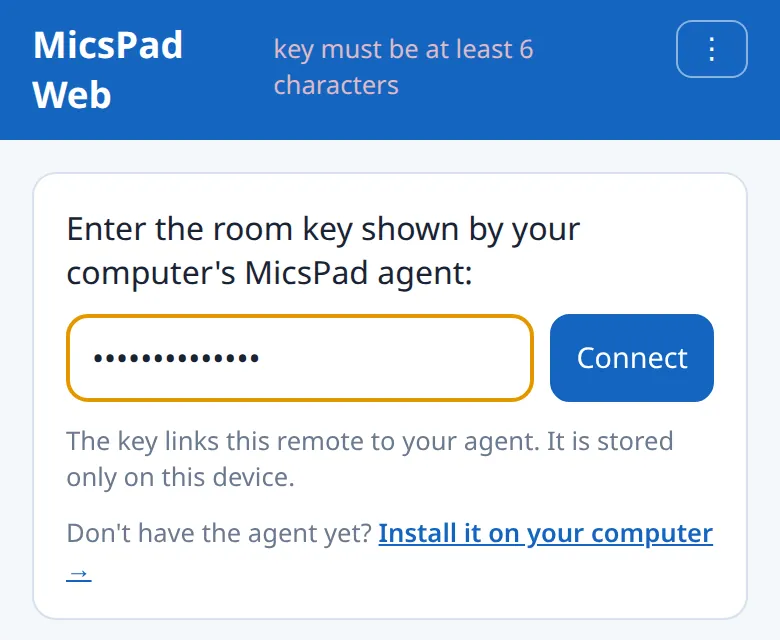 The Web Remote room-key box (example). The header shows the connection status, here the message for a key that is too short.
**In a browser (any phone, including iPhone):**
1. Open [micspad.micstec.com](https://micspad.micstec.com).
2. In **Enter the room key shown by your computer's MicsPad agent**, type the key and tap **Connect**. The header status changes from **connecting…** to **connected**.
3. The key is saved in this browser only. Next time, the page reconnects automatically.
**In the Android app:**
1. Tap **Web Remote** at the top.
2. Type the key in **Room key (from the computer agent)** and tap **Connect**. The status shows **Connected — pick an agent**.
3. The app remembers the key and reconnects when you return to it, unless you tapped **Disconnect**.
### Choose a computer
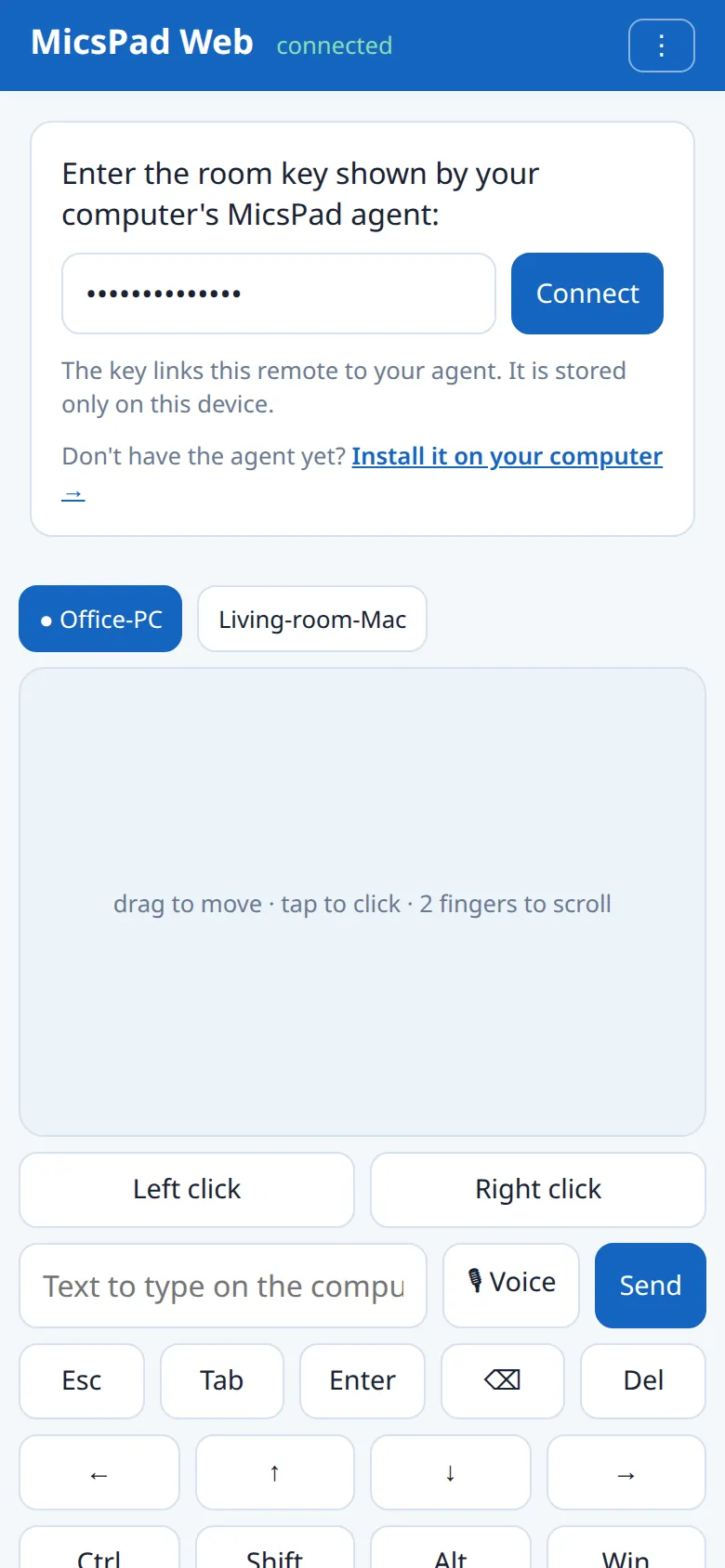 The Web Remote connected to a room with two example computers. The ● chip, Office-PC, receives the input. This was captured on a local test relay with mock helpers.
Each helper that uses your room key appears as a chip above the touchpad. The first one is selected automatically, and a **●** marks the selected one. Tap another chip to send your input there instead. If you see **No agent online — start the MicsPad agent on your computer**, the helper is not running with that exact key.
You can run helpers on several computers with the same key and switch between them, and several phones can join the same room. Tap **Disconnect** to leave. In the browser, the room-key box stays visible above the controls.
### How text reaches the computer
The helper types plain ASCII text directly. For other text, such as Chinese, accented letters or emoji, it places the text on the clipboard, presses **Ctrl+V** (**⌘V** on a Mac), then restores your previous clipboard. This works whatever keyboard layout or input method the computer uses. Each message is limited to 16 KB, so send very long text in parts.
## Touchpad and mouse
| Gesture or control | Action |
| --- | --- |
| Drag one finger | Move the pointer |
| Tap | Left click |
| Tap with two fingers | Right click |
| Drag two fingers up or down | Scroll |
| Hold one finger still, then drag | Hold the left button: drag and drop, or select text. Lift your finger to release. This works on every Android touchpad and on the web's full-screen touchpads, but not on the web's main-screen touchpad |
| **Left click** / **Right click** | Click without tapping the pad |
The hold takes about 0.4 seconds on Android and 0.45 seconds on the web. The pointer speed is fixed. For a bigger pad, open **Full touchpad**. See [Full-screen modes](#full-screen-modes).
## Keys, modifiers and shortcuts
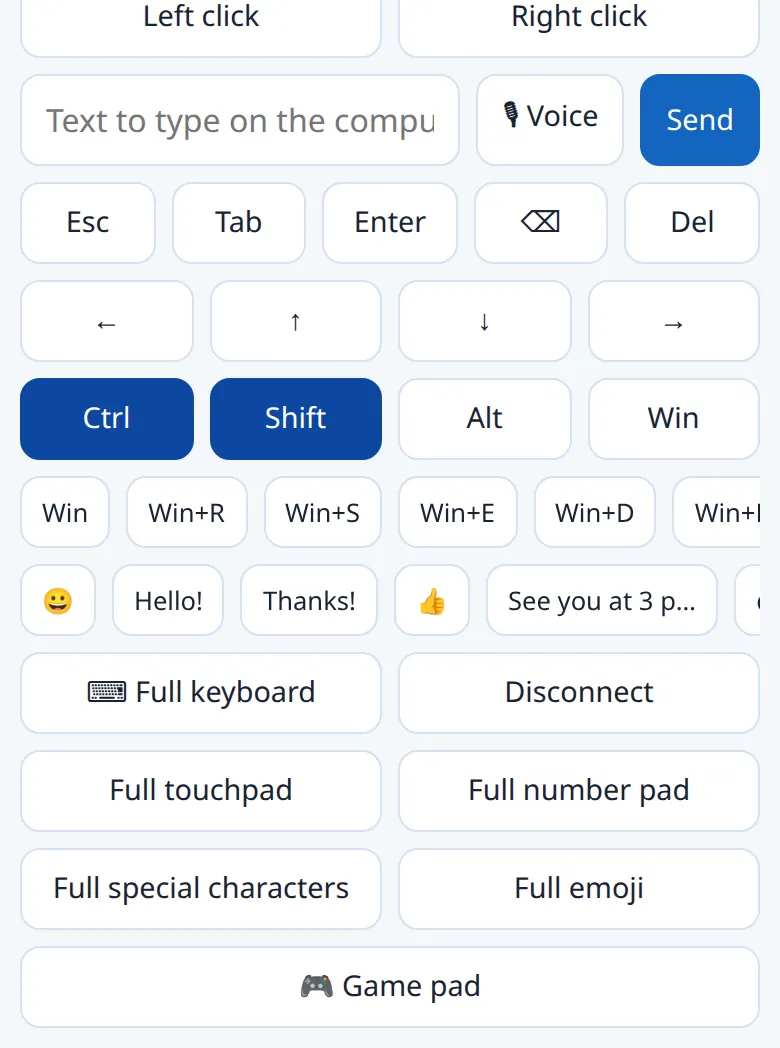 Key rows in the Web Remote with Ctrl and Shift latched (highlighted). The next key you tap is sent as Ctrl+Shift+that key. The quick words are examples.
- **Single keys:** **Esc**, **Tab**, **Enter**, **⌫** (Backspace), **Del** and the arrow keys **← ↑ ↓ →**.
- **Modifiers:** **Ctrl**, **Shift**, **Alt** and **Win** latch. Tap one or more so they light up, then tap a key. For example, **Ctrl**, **Shift** then **←** selects the previous word. The modifiers release after that key. Tap a lit modifier again to cancel it. **Win** is the Windows key: Command (⌘) on a Mac and Super on Linux.
- **Shortcut strip:** one tap sends the whole combination. Swipe the strip sideways to see all of them.
| Shortcut | Typical use on Windows |
| --- | --- |
| **Win** | Open the Start menu |
| **Win+R** · **Win+S** · **Win+E** | Run box · Search · File Explorer |
| **Win+D** · **Win+L** | Show the desktop · Lock the computer |
| **Alt+Tab** · **Alt+F4** | Switch windows · Close the window |
| **Ctrl+Alt+Del** | Security screen. Windows normally ignores it when software sends it, so it may do nothing over Web Remote |
| **Ctrl+C** · **Ctrl+V** · **Ctrl+X** · **Ctrl+Z** · **Ctrl+A** | Copy · Paste · Cut · Undo · Select all |
On a Mac, the **Win** combinations arrive as ⌘ combinations, and the Ctrl shortcuts are sent as Ctrl, not ⌘. For Mac copy and paste, latch **Win** and use the [full keyboard](#full-keyboard).
## Type text
1. Tap the text box (**Text to type on the host** in the app, **Text to type on the computer** on the web) and type with the phone's keyboard.
2. Tap **Send**, or press Enter or Send on the phone's keyboard. The text is typed at the computer's cursor, and the box clears.
Nothing is sent while you type, so you can correct the text first. To press Enter on the computer after the text, tap **Enter** in the key row.
## Voice input
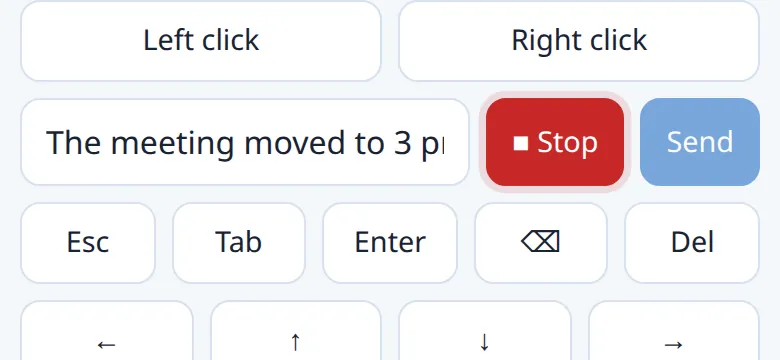 Voice input while listening. The button shows ■ Stop, and Send is dimmed until you stop. The transcript is an example from a simulated speech service.
1. Tap **🎙 Voice** next to the text box. The first time, the Android app asks for the microphone permission.
2. Speak. You can say several phrases. The words appear in the text box as you talk, at the cursor or replacing any selected text.
3. Tap **■ Stop**. The button shows **… Processing** (app) or **■ Stop · Processing…** (web) for a moment.
4. Check and edit the text, then tap **Send**. Dictated text is never sent until you tap **Send**.
| Detail | Behaviour |
| --- | --- |
| Speech service | Android uses the phone's speech-recognition service, and uses on-device recognition when available. The web uses the browser's speech service. Depending on the provider, audio may be processed online. MicsPad never sends audio through its relay |
| Language | The app's language on Android, the browser's language on the web |
| Web availability | **🎙 Voice** appears only in browsers with speech recognition. Otherwise, use the dictation key on your phone's keyboard |
| Stops automatically | When you leave the app or page, switch modes, open a full-screen mode, or disconnect |
| Messages | **Microphone permission is required for voice input.** · **Voice input is unavailable on this device.** · **Voice recognition could not reach its service.** · **Voice recognition is unavailable for this language.** · **Voice recognition failed. Try again.** |
## Quick words and emoji
The row above the shortcut keys holds **😀**, up to six of your most-used snippets, and **⋯**. When you have more than six, the last button is **More…**. Tap a snippet to type it on the computer at once. Each use counts towards its place in the row. Long snippets are shortened on their buttons, and snippets made only of spaces show as **␣**.
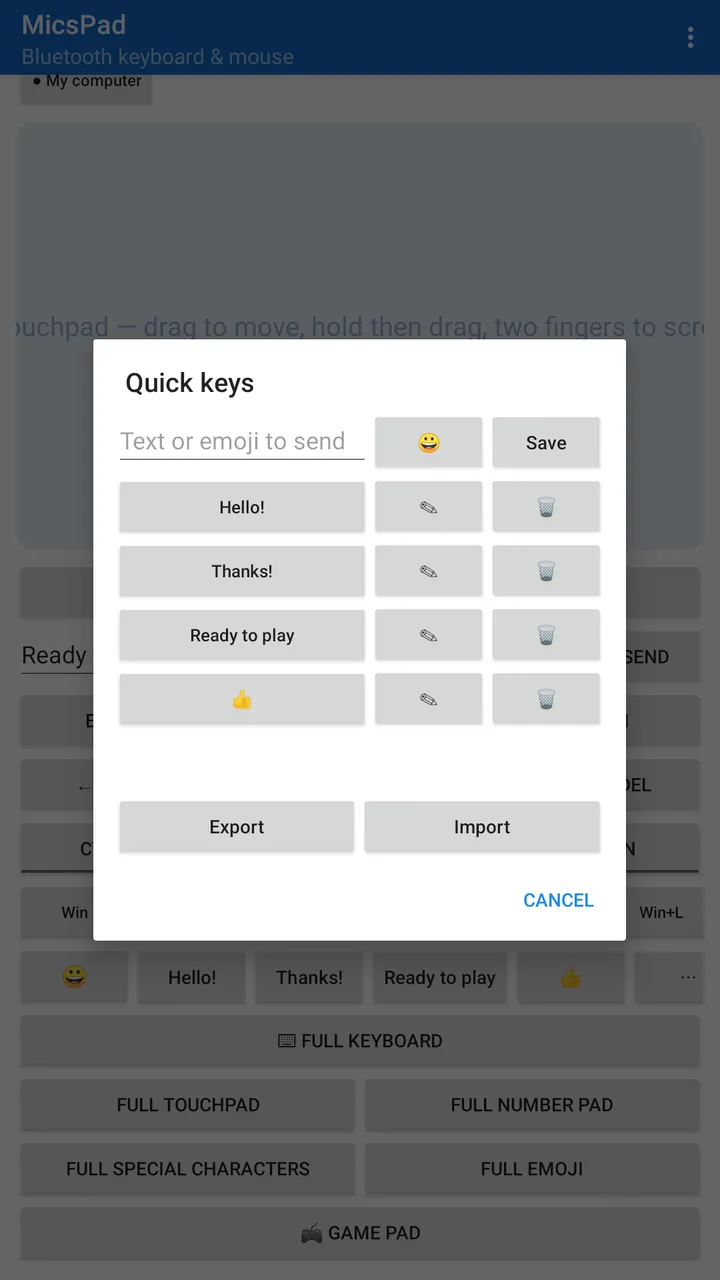 The Quick keys manager in the Android app, a real Google Play screenshot. Each saved snippet has ✎ (edit) and 🗑 (delete) buttons.
**Manage quick keys:** tap **⋯** or **More…** to open **Quick keys**.
1. **Add:** type text or emoji in **Text or emoji to send** and tap **Save**. Any text works, including a single character, a space or an email signature.
2. **Insert emoji:** tap **😀** in the manager to add an emoji at the cursor.
3. **Send:** tap a snippet in the list.
4. **Edit:** tap **✎**, change the text, and tap **Update**. The web title changes to **Edit quick key**.
5. **Delete:** tap **🗑**.
6. **Export** saves all snippets as `micspad-quick-keys.json`, a JSON list of text strings. Android lets you choose where to save it, and the browser downloads it.
7. **Import** adds the snippets from such a file and skips any you already have. The app confirms with **Imported N quick key(s)**. A file that is not a JSON list is rejected with **Import failed**. Use Export and Import to copy snippets between the app and the web, or between phones.
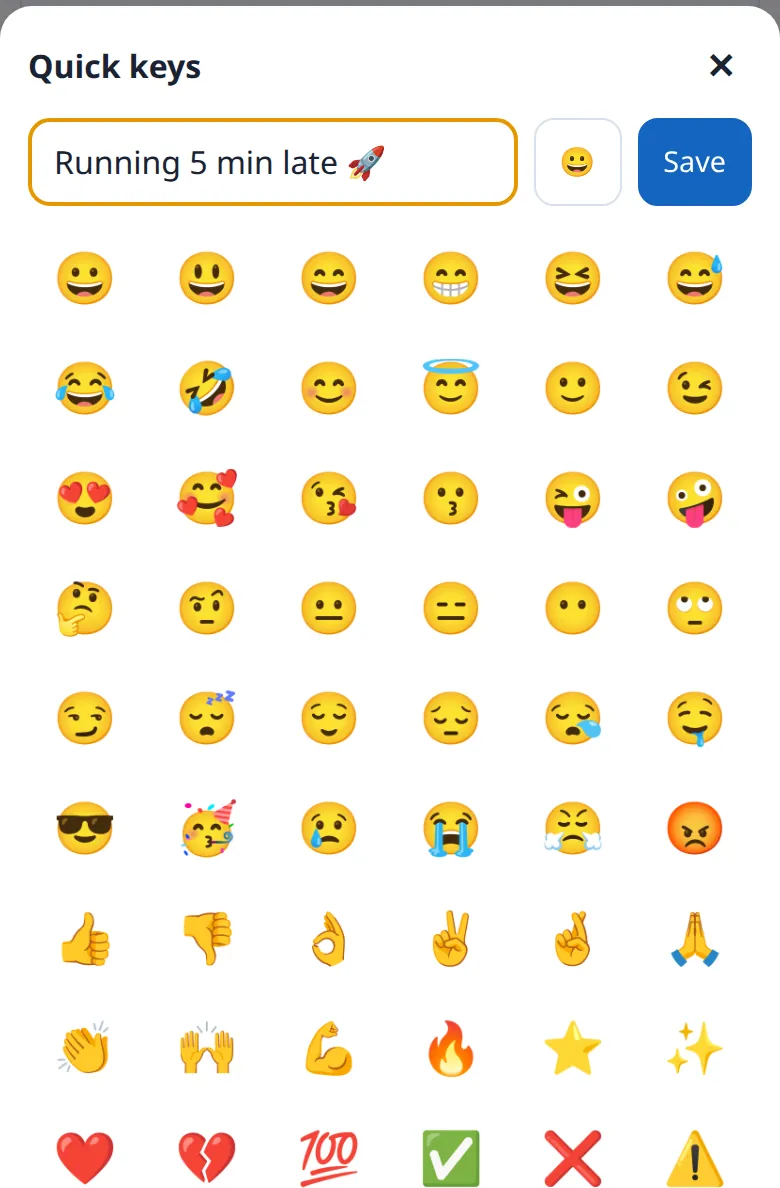 Adding a quick key in the Web Remote (example). Tap an emoji in the grid to insert it at the cursor.
Snippets are stored on the phone. The app and each browser keep separate lists. In Bluetooth mode, only standard keyboard characters can be sent. See [Bluetooth limits](#bluetooth-limits).
**Emoji:** tap **😀** in the quick words row to open **Pick an emoji**, which has 60 common emoji. Tap one to type it on the computer. For repeated emoji, use [Full emoji](#full-screen-modes). Emoji need Web Remote.
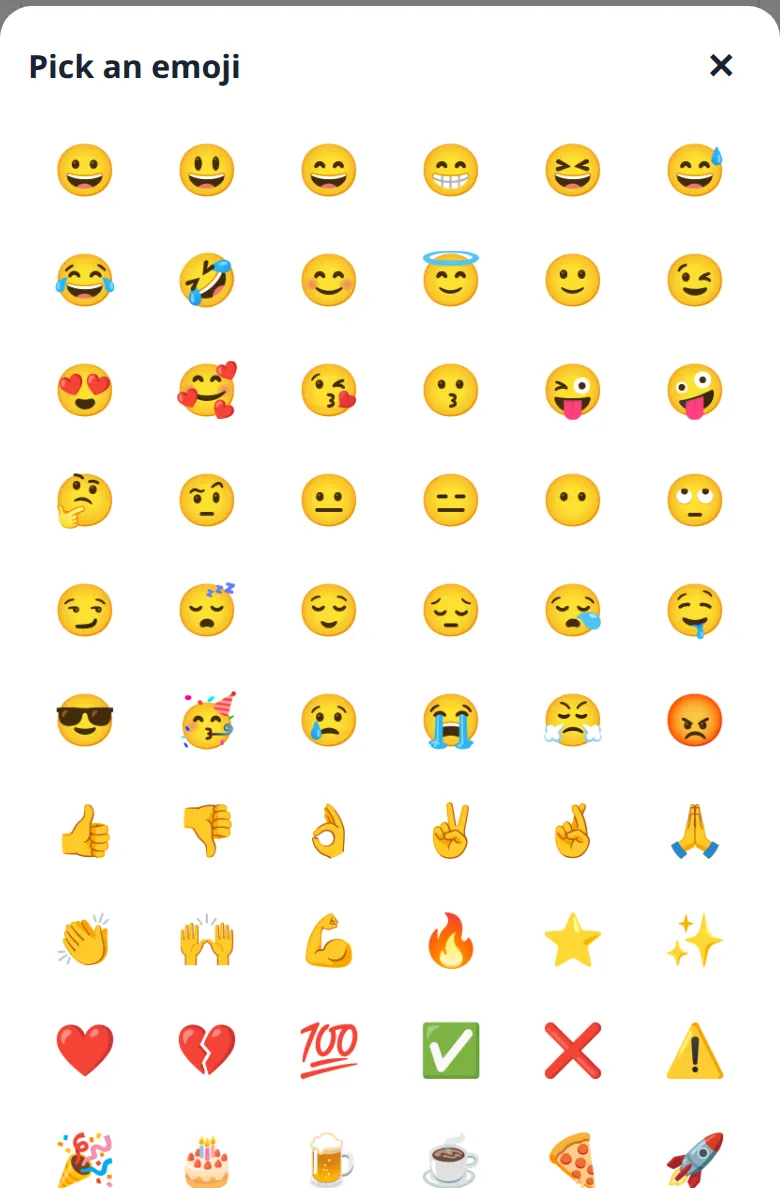 The Web Remote emoji picker.
## Full keyboard
Tap **⌨ Full keyboard**, or choose **⋮ → Full keyboard** in the app. The screen turns to landscape and shows a full keyboard with a touchpad beside it.
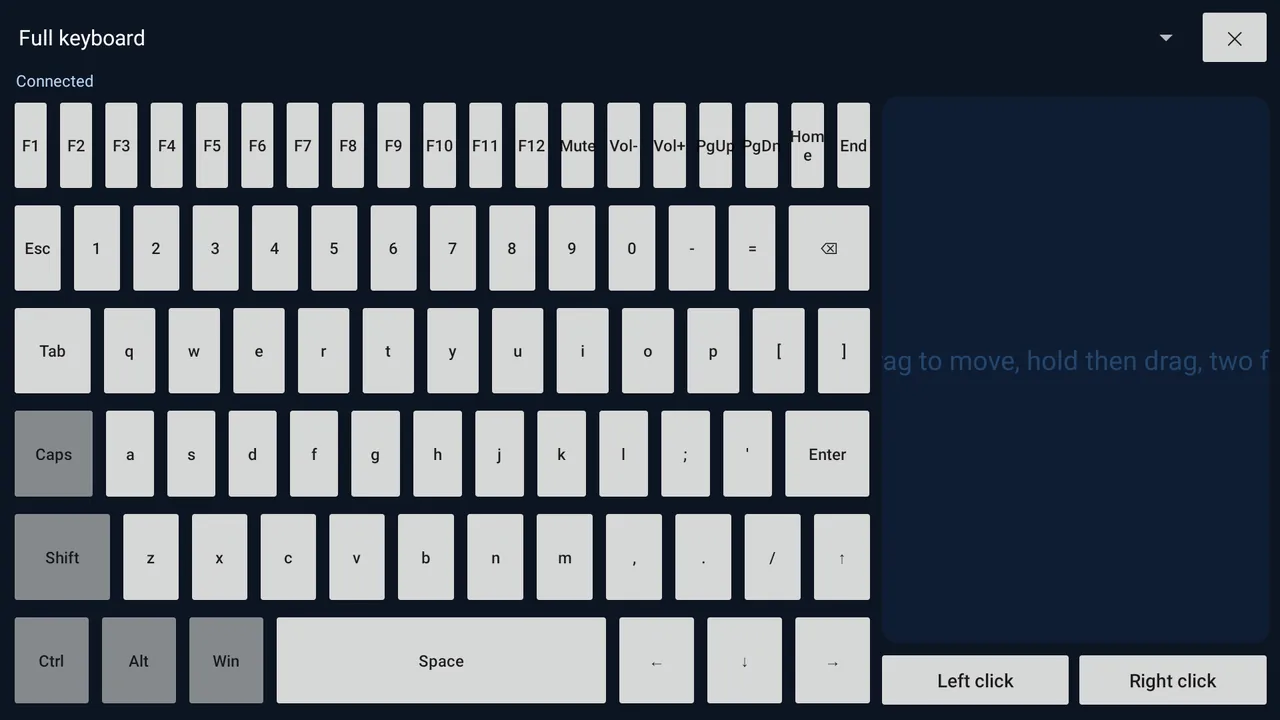 The full keyboard in the Android app (real Google Play screenshot).
| Row | Keys |
| --- | --- |
| Function and media | **F1**–**F12**, **Mute**, **Vol-**, **Vol+**, **PgUp**, **PgDn**, **Home**, **End** |
| Numbers | **Esc**, **1**–**0**, **-**, **=**, **⌫** |
| Letters | **Tab** Q–P **[ ]** · **Caps** A–L **; '** **Enter** · **Shift** Z–M **, . /** **↑** |
| Bottom | **Ctrl**, **Alt**, **Win**, **Space**, **← ↓ →** |
- **Shift** applies to the next key only. While it is on, the labels change to show what you will type: capitals and **! @ # $ % ^ & * ( ) _ + { } : " < > ?**.
- **Caps** stays on until you tap it again. With Caps on, Shift types lowercase letters.
- **Ctrl**, **Alt** and **Win** apply to the next key, so **Ctrl** then **s** sends Ctrl+S. You can combine them.
- The touchpad on the right works like the main one, including hold then drag, and has **Left** and **Right** click buttons.
- Use the selector at the top to switch to another full-screen mode, and **✕** (**✕ Close** on the web) to return.
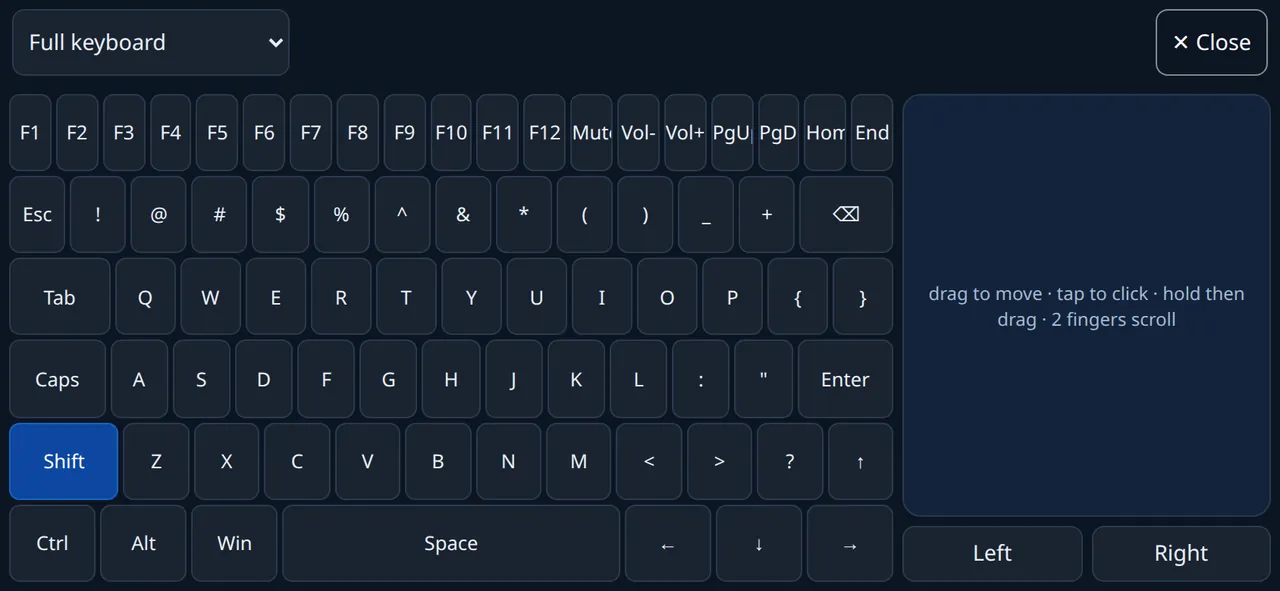 The Web Remote full keyboard with Shift on, showing the shifted labels.
## Full-screen modes
Open a mode with **Full touchpad**, **Full number pad**, **Full special characters**, **Full emoji** or **🎮 Game pad** below the main controls. In the app you can also use **⋮ → Fullscreen modes**. In a full-screen mode, the selector at the top switches between **Full keyboard**, **Full touchpad**, **Full number pad**, **Full special characters**, **Full emoji** and **Game pad** without reconnecting. **✕** returns to the main screen.
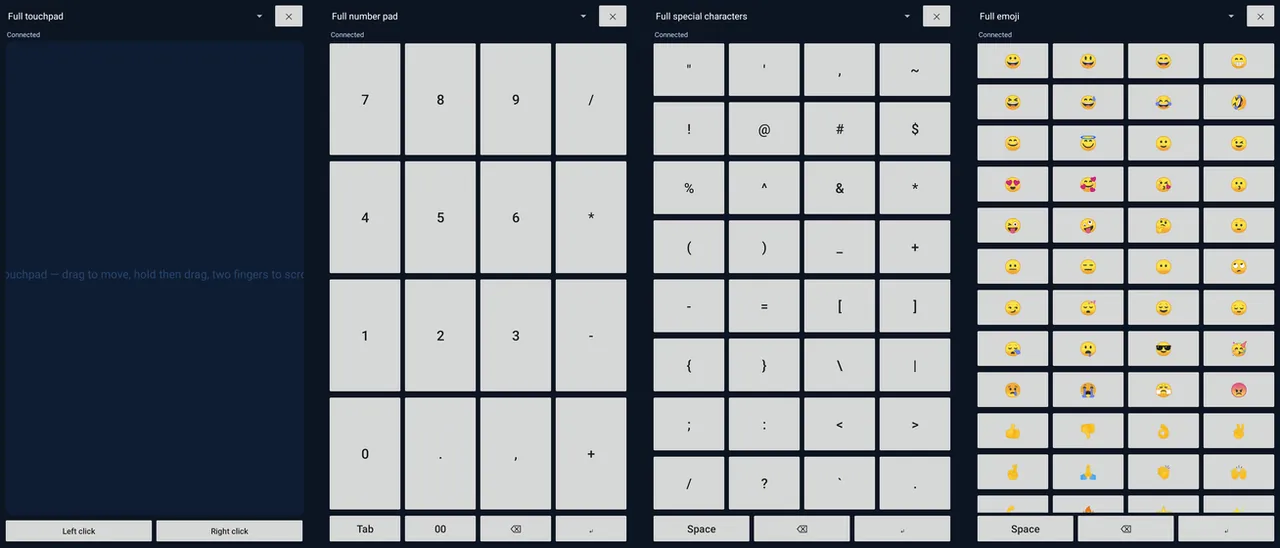 Full touchpad, Full number pad, Full special characters and Full emoji in the Android app (real Google Play screenshots).
| Mode | What you get |
| --- | --- |
| **Full touchpad** | A pad that fills the screen, with **Left click** and **Right click**. All gestures work, including hold then drag |
| **Full number pad** | **7 8 9 /**, **4 5 6 \***, **1 2 3 -**, **0 . , +**, and the edit row **Tab**, **00**, **⌫**, **↵** (Enter) |
| **Full special characters** | All 32 punctuation symbols on a US keyboard, such as ! @ # $ % & \* ( ) [ ] { } < > / ? ~ and quotes, plus **Space**, **⌫**, **↵** |
| **Full emoji** | The 60 emoji as large buttons, plus **Space**, **⌫**, **↵**. Emoji are kept intact, including multi-part ones such as ❤️. Disabled in Bluetooth mode |
| **Game pad** | See [Game pad](#game-pad) |
Every tap is sent immediately, and the pad stays open for repeated input. The full keyboard and game pad use landscape. The other pads work in portrait or landscape, and the special-character and emoji pads use eight columns in landscape. In the app, a line under the selector shows **Connected** or **Not connected — connect on the main screen**. The web version opens these modes full screen where the browser allows it.
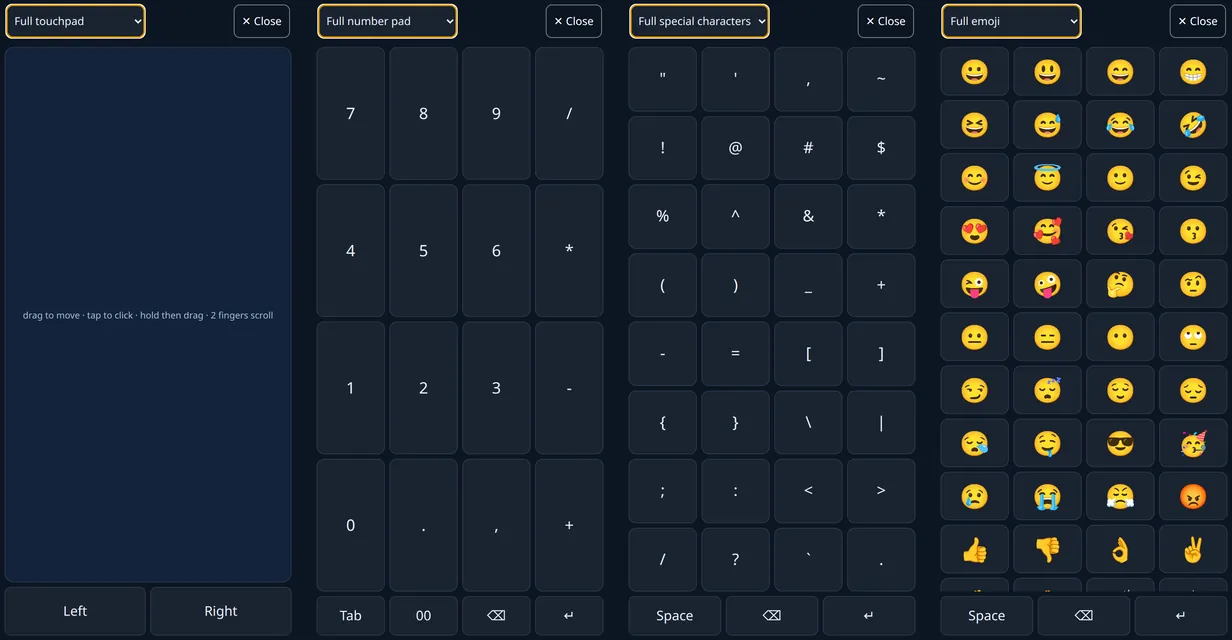 The same modes in the Web Remote. The selector at the top switches between them.
## Game pad
Tap **🎮 Game pad**. The screen turns to landscape and shows a D-pad, **A**, **B**, **X** and **Y** buttons, **L** and **R** shoulder buttons, and **Select** and **Start**. Each control holds a keyboard key for as long as you touch it. It works with any game or emulator that has keyboard controls. It does not appear to the computer as a game controller.
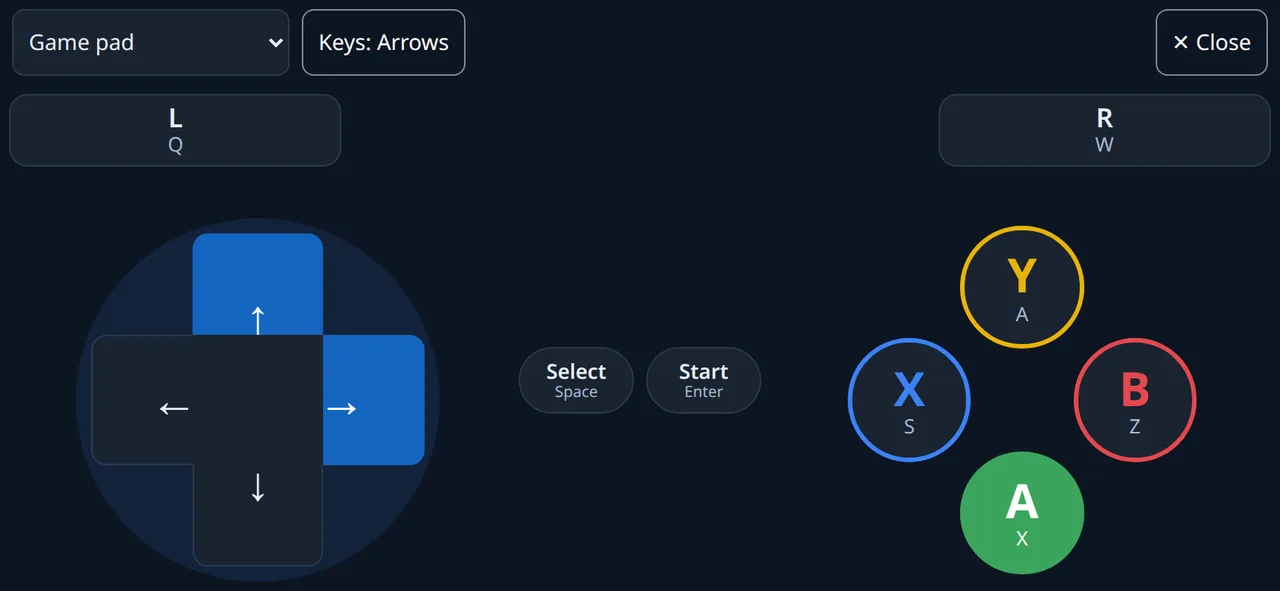 The game pad (Web Remote) holding a diagonal up-right and A at the same time. Each control shows the key it presses. Captured with a mock helper.
| Control | **Keys: Arrows** (emulators, browser games) | **Keys: WASD** (PC games) |
| --- | --- | --- |
| D-pad up / down / left / right | ↑ / ↓ / ← / → | W / S / A / D |
| **A** | X | Space |
| **B** | Z | Shift |
| **X** | S | E |
| **Y** | A | R |
| **L** / **R** | Q / W | Q / F |
| **Select** | Space | Tab |
| **Start** | Enter | Esc |
The Arrows preset follows RetroArch's default keyboard controls for A, B, X, Y, L, R and Start.
- **Change preset:** tap **Keys: Arrows** or **Keys: WASD** at the top. MicsPad releases any held keys first and remembers your choice.
- **Several fingers:** hold a direction and press buttons at the same time.
- **Diagonals:** touch between two arms of the D-pad to hold both directions, and roll your thumb to change direction. A finger that starts on the D-pad stays on it until you lift it, even if it slides past the edge.
- **Slide between buttons** without lifting your finger.
- **Feedback:** pressed controls turn blue, and the phone gives a short vibration where supported.
- **Safety:** leaving the game pad, switching apps or turning off the screen releases every key. Over Web Remote, the phone repeats each held key about once a second. The helper releases any key it has not heard about for 3 seconds, so a dropped phone cannot leave a key stuck.
- **Web Remote needs helper 1.2.0 or newer.** Older helpers ignore game pad presses. Check with `micspad_agent --version`.
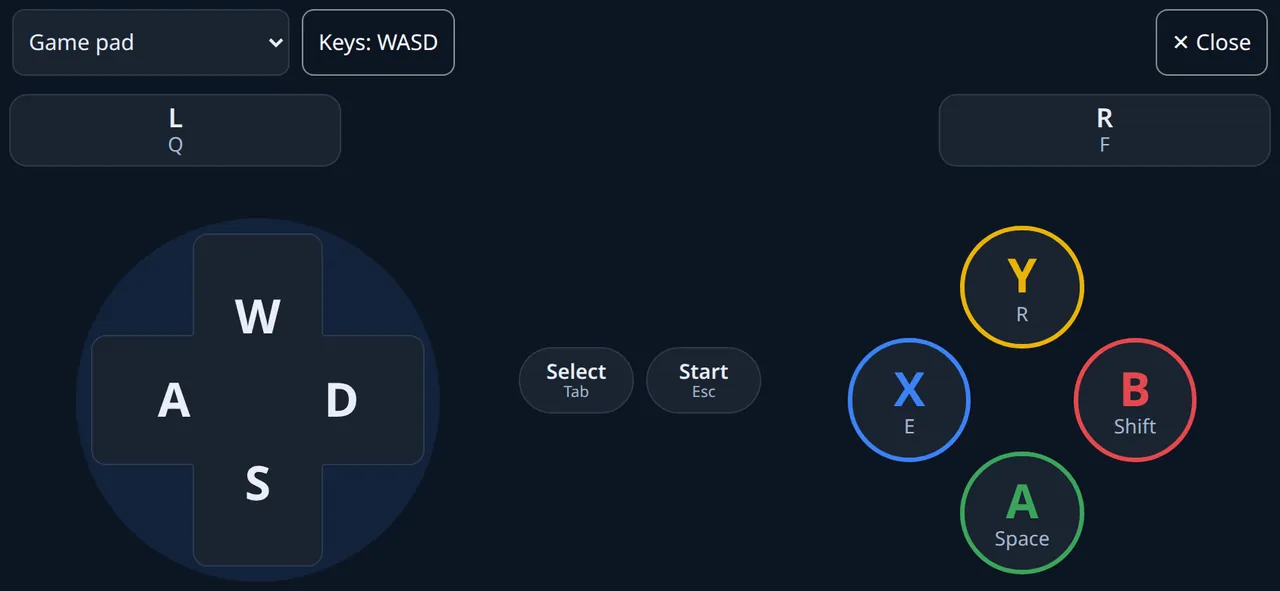 The Keys: WASD preset.
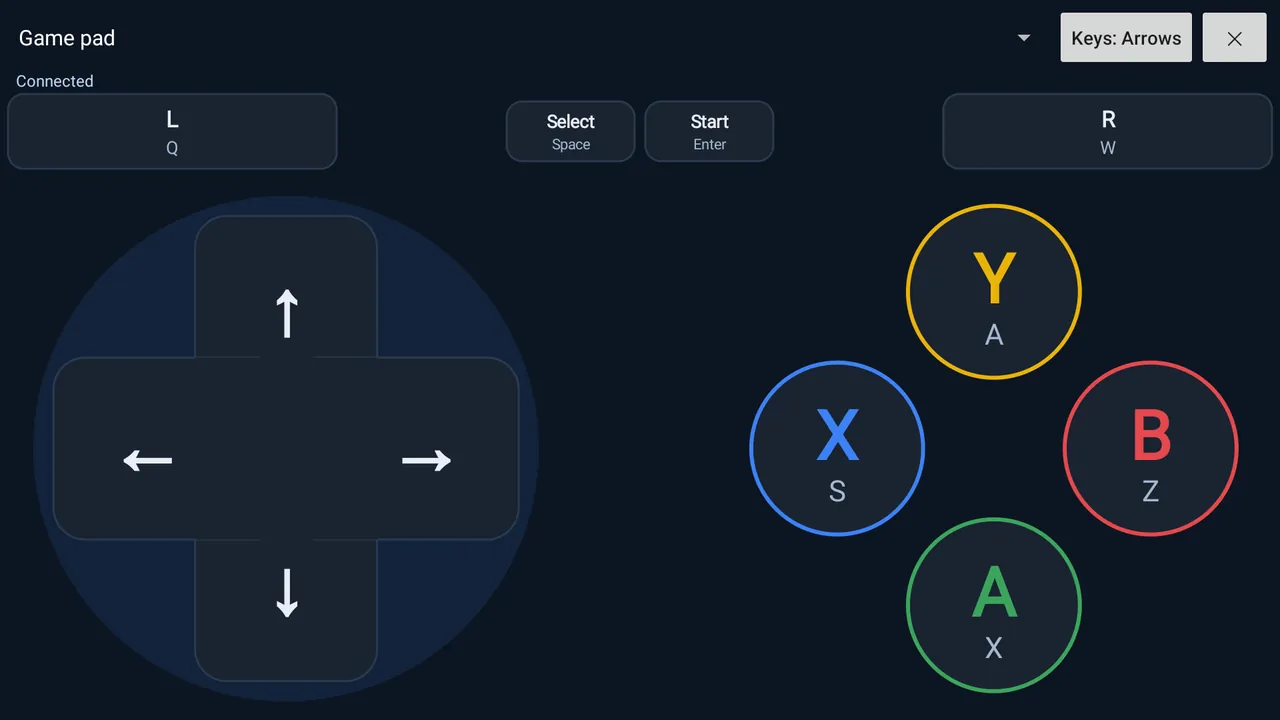 The game pad in the Android app (real Google Play screenshot).
## Install the Web Remote as an app
- **Android (Chrome):** tap **Install** in the header when it appears, or **⋮ → Install as app**. If the browser has not offered installation, MicsPad tells you to use the browser menu's **Install app** or **Add to Home Screen**.
- **iPhone or iPad (Safari):** tap **Share (□↑)**, then **Add to Home Screen**. **⋮ → Install as app** shows the same steps.
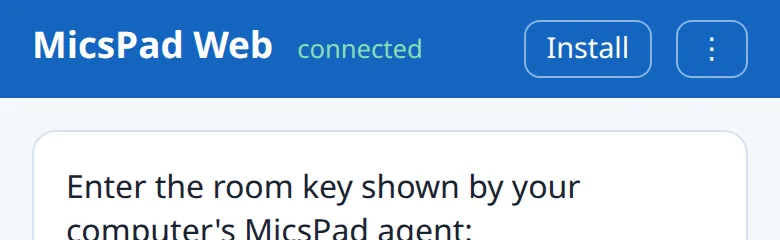 The Install button appears in the header when the browser offers installation (example).
The installed app opens as **MicsPad Web** in its own portrait window, without the browser bar. It opens even when you are offline, but controlling a computer needs a connection. The page follows the phone's dark or light setting.
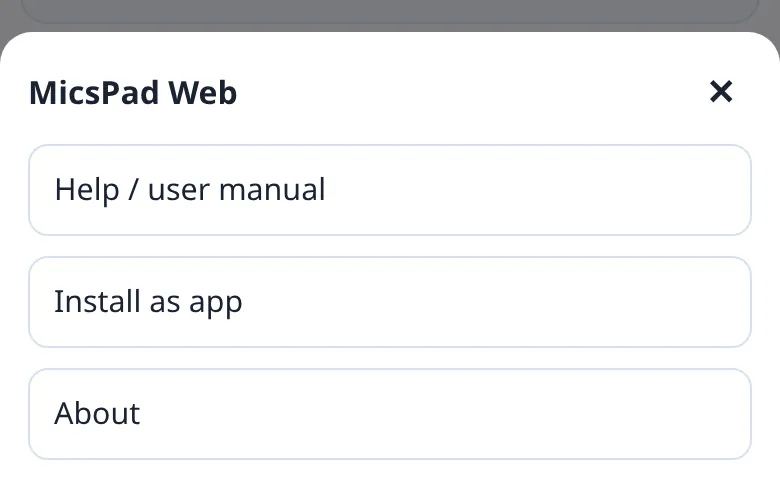 The Web Remote ⋮ menu.
## Settings, languages and help
MicsPad has no separate settings screen. It remembers these choices on the phone:
| Remembered | Where |
| --- | --- |
| Bluetooth or Web Remote mode, room key, connected computers, last computer | App |
| Room key | Browser, for this site only. It is cleared if you clear site data |
| Quick words and their use counts | App and each browser separately. Use **Export** and **Import** to move them |
| Game pad preset (Arrows or WASD) | App and browser |
| Language | App: **⋮ → Language** offers **System default**, **English** and **中文(简体)**. |
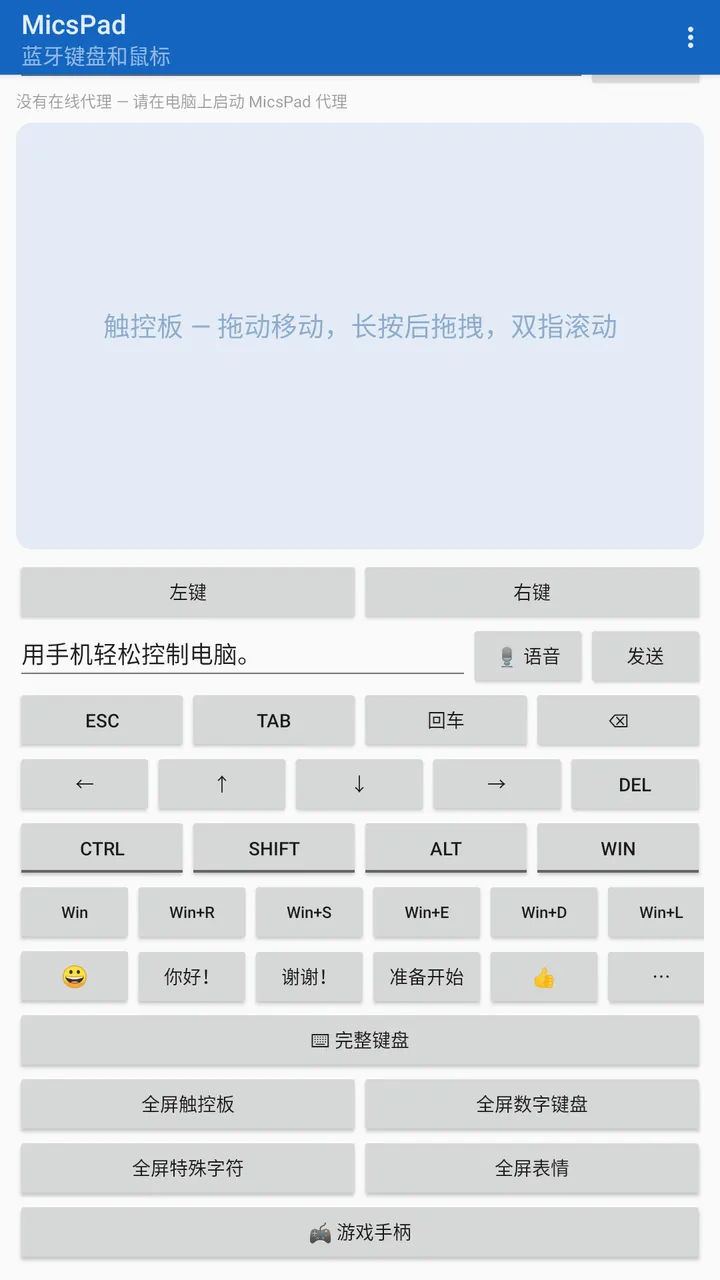 The Android app in Simplified Chinese (real Google Play screenshot). The Web Remote is English only.
**Help:** the app's **⋮ → Help** opens the **User manual**. In the Web Remote, use **⋮ → Help / user manual**, or the **Install it on your computer →** link under the room key. **⋮ → About** shows the version (app) or the licence (web). MicsPad is © 2026 micstec.com and released under the MIT License.
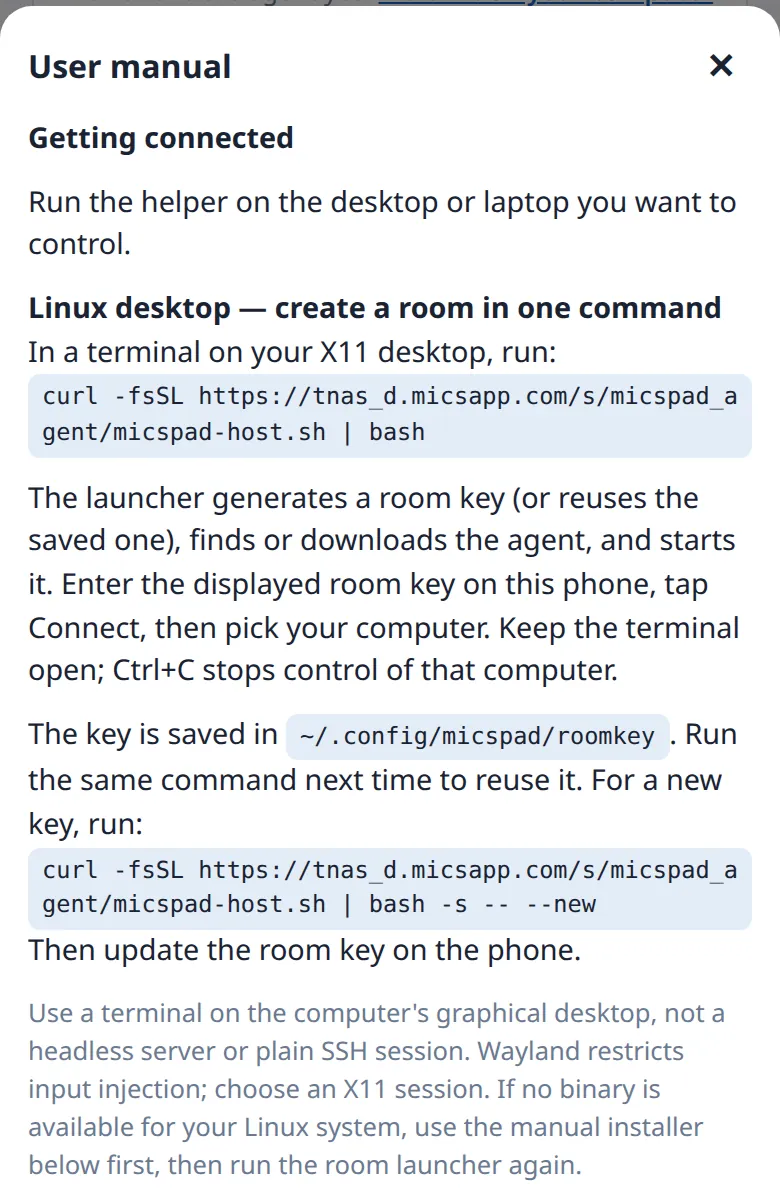 The built-in Web Remote user manual.
## Privacy and security
- **The Android app collects nothing.** It has no analytics, ads, accounts or third-party SDKs. Your remembered computers, quick words and settings stay on the phone.
- **Bluetooth mode** sends input only to the paired, connected device and does not use the internet. Pair only with devices you own, and remove old pairings.
- **Web Remote** sends your input over an encrypted connection (HTTPS/WSS) through the relay at micspad.micstec.com. The relay forwards it in real time without storing, logging or inspecting it. It keeps the room key only in memory while you are connected. The web page also loads the micstec.com site statistics script (`sp.micstec.com`, aggregate mode). The Android app does not.
- **The room key is the only lock.** Anyone who knows it can control that computer while the helper runs. Use a long, unguessable key, keep it private, stop the helper when you finish, and run the launcher with `--new` to replace a key you have shared.
- **Voice:** recognition is done by your phone's or browser's speech service, under that provider's terms. MicsPad does not receive or store audio, and it sends a transcript only when you tap **Send**.
- Read the full [privacy policy](https://micspad.micstec.com/privacy.html).
## Troubleshooting
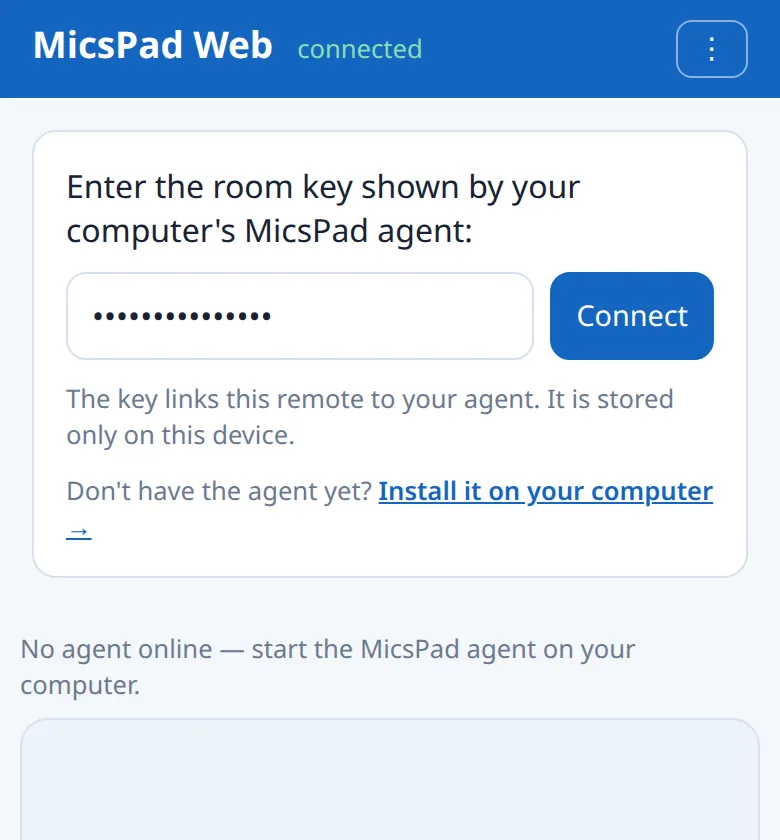 Connected to a room in which no helper is running (example).
| Problem or message | What to do |
| --- | --- |
| **No agent online — start the MicsPad agent on your computer** | Start the helper with exactly the same key, including capitals and dashes. Check that the computer is online. Helpers appear within a few seconds |
| **key must be at least 6 characters** (web) / **Room key must be at least 6 characters** (app) | Use a key of 6 or more characters on both the phone and the computer |
| **reconnecting…** (web) / **Reconnecting… (…)** (app) | The phone lost the relay. It retries automatically. Check the phone's internet connection |
| Helper prints `--key is required and must be at least 6 characters` | Start it as `micspad_agent --key YOURKEY`. Double-clicking the `.exe` without a key does not work |
| Helper prints `Could not initialize the input backend` | It is not running in a graphical session. Run it in a terminal on the desktop itself, not over SSH or on a headless server |
| The pointer does not move on Linux | Log out and choose an X11 session, such as **GNOME on Xorg** or **Plasma (X11)**. Wayland blocks input injection |
| The pointer does not move on macOS | Allow the helper (or Terminal) in **Accessibility**, then restart the helper |
| Chinese or emoji appear as nothing or as wrong characters | Use Web Remote. On Linux, install `xclip` or `xsel` |
| The game pad does nothing over Web Remote | Update the helper to 1.2.0 or newer by running the installer again or using the launcher |
| A game ignores the game pad | Switch between **Keys: Arrows** and **Keys: WASD** to match the game's controls, or set the game's keyboard controls to these keys |
| **This phone's Bluetooth stack has no HID device role** or **Registration rejected** | The phone cannot act as a Bluetooth keyboard. Use Web Remote mode |
| The computer cannot find **MicsPad Keyboard/Mouse** | Wait for **Registered** before tapping **Discoverable**, then pair within 120 seconds. Or pair from the phone's Bluetooth settings and use **Connect** |
| The computer says it cannot connect | Remove the pairing on both the computer and the phone, then pair again with MicsPad open and **Registered** |
| **No paired devices. Use Discoverable and pair from the host first.** | Nothing is paired yet. Follow [Pair for the first time](#pair-for-the-first-time) |
| **Host unplugged the virtual cable (unpaired)** | The computer removed the pairing. Pair again |
| **Mute**, **Vol-** or **Vol+** do nothing over Bluetooth | Remove the pairing and pair again |
| Wrong symbols appear over Bluetooth | The computer uses a non-US keyboard layout. Switch it to US English, or use Web Remote |
| The connection drops when the phone sleeps or you switch apps | Keep MicsPad open. The screen stays on while connected, and the app reconnects when you return |
| The launcher shows codes such as `\033[36m\033[1m` around the room key | These are colour codes. The key is the text between them, for example `abcd-efgh-jkmn` |
| Web: saved quick keys do not appear in the **Quick keys** list | In the current web version, the emoji grid can push the saved list out of view, although **Save**, **Export** and **Import** still work. Edit and delete quick keys in the Android app, or export, edit the file, clear the site's data and import it again |
## Frequently asked questions
**Can an iPhone work as a Bluetooth keyboard?** No. iOS does not let apps act as a Bluetooth keyboard. iPhone users should use the Web Remote in Safari.
**Does the computer need software in Bluetooth mode?** No. It sees a standard Bluetooth keyboard and mouse.
**Can I use MicsPad on a smart TV?** In Bluetooth mode, yes, if the TV accepts Bluetooth keyboards and mice. The helper does not run on TVs.
**Is it a real game controller?** No. The game pad presses keyboard keys, so games must support keyboard controls.
**Does MicsPad cost anything?** No. The app, the Web Remote and the helper are free, with no ads or accounts.
**Can I run my own relay?** The helper and the launcher accept `--server`, and the web page always connects to the server that delivered it. The Android app always uses micspad.micstec.com.